General Operation
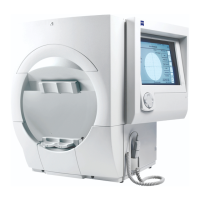
Humphrey Field Analyzer II-
i
series User Manual 2660021145640 A
2-2
Note: HFA II-
i
series system software Ver. 5.x has updated the style of the user interface without
altering the button locations, functions, and text from the prior software version. This manual
depicts the screens in the prior software style. Regardless of style, text and buttons on screen
images depicted in this manual are identical to those in the Ver. 5.x software screen images.
The Title Bar
This area is the top portion of every screen. The middle of
the title bar displays the name of the
screen in bold type. The left side shows the system software version and the “i” button. More
information about the “i” button appears later in this section. The right side displays the current
date, time, and a picture that shows if removable media is in use.
CAUTION: Do not remove removable media when
the padlock is displayed on the
screen as is shown in Figure 2.1.
Operator messages may appear in the top right corner of the Title Bar or the center of the Screen
Body to
inform you of a condition or alert you to a problem. “Printer is not connected or Off Line”
and “Uninitialized Disk” are examples of operator messages. Multiple messages may appear stacked
and overlapping in the upper right corner. Touching the top message collapses it, revealing the
previous message.
The Screen Body
The Screen Body comprises the largest part of every
screen. This is where most of the commands are
issued via command buttons. The contents of the Screen Body change after every command. The
Screen Body is referred to as the “screen” throughout the User Manual. Frequently, a button will
appear dimmed, or “ghosted,” or “grayed out.” This indicates either that the button function cannot
be activated from that screen or that the button represents a feature that is not available on the HFA
II-
i
model being used. For example, the CUSTOM TESTS button on the Model 720
i
has been ghosted
because this option is not available on the Model 720
i
and is, therefore, nonfunctional.
Icon Buttons
These buttons occupy the right side of most scr
eens. Each has a unique function that can be
accessed at any time, unless there is a pop-up window present or the icon buttons are ghosted. See
“Pop-Up Windows,” on page 2-4 for more details.
The HFA II-
i
’s icon buttons are shown below along with a brief description of their function.
MAIN MENU
The
MAIN MENU
icon allows you to return to the Main Menu screen from other system screens.
HELP
The
HELP
icon gives brief explanations of certain features and procedures available on the HFA II-
i
.
You should always consult this Manual for further information.


 To Next Page
 Loading...