DICOM Gateway 2.0 (Optional)
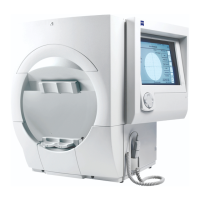
Humphrey Field Analyzer II-
i
series User Manual 2660021145640 A
H-2
The DICOM Gateway 2.0 is compatible with HFA II-
i
series systems running HFA Software V5.x, with
a DICOM Gateway 2.0 networking license activated.
DICOM Gateway 2.0 must be installed on a computer connected to the
same network as your HFA.
This is your HFA Gateway Computer. The software on this computer acts as an intermediary between
your HFAs and your DICOM Storage and Worklist Servers.
The procedures for installing and configuring the D
ICOM Gateway 2.0 software are described in the
DICOM Gateway 2.0 User Manual
. The procedures for setting up your HFA to use the DICOM
Gateway 2.0 are described in this appendix.
To use the DICOM Gateway 2.0, see appr
opriate sections in this manual:
• “Printing To a File,” on page 14-36
• “Using an EMR/PMS/DICOM System,” on page 14-38
• “Exporting to EMR/PMS/DICOM Systems,” on page 14-41
• “Importing Work Lists from DICOM Systems
using DICOM Gateway 2.0,” on page 14-48
• “Recall Patients, View, or Print Tests from a D
ICOM Archive (DICOM Gateway 2.0 only),” on
page 14-54
DICOM Gateway 2.0 Configuration Overview
The setup process for your complete DICOM Gateway solution includes the following steps that you
will need to perform:
1. DI
COM Server Setup: Set up your DICOM storage server and modality worklist server to
recognize the AE Titles of your HFAs that will be connecting through the DICOM Gateway 2.0.
This is a potentially complex and time-consuming process whose details depend on your
DICOM Storage Provider and which should only be attempted by someone who has expert
knowledge of your DICOM Storage Provider system (e.g., an IT or DICOM network
administrator).
2. Install and Con
figure DICOM Gateway 2.0: Install and configure the DICOM Gateway 2.0
software to recognize the connected HFAs and to communicate with the designated Storage
and Worklist servers. See the
DICOM Gateway 2.0 User Manual
.
3. Configur
e HFA: You will need to manually configure some settings on your HFA to use the
DICOM Gateway 2.0. See “HFA II-i Configuration,” on page H-2 for more information.
4. Us
e DICOM on your HFA: Query your worklist server for requested visual field exams, perform
these exams and export reports and/or exam data to the DICOM Archive. Recall patients and
view or print tests from the DICOM Archive.
HFA II-i Configuration
Configuration Steps and Checklist
1.
❏
Connect the HFA II-
i
to your existing network with an ethernet cable.
2.
❏
Verify you are running system software version 5.x, and a DICOM Gateway 2.0 license is
activated on the HFA II-
i
(see “The Information Button,” on page 2-3).


 To Next Page
 Loading...