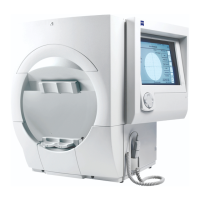
Humphrey Field Analyzer II-
i
series User Manual 2660021145640 A
Networking Reference
I-25
3 If you selected the EMR/PMS Host option, open the Data Format drop-down box and select
XML AND IMAGE FILES. If you selected the DICOM Archive option, REPORT will be
automatically selected. A report is an Encapsulated PDF—a DICOM formatted PDF file
transmitted via DICOM protocols. Only DICOM compatible applications can read an
Encapsulated PDF file.
4
Open the Save/Transmit Option drop-down box and select SAVE AND TRANSMIT.
5
Press PROCEED.
Setting Up Printing To a File
The Printing to a File function allows you to export patient and examination data as a computer file.
The text-based data is exported as an XML (Extensible Markup Language) file to allow it to be
readable across a broad range of different servers and operating systems. Images are converted to
TIFF or PDF files.
Setting Up the Print To a File Function
Use the following process to set up Printing to a File:
1 From the Main Menu, select
SYSTEM SETUP
>PRINT SETUP, to open the Print Setup screen.
2 From the Print Setup screen, select the PRINT-TO-FILE SETUP button to display the Print-To-File
Setup screen (Figure I.30).
Figure I.30 Print-To-File Setup Screen
3 Select the PRINT DESTINATION: drop-down box (see Figure I.31). Your available selections in
this drop-down box are:
• PRINT TO PRINTER
Choose this selection if you wish only to print to paper.


 To Next Page
 Loading...