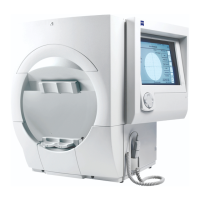
Humphrey Field Analyzer II-
i
series User Manual 2660021145640 A
General Operation
2-23
Set up a Shared Printer (Optional)
Note: It is strongly recommended that you use the
EasyConnect™
Remote Configuration Tool (RCT) (see Appendix (G),
"EasyConnect RCT 1.0,") instead of manually configuring shared
printers on your HFA II-
i
instruments.
5To set up a shared printer, from the Print Setup screen select the
CUSTOM PRINTER SETUP
button to display the Custom Printer Setup
screen shown on the left.
6Touch the down-arrow of the PRINTER TYPE drop-down box to
select the printer type. Select PCL-5, LASERJET COMPATIBLE, or PCL-3,
DESKJET COMPATIBLE.
7Select the SHARED PRINTER SETUP button to display the Shared
Printer Setup screen shown on the left.
8Enter the USER NAME and PASSWORD for the file server.
9Select either ENTER SHARED PRINTER, to enter the printer name
and location manually, or BROWSE FOR SHARED Printer, to search the
directories of the network computer for the shared printer that you
wish to use.
To enter a shared printer manually:
1. When you select ENTER SHARED PRINTER, a pop-up keyboard will
appear. Use it to enter the name of the Workgroup/Domain to use.
Then, select ENTER.
2. A second keyboard will open to allow you to specify the Computer
to use and to specify the path to the shared printer that you wish to
use. Key in the needed information and press ENTER.
To browse for a shared printer:
1. When you first select the BROWSE FOR SHARED PRINTER button, a
“Select Shared Printer” screen will open, listing Windows Work-
groups/Domains. Select a Workgroup/Domain, then select PROCEED.
2. The next browsing screen lists available computers/servers in the
selected Workgroup/Domain. Select your desired computer/server and
press PROCEED.
3. A screen will appear listing the all possible shared printers for the
computer you specified in the previous step.
4. Select a shared printer and then select SELECT PRINTER.


 To Next Page
 Loading...