Setting-Up Tests
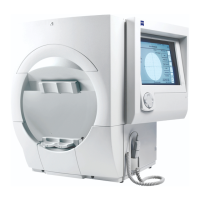
Humphrey Field Analyzer II-
i
series User Manual 2660021145640 A
3-8
Entering Patient ID, Patient Name, Date of Birth, Gender, & Comments
1From the Patient Data 1 screen, choose PATIENT ID.
The Patient ID stores the Patient ID with the test data and is displayed
on the p
rintout.
Note: If you do not enter a Patient ID, a unique 29-character
Patient ID such as “1966.1207.786F.C555.B6B9.473F” will be
automatically created for the patient from the patient’s name and date
of birth. Also an HFA specific Issuer of ID will be entered for the
patient (1.2.276.0.75.2.2.30.2).
2Input up to a total of 64 Patient ID characters and spaces from the
pop-up keyboard. You can use any character found on your keyboard.
Pressing the CAPS key will allow you to switch between upper and
lower case letters. Press ENTER. You will automatically be returned to
the Patient Data 1 screen.
3From the Patient Data 1 screen, choose PATIENT NAME. For
DICIOM software compatibility, you can have up to five name fields to
enter patient names. In order, the field name descriptions are Family
Name, Given Name, Middle Name, Name Prefix, and Name Suffix. The
first name field is the Family Name (Last name). Each time you press
ENTER the next name field will be displayed. You can enter the
complete patient’s name in this first field, or enter a name in one or
more of the other name fields. However, it is recommended to enter at
least the Family Name (Last name) and Given Name in their respective
fields for the patient as it is required by many EMR/PMS/DICOM
systems.


 To Next Page
 Loading...