Page 84 MS - SOUND decoders MS440 to MS990 and MN - NON-SOUND decoders MN170 to MN340
Decoder sound load via USB stick via track (decoder installed in loco)
➢ Download the desired sound project -.zpp file - from www.zimo.at – Update & Sound – ZIMO
Sound Database and save it to the main directory (root) of a USB stick; preferably (simpler) just
this one .zpp file on the stick *
)
➢ Connect „Power“ (power supply or …) to the MXULF → LED „Power“ green.
➢ Connect the track, rerail the vehicle → LED „Schiene“ yellow.
➢ Insert the prepaired USB stick → LED „2“ yellow (if sound project, i.e. zpp file found),
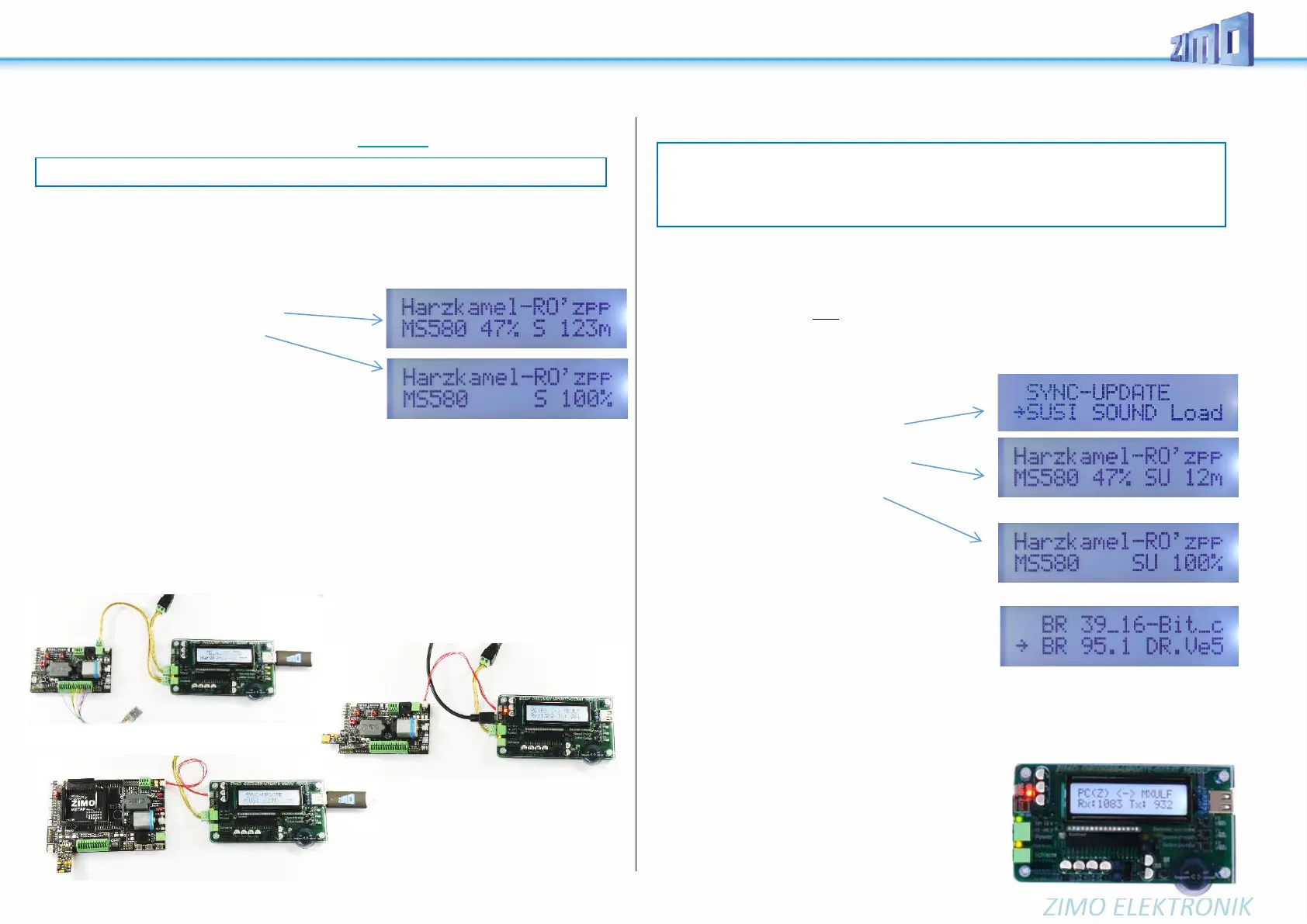
name of the sound project shown on display.
➢ Start the sound load with button 2
→ Progress indicator on the display.
➢ Wait for message „Sound 100 %“.
➢ Derail the vehicle, and - if the charging
or further update process is to be initiated:
➢ Confirm with button R, then ready again
*) If there are several .zsu or .zpp files on the stick (or both types mixed), the first two files are displayed
immediately and the others can be made visible by scrolling. The file marked with an arrow is then
ready to be loaded into the decoder. The process is started by pressing key 1 or key 2; the key must
match the selected file, i.e. key 1 if the .zsu file is selected (decoder update), or key 2 if the .zpp file
is selected (sound loading).
Connecting the decoder to the MXULFA for SW update and sound loading
If the decoder to be processed is NOT installed in a loco (which is placed on an "update track", to be connected
to MXULFA "rail") a connection and test board, equipped with the usual decoder interfaces, is mostly used
for contacting: MSTAPK for all "small" MS decoders (essentially also suitable for "small" MX decoders) or
MSTAPG for MS large scale decoders (not for MX) or MXTAPV for all MX decoders ("small" and "large").
EXAMPLES:
Decoder sound load via USB flash drive using the SUSI pins (decoder outside loco).
➢ As with sound loading via the track:
Save the desired sound project ....... on a USB flash drive (for simplicity's sake, just this one). *
)
➢ Connect „Power“ (power supply or …) to the MXULF → LED „Power“ green.
➢ Connect the connection board (MXTAP or MSTAP) to the MXULF by means of a track connection
("Track" connections) AND by means of a SUSI cable ("SUSI" connections).
➢ Connect the decoder to a suitable interface (PluX, MTC, Next18, ...), for safety's sake with the con-
nection board switched off (on/off switch on the board).
➢ Switch on the connection board (switch-on status recognisable by various LEDs).
➢ R button (long, approx. 3 sec)
Opens the MXULF menu on the display.
➢ Use scroll wheel:
Select "SUSI SOUND Load" entry
➢ R button (briefly) → Start the sound load
Progress indicator on the display
➢ Wait for message „S… 100 %“
➢ Confirm with Button R,
then ready again
*) If there are several .zpp files on the stick, they
will be displayed. One must be selected by
scrolling.
Decoder software update and decoder sound loading DIRECTLY FROM THE COM-
PUTER
With software ZSP or ZCS via USB cable from computer to MXULF. The MXULF display then only shows
the data transfer; operation is performed in the respective software.
MORE INFO
WILL FOLLOW (based on ZCS)
NOTE: Charging via the track is slow - 1 hour and more. Fast alternative via SUSI pins.
NOTE: SUSI loading is the fast alternative (approx. factor 10 compared to track); however, only
possible if the decoder is NOT installed. Normally the connector locations (PluX, MTC, Next18, …)
on a test and connection board MXTAP or MSTAP are used. With wired decoders (also with NEM-
651 or -652) sound loading via the SUSI pins is possible, but the SUSI connections (no pins present)
must be made accessible by soldered wires.
a wired decoder for SW update, sound loading, testing at
MSTAPK; connection to MXULFA via "rail", software and
sound projects from USB stick.
A "PluX" decoder for SW update and sound loading to MXTAPV; connection to MXULFA via "SUSI" cable, but
NO cable "rail" from MXULFA to TAP!
a "Next18" decoder for SW update and sound load-
ing to MSTAPK; connection to MXULFA via "SUSI"
cable. NO cable "rail"!
Software and sound projects from computer (pro-
grams ZSP or ZCS) via USB cable.


 To Next Page