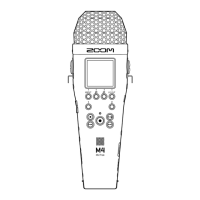
Overview of main screens
This section explains the screens that are shown on the M4 display.
Home Screen
This appears on the display when the M4 power is turned on. This shows the state of the M4, including the
recording status and the waveforms of input signals.
❶
Status icon
This icon shows the recording status.
• Stopped
• Recording
❷
Counter
This shows the available recording time when standing by and the current elapsed recording time
when recording.
❸
Timecode
This is shown when the timecode setting is enabled, for example. (→ Using timecode)
❹
Remaining battery charge indicator
This is shown when batteries are being used for operation. When the remaining battery charge
becomes low, replace the batteries (→Installing batteries), or connect an AC adapter (→Connecting an
AC adapter) or portable battery (→Using other power sources).
❺
Volume/waveform display (built-in XY mic, INPUT 1/2)
This shows the volumes of the signals input to the M4. Waveforms appear red during recording.
(→Adjusting the volume display size to make checking easier)
Inputs are shown on the left edge of each volume display.
• L: Built-in XY mic left signal
14


 To Next Page
 Loading...