Recording
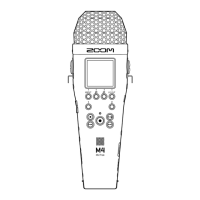
1. Press when the Home Screen is open.
The REC indicator will light red, recording will start and the name of the file being recorded will be
shown on the display.
The elapsed recording time is shown while recording.
2. Press to stop.
Sliding toward HOLD can prevent misoperation when recording. (→Preventing misoperation
(hold function))
NOTE:
If the file size exceeds 2 GB when recording, a new file will be created automatically and recording will
continue without pause. No gap in sound will occur between the two files when this happens.
HINT:
• Marks can be added during recording by pressing . (→Adding marks during recording)
A maximum of 99 marks can be added in a file.
• Files are automatically saved at set intervals while recording. If the power is interrupted or another
problem occurs while recording, an affected file can be restored to normal by playing it with the M4.
54


 To Next Page
 Loading...