The Zun Dian MATS-001 is a shipping label printer designed for efficient label printing. It supports both fanfold and roll-type labels and is compatible with Windows and macOS operating systems.
Function Description
The MATS-001 printer's primary function is to print shipping labels. It features a feed button that also acts as a status indicator, paper guides to ensure proper label alignment, and cover open levers for easy access to the print head. The printer connects via a USB port and uses a print head module, platen, and movable paper sensor for accurate printing.
Important Technical Specifications
While specific technical specifications like print resolution, speed, or maximum label width are not explicitly detailed, the manual implies standard label printing capabilities. The printer uses a direct thermal printing method, as indicated by the "direct thermal" label type mentioned in troubleshooting.
Usage Features
Power Connection:
- Ensure the printer's power switch is in the off position.
- Connect the power cord to the printer.
- Connect the other end of the power cord to an outlet.
- Connect the USB cable to both the printer and your PC.
Note: Use only the original power adapter to prevent damage. Unplug the printer if not in use for extended periods.
Label Loading:
- Fanfold Labels:
- Turn on the printer.
- Adjust the paper guide to fit the width of the paper.
- Insert the paper into the entry slot. The paper will be automatically sucked into the paper guide.
- Roll Type Labels:
- The roll-type label holder needs to be aligned with the hooks at the bottom of the printer.
Note: When the printer is powered on, the paper will be automatically fed into the paper guide.
Feed Button Functionality:
- Turn On/Off: The indicator light turns on when the printer is powered on and off when the printer is shut down.
- Feed Paper:
- Pressing the feed button once will send out a whole label when using label paper.
- Long-pressing the feed button will send a fixed length of continuous paper.
- Pause/Resume Printing: During printing, pressing the feed button will pause the current task (indicator light turns green). Pressing it again will resume the unfinished print task.
Driver Installation (Windows):
- Download the Windows Driver application from http://www.zundian.site/download.
- Close any security software before installation.
- Connect the printer to the computer via USB.
- Turn on the printer and verify the connection.
- Double-click the Windows Driver.
- Read and agree to the license agreement, then click "Next."
- Select the printer driver's port name and click "Next."
- Click "Finish."
- After installation, the printer icon will appear in "Start" → "Devices and Printers."
Printing Preferences (Windows):
- Go to "Start" → "Devices and Printers," right-click the printer icon, and select "Printing preferences."
- Click "Paper Name" to choose the desired paper type.
- Click "Manager" to add new stock.
- Adjust "Rotate" or "Effect" settings, which will be shown in the "Preview."
- Click "Advanced" to set "Save Paper," "Density," "Speed," "Test," "Media Handling," and "Media Type" options.
- Set "Watermark" (BMP format recommended) and "Halftone" settings.
Printer Properties (Windows):
- Go to "Start" → "Devices and Printers," right-click the printer icon, and select "Printer properties."
- Click "General" → "Print Test Page" to print a label with current settings.
- Click "Ports" to choose the required port.
- Click "Advanced" to set the available time for the printer.
Driver Removal (Windows):
Note: Turn off the printer or unplug the USB cable before removing the driver.
- Double-click the Windows Driver.
- Select "Uninstall printer driver" and click "Next."
- Choose the driver to be uninstalled and click "Next."
- Click "Yes."
Driver Installation (macOS):
- Download the Mac Driver application from http://www.zundian.site/download.
- Double-click the Driver and click "Continue."
- Select a destination and click "Continue."
- Select "Installation Type" and click "Continue" -> "Install."
- Type in your computer's password.
- Once installation is successful, turn on the printer and connect it to your computer (e.g., via USB cable).
- Click "Launchpad" -> "System Preferences" -> "Printers & Scanners."
- The MATS-001 printer should be available under "Printer & Scanner."
Maintenance Features
Troubleshooting LED Display:
- Blue (Always on): Printer is ready.
- Purple (Always on): Print head is overheated.
- Red (Always on): Cover is not closed.
- Red (Flash slowly): Paper out.
- Red (Flash rapidly): Label learning is abnormal.
- Orange (Always on): Printer is not ready.
- Orange (Flash slowly): Paper jam, paper position is abnormal.
- Green (Always on): Printing.
- Green (Flash slowly): Printing pause.
- Green (Flash rapidly): Receiving data.
Paper Jam Handling:
Note: Turn off the printer power when performing these steps.
- Press the cover open levers and hold them upwards, then open the cover.
- Take out the jammed paper.
- Clean the print head and platen.
- Reload new paper.
Print Problem Solutions:
- Common quality problem:
- Error speed setting: Set minimum printing speed via control panel, drivers, and software for best quality.
- Incorrect margins/paper size: Ensure correct label size. If content exceeds label size, the printer may "shrink" it, causing fade.
- Incorrect print density setting: Set print depth to the minimum value for your application.
- Dirty print head: Clean with an alcohol-moistened cotton swab from center to sides. Wait 1-2 minutes for alcohol to evaporate completely before use.
- Poor source file quality: Print a sample label to test.
- Broken print head: Change print head.
- White spots on label:
- Dirty print head: Clean as described above.
- Blank label printed:
- Label upside down/wrong side: Load label correctly with printing side up.
- Not "direct thermal" label: Ensure your label is "direct thermal."
- Printer system error: Restart printer. If problem persists, contact customer service.
- Misalignment/skip label:
- Printer uncalibrated: Calibrate using "Automatic label learning" (Method 1: Tools) or by pressing and holding the feed button until the blue light goes out twice, then releasing (Method 2).
- Incorrect tag format: Check and correct label format.
- Paper jam:
- Paper not placed correctly: Open cover, remove jammed paper, clean print head paper suction port, and reload.
- Paper not sucked in:
- Paper not detected by sensor: Push paper flat to the sensor's position from the back entry slot.
- Label/image offset:
- Discontinuous label, configured for continuous mode: Set printer to correct medium type.
- Paper not conforming to specifications: Use paper that meets specifications.
- Printer uncalibrated: Calibrate printer.
- Dirty platen: Clean print head and platen.
- Incorrect paper sensor calibration: Calibrate printer.
- Incorrect media loading: Ensure media is properly loaded.
- Incompatible media: Use media that meets printer specifications.
- Bar code not scanned:
- Printing too dark/light, barcode not meeting specifications: Adjust concentration or print speed.
- Insufficient blank space around barcode: Leave at least 3.2 mm (1/8 inch) between barcode and other printed areas/edge of label.
- Auto calibration failed:
- Incorrect media loading: Ensure media is properly loaded.
- Medium not detected by sensor: Calibrate printer.
- Dirty/incorrectly positioned sensor: Clean and correctly position sensor. During calibration, gap mark or black mark should align with paper sensor.
- Incorrect media type setting: Set printer media type correctly.
Communication Problem Solutions:
- Label format sent, but not identified:
- Incorrect communication parameters: Check printer driver or software communication settings.
- Handshake protocol mismatch: Check handshake protocol settings for printer and computer.
- DATA light not flashing:
- Label format sent, but not identified (different cause):
- Prefix/separated character set mismatch: Check prefix and separated characters.
- DATA lights flash, but not print:
- Incorrect data sent: Check communication settings on computer to match printer settings. If problem persists, check label format.
Frequently Asked Questions (Q&A):
- Driver not found in desktop software list: If "MATS-001" is not available, select "Zebra LP2844" as the driver. This is common for software like Stamps.com Desktop, FedEx Ship Manager Desktop, Endicia DAZzle Desktop, and QuickBooks Enterprise Desktop.
- Poor printing quality/splotchy prints: Go to "Start" → "Devices and Printers," right-click the printer icon, select "Printing preferences," then click "Halftone." For best quality, ensure "None" is selected. Refer to the manual for more adjustment techniques.

 Need help?
 General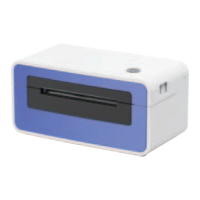

 To Next Page