For technical questions, please call 1-888-866-5797 29
About the Scan Tool
DISPLAY FUNCTIONS
3
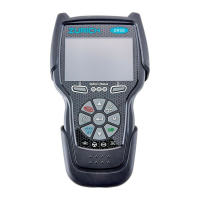
5. M (Menu) button – When pressed, displays the Main Menu.
6. LD button – When pressed while linked to a vehicle, places the
Scan Tool in Live Data mode.
7. UP button – When in MENU mode, scrolls UP through the
menu options. When LINKED to a vehicle, scrolls UP through the
current display screen to display any additional data.
8. ENTER button - When in Menu mode, confirms the selected
option or value.
9. DOWN button - When in MENU mode, scrolls down through the
menu options.
When LINKED to a vehicle, scrolls down through the
current display screen to display any additional data.
10. GREEN LED - Indicates that all engine systems are running
normally (all Monitors on the vehicle are active and performing
their
diag
nostic testing, and no DTCs
are present).
11. YELLOW LED - Indicates there is a possible problem. A “Pending”
DTC is present and/or some of the vehicle's emission monitors have
not run their diagnostic testin
g.
12. RED LED - Indicates there is a problem in one or more of the
vehicle's systems. The red LED is also used to show that DTC(s)
are present. DTCs are shown on the Scan Tool’s LCD display. In
this case, the Malfunction Indicator (“Check Engine”) lamp
on the
vehicle's instrument panel will light steady on.
13. Display - Displays test results, Scan Tool functions and Monitor status
information. See DISPLAY FUNCTIONS, below, for details.
14. CABLE - Connects the Scan Tool to the vehicle's Data Link Connecto
r
(DLC).
DISPLAY FUNCTIONS
Figure 2. Display Functions
See Figure 2 for the locations of items 1 through 15, below.
1. I/M MONITOR STATUS field - Identifies the I/M Monitor status area.
4
3
2
5
7
6
114
10
11
12
8
9
13
15
LIVE DATA PLAYBACK
Live Data Mode
LIVE DATA PLAYBACK
29
When you select Yes from the Record Live Data confirmation
screen, the Scan Tool enters the "Live Data Playback" mode,
and the Playback Live Data menu displays.
3. Select Continuous Playback or Frame
by Frame, as desired, then press ENTER
.
The display shows the recorded
Live Data, beginning with the
"trigger" frame.
Only a limited amount of PID data
can be displayed on the screen at
one time. If additional PID data is available, a small arrow is
shown on the display. Press UP
and DOWN , as
necessary, to view all available PID data.
When viewing recorded Live Data, look for any irregularities in any
of the PID values/signal information (LTFT %, RPM, MAP, TEMP,
etc.). If any PIDs are not within specification, or irregularities are
detected, follow the procedures in the vehicle's service repair
manual to perform additional troubleshooting and repair.
4. When you select Continuous
Playback, the Scan Tool plays
recorded data at a rate of one frame /
15 seconds. When playback is finished,
a Playback Complete message displays.
To play the data back again, select
Continuous Playback or Frame by
Frame, as desired, then press
ENTER
.
To exit Live Data Playback mode and return to Live Data mode,
select Exit Playback, then press ENTER
.
5. When Frame by Frame is selected, you must scroll the individual
frames manually.
When you have viewed all PID information for the current frame of
Live Data, select Next Frame or Previous Frame, as desired,
then press ENTER
.
To exit Live Data Playback mode, select Exit Playback, then
press ENTER
.
If there is no Live Data currently stored in the Scan Tool's
memory, an advisory message shows on the display. Press LD
to exit the "Live Data Playback" mode.


 To Next Page
 Loading...