EasyManua.ls Logo

ZyXEL Communications WX3100-TO - User Manual

ZyXEL Communications WX3100-TO
2 pages
Print Icon
To Next Page IconTo Next Page
Loading...
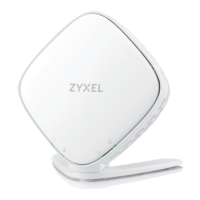
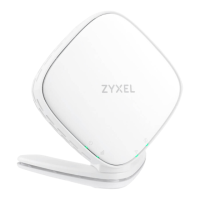
Attach the bracket to the bottom of the WX3100 as shown.
Consider where you want to place the
WX3100 to extend your wireless
network. The extender needs to be placed close to, but not in the Wi-Fi
blackspot, as it still needs to connect to the router to create the mesh
network. This way it also maximises the coverage available.
There are two ways to set up your extender.
Preparing to use the WX3100
Setting up your Extender - Option 1
WX3100-TO
Dual-Band Wireless AX1800 Gigabit Extender
If you need any assistance please call us on
0333 0155156 or email help@digitalhomeuk.com
www.digitalhomeuk.com
Package Contents
Device Power Cable Ethernet Cable Phone Cable Quick Start Guide Declaration of Conformity
Safety Warnings
Quick Start Guide
1
2
Firstly use the included Ethernet cable to connect the WX3100 LAN port
to the original MPro Mesh Router LAN port. Plug in the power adaptor
and wait until the POWER and LINK LEDs are steady green.
Then unplug the Ethernet and power cable from the WX3100.
Place the WX3100 where you want to extend your wireless network.
Plug in the power adapter. Make sure your LINK LED is steady green
(preferred) or amber.
For more details on the LEDs, please refer to the LED table below.
To add more extenders to your network, repeat from step 1.
Note: You do not need to plug in the Ethernet cable in this step.
1
2
3
4
1
2
1
2
4
3
1
On - Power is on or the MPro Mesh conguration process is done.
Blinking - The WX3100 is starting up or under the MPro Mesh
conguration process.
On - The WiFi connection to the MPro Mesh router is good.
On - The Ethernet cable is connected to the WX3100 LAN port.
With Wireless Connection
With Wired Connection
On - The WX3100 detects a system error.
Blinking (Fast) - The WX3100 is upgrading rmware.
Blinking (Slow) - The Easy Mesh process has failed.
On - The signal is too strong. We suggest moving the WX3100
away from the MPro Mesh Router.
Blinking - The WPS is in process.
Off - The WPS process is done.
On - The WiFi connection to the MPro Mesh router is good.
Blinking - The WX3100 is transmitting/receiving WiFi data.
Off - 2.4G/5G WiFi is disabled.
On - The signal is too weak. Move theWX3100 closer to the
MProMesh Router.
Red
Green
Green
Green
Amber
Amber
Red
Green
1 / 2
Wait until the power LED
turns steady green
Question and Answer IconNeed help?

Do you have a question about the ZyXEL Communications WX3100-TO and is the answer not in the manual?

Overview

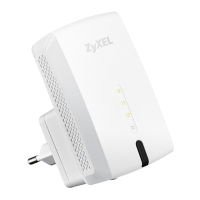
The Zyxel WX3100-TO is a Whole-Home AX1800 Gigabit Extender designed to expand and improve Wi-Fi coverage throughout a home, particularly in conjunction with a Zyxel MPro Mesh router. This device functions as a Wi-Fi extender, creating a seamless mesh network that eliminates dead zones and provides robust connectivity.

Function Description:

The primary function of the WX3100-TO is to extend an existing Wi-Fi network, ensuring strong and stable internet access in every corner of a home. It operates as part of a Zyxel MPro Mesh system, which allows multiple extenders to work together to form a unified network. This means devices can roam freely throughout the house without experiencing drops in connection or needing to manually switch between different Wi-Fi networks. The extender supports the AX1800 standard, indicating it utilizes Wi-Fi 6 technology for faster speeds, lower latency, and increased capacity compared to older Wi-Fi standards.

When integrated into an MPro Mesh network, the WX3100-TO automatically selects the best connection path for your devices, whether it's directly to the router or through another extender. This intelligent routing optimizes performance and ensures a consistent user experience. The device can be set up in two primary ways: either by directly connecting to the router via an Ethernet cable or wirelessly. The wireless setup is particularly convenient for placing the extender in optimal locations without the need for additional cabling.

Important Technical Specifications:

  • Wi-Fi Standard: AX1800 (Wi-Fi 6). This standard offers significant improvements in speed, efficiency, and capacity, making it suitable for homes with multiple connected devices and high-bandwidth activities like 4K streaming and online gaming.
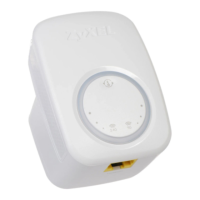
  • Gigabit Ethernet Port: The extender includes a Gigabit Ethernet port, allowing for a wired connection to devices that require maximum speed and stability, such as smart TVs, gaming consoles, or desktop computers. This port can also be used to connect the extender to the router during the initial setup for a more stable connection.
  • MPro Mesh Compatibility: The WX3100-TO is specifically designed to work with Zyxel MPro Mesh routers, ensuring seamless integration and optimal performance within a mesh network environment.
  • LED Indicators: The device features LED indicators that provide visual feedback on its status, including power, LAN connection, and Wi-Fi signal strength. These indicators are crucial for troubleshooting and verifying proper operation.
    • Power LED: Solid green indicates the device is powered on and functioning correctly. Blinking green indicates the device is booting up or undergoing firmware updates. Red indicates a critical error.
    • LAN LED: Solid green indicates a wired connection to the router or another device. Blinking green indicates data transfer.
    • Wi-Fi LED: Solid green indicates a good Wi-Fi signal and connection to the MPro Mesh router. Amber indicates a weak signal, suggesting the extender might need to be moved closer to the router. Red indicates no signal or a disconnected Wi-Fi connection.
    • WPS LED: Solid green indicates the WPS process is active.

Usage Features:

  • Easy Setup: The WX3100-TO offers a straightforward setup process, with two main options.
    • Option 1 (Wired Setup): Connect the extender to the router using an Ethernet cable. Power on both devices, and the extender will automatically link with the router. The LED indicators guide the user through the process.
    • Option 2 (Wireless Setup via App): This method leverages the Zyxel MPro Mesh app for a guided, intuitive setup. Users download the app, log in to their router, and then add the extender by scanning a QR code or selecting it from a list of available devices. The app facilitates the pairing process, often using WPS (Wi-Fi Protected Setup) for quick connection.
  • Flexible Placement: The wireless nature of the extender allows for flexible placement throughout the home. The LED indicators, particularly the Wi-Fi LED, help users identify optimal locations where the signal is strong but still extends coverage to dead zones.
  • Seamless Roaming: Once set up as part of an MPro Mesh network, devices automatically connect to the strongest available Wi-Fi signal as users move around the house, eliminating the need to manually switch networks.
  • Expandable System: The MPro Mesh system is designed to be expandable. Users can add more WX3100-TO extenders as needed to further enhance coverage in larger homes or areas with persistent dead zones. The app simplifies the process of adding additional extenders.
  • WPS Button: The WPS button on the extender allows for quick and secure pairing with compatible routers without needing to manually enter network passwords.

Maintenance Features:

  • Firmware Updates: The device supports firmware updates, which can be crucial for security enhancements, bug fixes, and performance improvements. These updates are often managed automatically through the MPro Mesh system or can be initiated via the app or web interface.
  • LED Indicators for Troubleshooting: The various LED indicators serve as a primary diagnostic tool. By observing the color and state of the Power, LAN, and Wi-Fi LEDs, users can quickly identify potential issues such as power problems, network disconnections, or weak signal strength. For example, an amber Wi-Fi LED indicates a weak signal, prompting the user to relocate the extender closer to the router.
  • MPro Mesh App for Management: The Zyxel MPro Mesh app provides a centralized platform for managing the entire mesh network. Users can view connected devices, check network status, and perform basic troubleshooting directly from their smartphone. This simplifies network management and reduces the need for advanced technical knowledge.
  • Reset Button: A reset button is typically included, allowing users to restore the extender to its factory default settings. This can be useful for resolving persistent issues or when reconfiguring the device.

In summary, the Zyxel WX3100-TO is a user-friendly and powerful Wi-Fi extender that leverages AX1800 (Wi-Fi 6) technology and MPro Mesh compatibility to deliver robust, whole-home Wi-Fi coverage. Its easy setup, flexible placement, and intelligent network management features make it an excellent solution for eliminating Wi-Fi dead zones and ensuring a seamless internet experience.

ZyXEL Communications WX3100-TO Specifications

General IconGeneral
BrandZyXEL Communications
ModelWX3100-TO
CategoryExtender
LanguageEnglish

Related product manuals