Page 50 Image Server 2000 Owner’s Manual
Setting the Date and Time
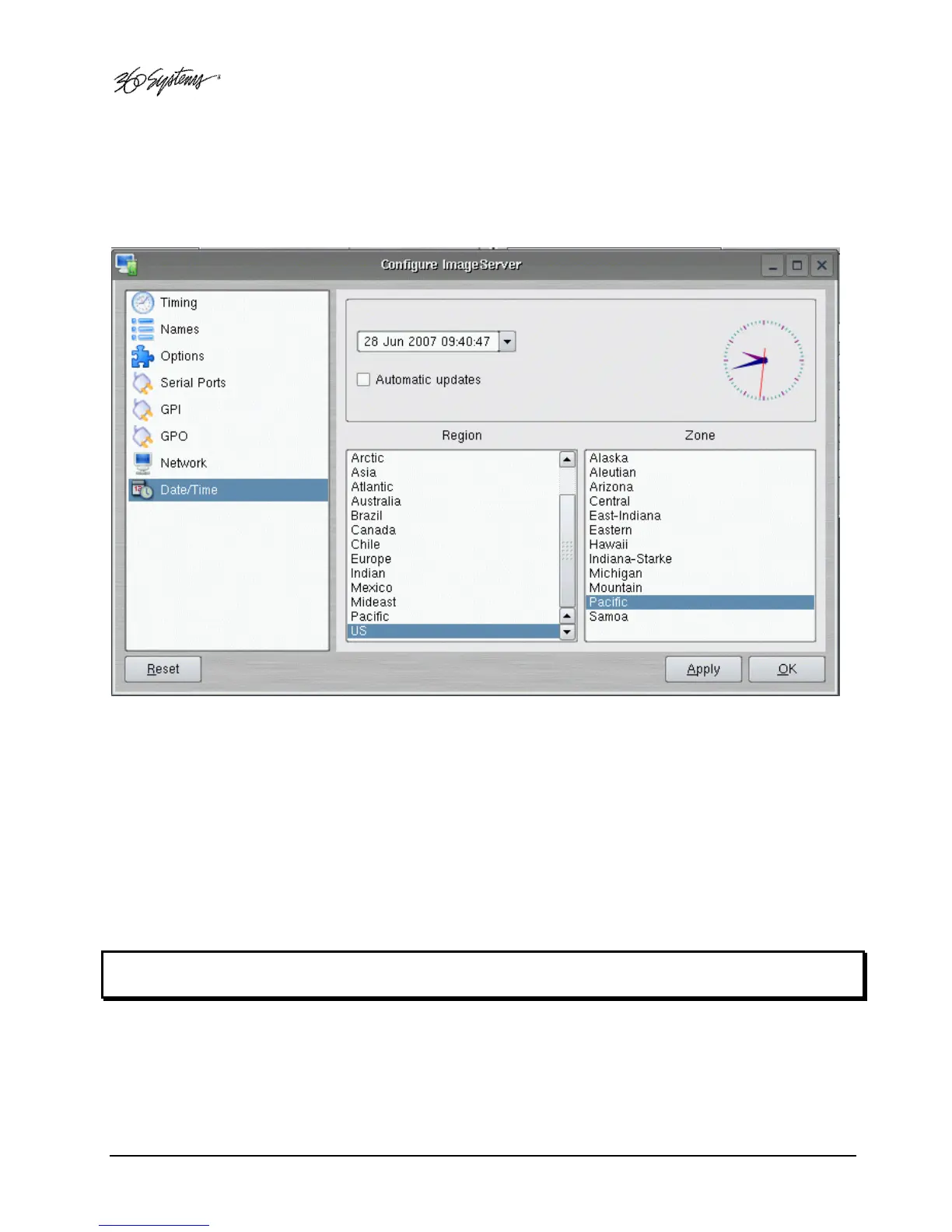
Click EDIT->CONFIGURE->DATE/TIME. The dialog below appears.
Figure 14 - Time/Date Configuration Screen
Select the REGION and ZONE according to your geographical location and time zone by scrolling
with the scroll-bar as necessary and then clicking on the selected value.
Set the TIME and DATE by clicking on the Time/Date field and navigating the clock and calendar.
Check Automatic Updates to enable automatic updates using the Network Time Protocol
(NTP). Refer to Network Time Protocol on page 75.
Note: A System Restart is required for a Time Zone change to take effect



 To Next Page