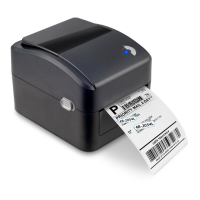
This document describes the 4B-2054L Series Direct Thermal Printer, a desktop thermal barcode printer designed for safe, reliable, and efficient label printing. It is suitable for printing volume labels with a wide range of texts or graphic formats.
Function Description
The 4B-2054L Series printer provides thermal printing capabilities. It is designed to handle various printing materials, including paper rolls, paper slices, and fan-fold labels. The printer supports a range of functions accessible via its LED indicator and a single button, allowing for paper feeding, pausing print operations, calibrating the label sensor, printing self-test values, and initializing the printer.
The device includes a Diagnostic Tool, a window-type utility program that facilitates checking the printer's current status and settings, downloading graphic files, programs, and font files, and performing firmware updates. This tool also supports the creation and download of dot-matrix fonts and the transmission of commands or files, simplifying printer setup, status checks, and troubleshooting.
Optional modules are available to enhance functionality, such as a peel-off module and a cutter module. The printer also supports various interface options including USB, Ethernet, Wi-Fi, and Bluetooth, depending on the model.
Important Technical Specifications
- Printing Method: Thermal printing
- Printing Speed: Adjustable from 2.0, 3.0, 4.0, 5.0 to 6.0 inches per second (152.0 mm/sec at 203 DPI).
- Resolution: 203 DPI (dots per inch)
- Label Width: 4 inches (100 mm)
- Label Height: 7.9 inches (180 mm)
- Sensor Type: Gap sensor (default setting)
- Gap Setting: 0.16 inches (4.0 mm)
- Printing Direction: 0 (default)
- Reference Point: 0,0 (upper left corner)
- Offset: 0 (default)
- Built-in Barcodes: Supports commonly used 1D and 2D barcodes.
- Fonts: Includes a TTF font and eight sets of English numeric fonts in different sizes. Supports font enlargement through a zoom function.
- Font Printing Directions: Supports printing in 4 different directions.
- Memory:
- Physical DRAM: 8192 KBYTES (256 KBYTES FREE available)
- Physical FLASH: 4096 KBYTES (2560 KBYTES FREE available)
- DRAM Storage: Up to 256 files, up to 256KB.
- FLASH Storage: Up to 256 files, maximum 2560KB.
- Interfaces: USB (default), Ethernet (optional), Wi-Fi (optional), Bluetooth (optional), SD card slot. Serial port (9600, N, 8, 1) is also mentioned in self-test.
- Power: AC socket input.
- RTC Battery: Optional, for Real-Time Clock functionality.
- Operating Environment: Can be used safely in tropical climates.
- Compliance: Class A product, may cause radio interference in a living environment, requiring practical measures. FCC compliant, with minimum distance of 20cm between radiator and body during operation.
Usage Features
- Easy Installation: The printer is designed for straightforward installation on a smooth, steady surface. It involves connecting the appropriate interface cable (parallel, serial, or USB) to the computer and plugging in the power cord.
- Label Loading: Labels are installed into a paper supply kit, with the print side facing up. The label roll is placed on a label roll holder, passed through a paper guide, and pulled over the rubber roller.
- Peel-off Module (Optional): For models with a peel-off module, labels are passed through a paper stripper, over the rubber roller, and then through the backing paper exit under the roller. The center offset label guide can be adjusted to fit the label edge.
- Cutter Module (Optional): The cutter module can be installed by inserting its cable into the corresponding socket and aligning it with the lower inner cover groove before locking it in place.
- LED Indicator: A single LED indicator displays three colors (Blue, Purple, Red) to communicate printer status:
- Blue (fixed): Power on, printer standby.
- Blue (blinking): Downloading data or printer paused.
- Purple: Formatting data.
- Red (fixed): Head opened or cutter error.
- Red (blinking): Printing error (e.g., out of paper, paper jam, memory error).
- Button Functions:
- Paper Feeding: One press of the feed button advances paper one unit when in standby.
- Pausing/Resuming Print: Pressing the feed button during printing pauses the operation (LED blinks blue); pressing again resumes it.
- Boot Functions: Four boot functions are available by holding down the button while powering on, then releasing at specific light signals:
- Gap/Black Mark Sensor Detection: Calibrates the label paper sensor sensitivity, essential when installing new paper rolls or after initialization. The default is gap calibration.
- Gap/Black Mark Sensor Detection, Printing Self-Test Value, and Debugging Mode: Calibrates the sensor, prints a self-test value (including internal settings like firmware version, serial number, print head mileage, print speed, density, paper size, sensor strength, and stored file information), and enters debugging mode. In debugging mode, labels are printed as machine code, with ASCII strings and their hexadecimal values displayed, useful for program debugging.
- Printer Initialization: Clears downloaded files from DRAM and restores print parameters to factory default settings (e.g., speed, density, label width/height, sensor type, printing direction, offsets, tear-off/peel-off modes, characters, country code, clear flash, IP address).
- Skip AUTO.BAS Program: Allows skipping the auto-execute AUTO.BAS file loaded in flash memory upon power-on.
- Diagnostic Tool: A user-friendly utility for managing printer settings, files, and firmware updates. It allows setting up the printer via USB, RS-232, or Ethernet interfaces. Users can calibrate the paper sensor (automatic or manual), set Ethernet network parameters (IP, subnet mask, gateway, DHCP), set RTC time, restore factory defaults, restart the printer, print test pages, print self-test pages, enter debugging mode, ignore AUTO.BAS, and set a password for the tool. The tool also supports remote printer setup via a local area network using a webpage interface.
Maintenance Features
- Cleaning Tools: Cotton swab, cotton cloth, vacuum cleaner or air brush, medical alcohol.
- Print Head Cleaning: Turn off the printer, allow the print head to cool for at least one minute, then wipe the surface with a cotton swab dipped in medical alcohol. Recommended when installing a new roll of label paper. Avoid touching the print head directly by hand; if touched, wipe with medical alcohol. Use medical alcohol, not industrial alcohol, to prevent damage.
- Rubber Roller Cleaning: Turn off the printer. While rotating the rubber roller, carefully wipe it with a cotton cloth or cotton swab dipped in medical alcohol. Recommended when installing a new roll of label paper.
- Paper Tearing-off Piece / Paper Stripping Piece Cleaning: Wipe with a cotton cloth dipped in medical alcohol when needed.
- Sensor Cleaning: Remove dust from the sensor with an air brush or vacuum cleaner monthly. Regular cleaning is recommended if the printer frequently displays error messages.
- Outside of the Machine Cleaning: Wipe with a wet cotton cloth when needed.
- Inside of the Machine Cleaning: Remove dust from inside the machine with an air brush or vacuum cleaner when needed.
- Troubleshooting Guide: The manual provides a comprehensive troubleshooting table for common problems such as power indicator off, "Head open" error, "Paper end" error, "Paper Jam" error, inability to print, full memory space, microSD card issues, poor printing quality, paper skipping, incorrect print position, incorrect RTC time, wrinkle problems, gray lines on black mark paper, and unstable printing. Solutions include checking connections, closing covers, installing new paper, recalibrating sensors, setting correct label sizes, cleaning components, adjusting print head pressure, and resetting printer settings.


 To Next Page
 General