The “70mai” App can be used to view data and adjust tire temperature and pressure settings.
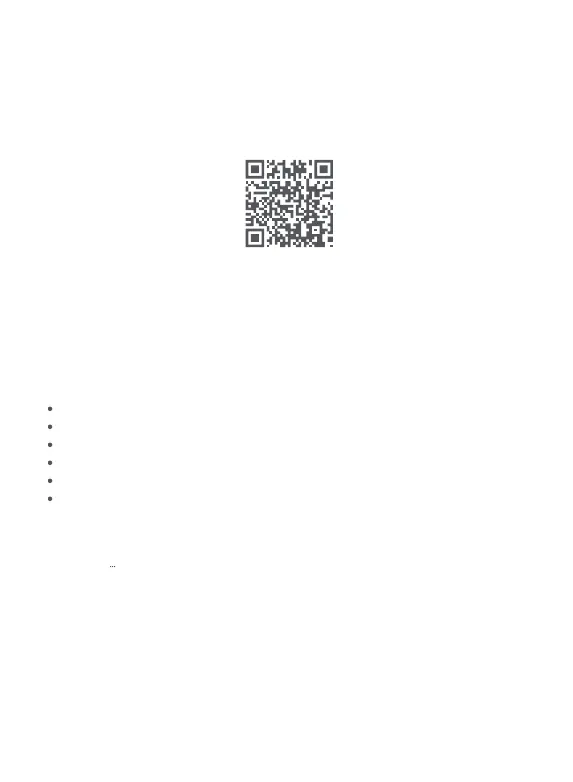
Search for “70mai” in the App store or scan the QR code below to download and install the App.
Open the “70mai” App and tap “Add Device” on the home page. Select 70mai Tire Pressure
Monitoring System Lite. Make sure the receiver is turned on and search for the receiver by
scanning Bluetooth devices. The Bluetooth device name should appear as “70mai_t02_xxxx”,
where “xxxx” refers to the last four digits of the receiver’s Bluetooth address. Once successfully
added, the device shall appear on the home page of the App.
Using the App
3. Main Functions
View tire and temperature.
Set standard tire pressure.
Set tire temperature alarm.
Bind the sensors.
Upgrade firmware.
View Help file.
1. Download and install the app
2. Adding the device
(1) Open the 70mai app. Look for 70mai Tire Pressure Monitoring System Lite. Click “View device”.
(2) Tap the “ “ icon in the upper right corner of the tire sensor homepage to enter receiver
settings. Click “Bind sensors”.
(3) Click “Bind” below the corresponding sensor. Follow the on-screen instructions and enter the
ID of the corresponding sensor to complete the binding process.
4. Bind the sensors.
Note: The product is shipped with the correct sensor ID bound. There is no need to bind them
again. In case a sensor is lost or damage, follow the above steps and bind the ID of the new
sensor. The old sensor will be automatically replaced. There is no need for manual unbinding.
8


 To Next Page