Instructions of the Android function
I. How to Enter into Android System
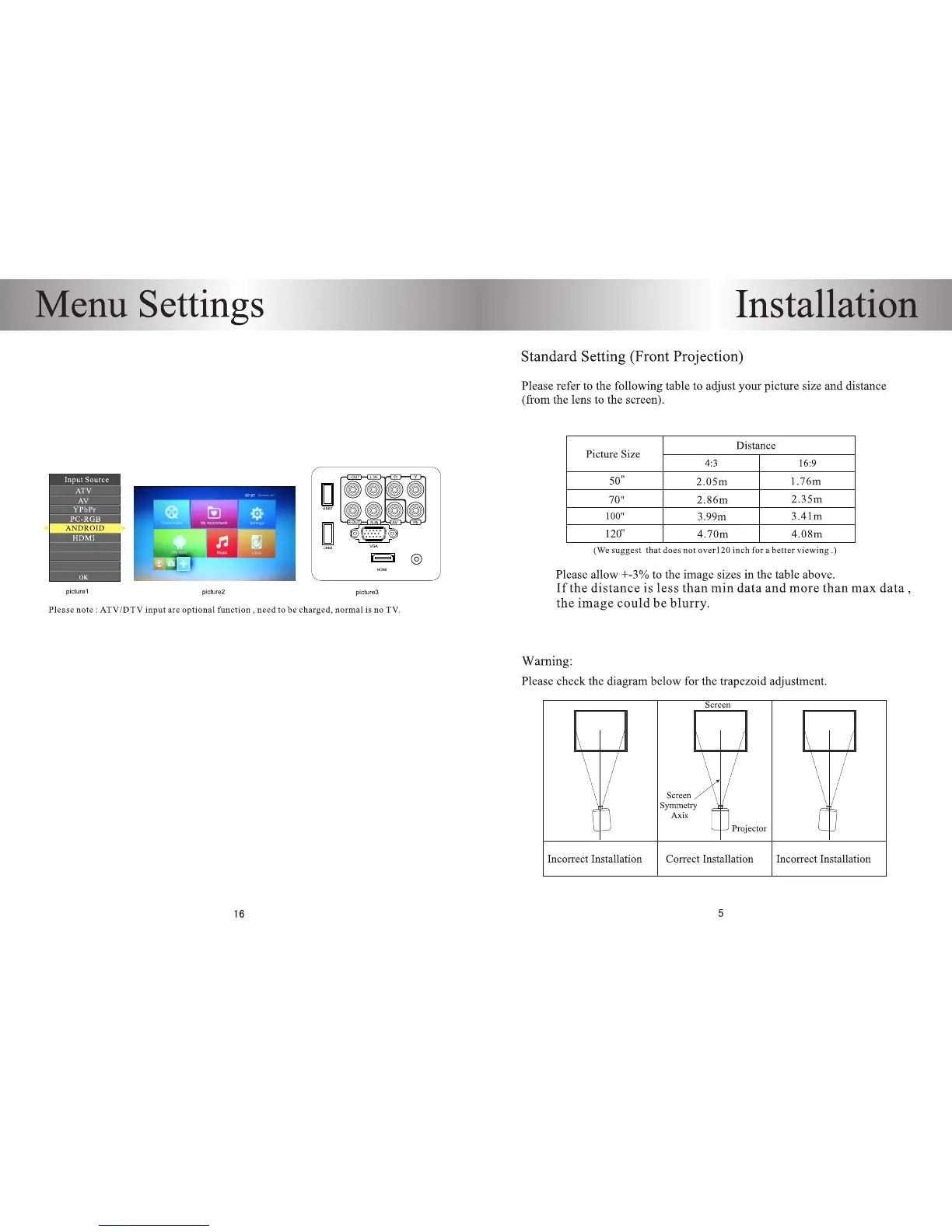
Projector is turned on after the blue screen, press the source key on the projector top
cover or remote control to select the Android , then press OK key to enter into
the interface of the Android system, Loading will take us some seconds.
(As show in picture1)
II. How to Operate Android System
There are two methods to operate the main interface of Android system.(As picture2)
1) Remote control.
2) Connect with the computer mouse(wire or wireless) with USB1 or USB2 jack.
(As picture3)
III. How to Access WiFi
Please press the Android home key on the remote control, the main screen appears.
Press left key to select the settings in the android home page. (as picture 2)
After that , press the OK button to enter into the settings, find the network and select
the wireless router which you want to link in the list, the virtual keyboard will be showed
on the bottom of screen after pressed OK key, type the password, and click connect.


 To Next Page