adjustment, selecting and navigating, clip and note editing, and more.
Usually, if you see a parameter or option in the display, the encoder
above it will affect it.
Upper and Lower Display Buttons – Like the encoders, the display
buttons are used for various options depending on what mode or view
you are in, such as track selection, accessing parameter banks and edit
options, selecting, track arming, and more.
Display – The display shows what is in focus on Push at any given time.
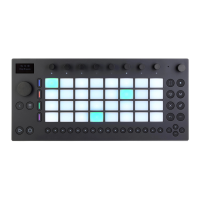
Pad Grid – Push’s 8x8 pad grid is fully MPE-capable. You can play
notes directly on the pads in the 64 Notes layout, or step sequence
notes using the Melodic or Drum Sequencer.
Scenes & Repeat Intervals – These buttons have different functions
depending on what mode you are in. In Note Mode, you can use the
Repeat Intervals buttons to set the beat divisions of the step sequencer
and grid, as well as use them in conjunction with the Repeat button to
add repeated notes in the various beat divisions. In Session Mode, you
can use the Scenes buttons to launch scenes.
Master Track – Press to show the Master track in the display. Press the
button again to return to the previously selected view.
Swap – Press to enter Hot-Swap Mode, where you can browse and
load new devices onto tracks. Press Swap again to return to the
previously selected view.
Add – Press to enter Browse Mode, where you can browse and add
new tracks, instruments, and effects to your Set, as well as access your
Packs, User Library, and Collections labels.



 To Next Page