

EasyManua.ls Logo

Acanac CBN8000 - User Manual

Acanac CBN8000
2 pages
Print Icon
To Next Page IconTo Next Page
Loading...
230808 Acanac CBN8000 Modem and Deco Wi-Fi 6 Pod Set Up Guide E
CBN8000
Modem and Deco
Wi-Fi 6 Pod
Set Up Guide
Connecting Wired Devices
Each Wi-Fi 6 pod is equipped with three ethernet ports
Your modem will take one port on your main Wi-Fi pod. The second
port or additional pods can be used to connect a nearby device.
For example:
Home Phone Analog
Telephone Adapter (ATA)
TV Set Top Box
Gaming Console
Computer
Boost your Wi-Fi signal and coverage with
additional pods

caIl us today to add additional pods.
Follow these easy steps to set up your additional Wi-Fi pod(s):
1. Place the additional Wi-Fi pod where you want it and plug it
into a power outlet.
2. When the light on the bottom of the Wi-Fi pod is solid green,
your additional pod is now connected to your Wi-Fi network.
This can take up to 5 minutes.
For general support for your Internet, or for additional
self-help resources visit acanac.ca/support or contact our
Technical Support team at 1-888-951-7940.
Question and Answer IconNeed help?

Do you have a question about the Acanac CBN8000 and is the answer not in the manual?

Summary

Boost Wi-Fi Signal with Additional Pods

Setting Up Additional Wi-Fi Pods

Follow simple steps to place and connect an additional Wi-Fi pod to enhance your network coverage.

Connecting Wired Devices to Wi-Fi Pods

Utilize the three Ethernet ports on each Wi-Fi 6 pod to connect wired devices like phones, TVs, or computers.

Setting Up Your Internet and Wi-Fi Network

Connecting the Modem to the Cable Outlet

Connect the coaxial cable from the wall outlet to the modem's cable port.

Connecting and Powering Devices

Link the modem to the Wi-Fi pod with an Ethernet cable and plug in power adapters.

Connecting to the Wi-Fi Network

Select the Wi-Fi network and enter the password on your device to connect.

Customizing Wi-Fi Name and Password

Download the TP-Link Deco app to personalize your Wi-Fi network name (SSID) and password.

Troubleshooting Red Light Indicator

Learn how to resolve a red light issue by rebooting the modem and Wi-Fi pod.

Overview

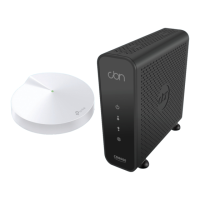
This document provides a comprehensive guide for setting up and managing the Acanac CBN8000 Modem and Deco Wi-Fi 6 Pod system, designed to deliver high-speed internet and robust Wi-Fi coverage. The system comprises a modem and one or more Wi-Fi 6 pods, which work together to create a seamless wireless network throughout a home or office.

Function Description

The Acanac CBN8000 Modem serves as the primary interface for connecting to the internet service provider's network. It receives the internet signal, typically via a coaxial cable, and converts it into a format usable by local devices. The Deco Wi-Fi 6 Pods extend this internet connection wirelessly, creating a mesh Wi-Fi network that provides broad and consistent coverage. These pods are designed to eliminate Wi-Fi dead zones and ensure a strong signal across multiple floors and rooms. The system supports both wired and wireless connections, allowing users to connect various devices directly to the pods via Ethernet ports or wirelessly through the Wi-Fi network.

Important Technical Specifications

CBN8000 Modem:

  • Connectivity: Connects to the internet via a coaxial cable port.
  • Output: Features Ethernet LAN port 1 for connecting to the main Wi-Fi pod. LAN port 2 is explicitly marked as "Do not use."
  • Power: Requires a +12VDC power supply.
  • Indicators: Includes LED indicators for power, Ethernet, and cable status, aiding in troubleshooting and setup verification.

Deco Wi-Fi 6 Pods:

  • Wi-Fi Standard: Utilizes Wi-Fi 6 technology, offering faster speeds, lower latency, and increased capacity compared to previous Wi-Fi standards.
  • Ethernet Ports: Each Wi-Fi 6 pod is equipped with three Ethernet ports. One port on the main Wi-Fi pod is used to connect to the modem, while the remaining ports on the main pod and any additional pods can be used to connect wired devices.
  • Power: Powered via a dedicated power supply.
  • Status Indicator: Features a light on the bottom that indicates its connection status (yellow for initial power-up, blue for connecting, green for connected, red for issues).
  • Network Identification: Each pod has a unique Wi-Fi Network (SSID) and password printed on its bottom for initial connection.
  • Mesh Networking: Supports mesh Wi-Fi technology, allowing multiple pods to work together as a single, unified network, providing seamless roaming and consistent signal strength.

Usage Features

Initial Setup:

  1. Modem Connection: Connect one end of the coaxial cable to the cable port on the CBN8000 modem and the other end to a nearby cable outlet.
  2. Device Connection: Connect one end of an Ethernet cable to LAN port 1 of the modem and the other end to any port on the main Wi-Fi pod.
  3. Power On: Plug in the power supplies for both the modem and the Wi-Fi pod into power outlets.
  4. Status Monitoring: Observe the light on the bottom of the Wi-Fi pod. It will typically cycle from yellow (powering up) to blue (connecting) and then remain steady green (connected) within approximately 5 minutes.
  5. Wi-Fi Connection: On a device, search for available Wi-Fi networks, select the SSID (e.g., "Acanac12345") found on the bottom of the Wi-Fi pod, and enter the corresponding password.

Adding Additional Wi-Fi Pods:

  • Placement: Place additional Wi-Fi pods where extended coverage is desired, ideally one pod per floor for optimal results.
  • Power Up: Plug the additional pod into a power outlet.
  • Connection: The pod will automatically connect to the existing Wi-Fi network, indicated by a solid green light on its bottom. This process can take up to 5 minutes.

Connecting Wired Devices:

  • Versatility: The Ethernet ports on the Wi-Fi 6 pods allow for direct wired connections to various devices.
  • Examples: This includes devices such as Home Phone Analog Telephone Adapters (ATA), TV Set Top Boxes, Gaming Consoles, and Computers. This feature is particularly useful for devices that benefit from a stable, high-speed wired connection or for those without Wi-Fi capabilities.

Customizing Wi-Fi Settings:

  • TP-Link Deco App: Users can download the TP-Link Deco app from the Google Play or Apple App Store to customize their Wi-Fi network name (SSID) and password.
  • Advanced Features: The app also provides access to advanced features such as parental controls, anti-virus protection, and the ability to create a separate network for guests, enhancing network security and management.

Maintenance Features

Troubleshooting (Red Light Indicator):

  • If the light on the bottom of the Wi-Fi pod turns red, it indicates a connection issue.
  • Reboot Procedure: To resolve this, unplug the power adaptors for both the modem and the Wi-Fi pod. Wait for 30 seconds, then plug the modem back in. After another 30 seconds, plug the Wi-Fi pod back in. This sequence helps re-establish the connection properly.

Support Resources:

  • Online Support: For general support and additional self-help resources, users can visit acanac.ca/support.
  • Technical Support: A dedicated Technical Support team is available via phone at 1-888-951-7940 for direct assistance with any issues or questions.

The Acanac CBN8000 Modem and Deco Wi-Fi 6 Pod system is designed for ease of use, providing a powerful and flexible solution for modern internet connectivity needs, ensuring a reliable and fast Wi-Fi experience throughout the home or office.
Acanac CBN8000 Specifications

General IconGeneral
BrandAcanac
ModelCBN8000
CategoryModem
LanguageEnglish