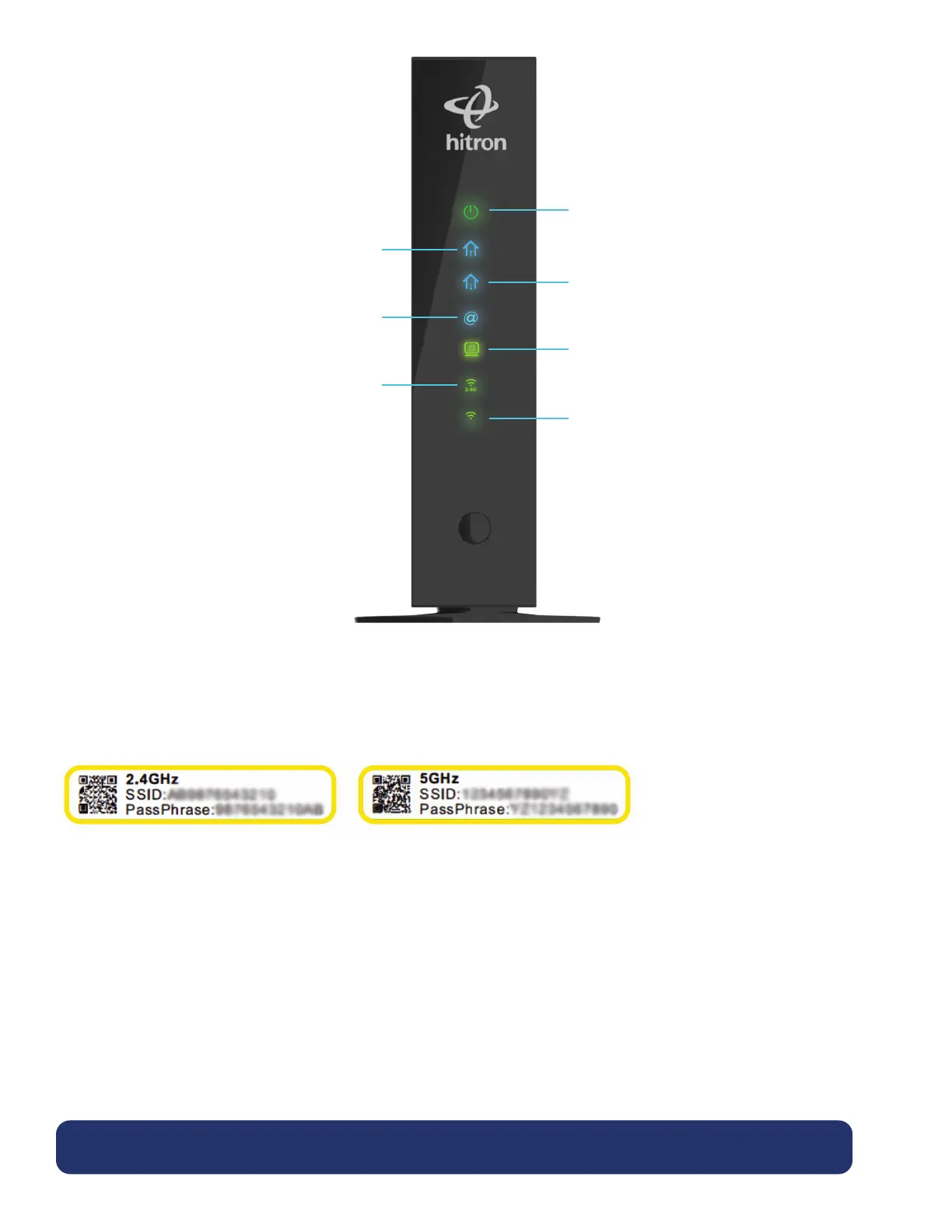
2.4G
5G
Power Light
Will flash for a moment at the start of the boot
process, then remain solid.
Upstream Light
Will flash green for a few minutes, and then go
solid blue.
Downstream Light
Will flash green for a few minutes, then go
solid blue.
Lock Light
Will remain solid when the modem is online.
LAN Light
Will flash when a wired device is connected to any
of the 4 yellow ports on the back of the modem.
2.4G
Will flash when communicating with a device, that is
transmitting over 2.4G band. (ie: Laptop, cellphone)
5G
Will flash when communicating with a device, that
is transmitting over 5G band. (ie: Laptop, cellphone)
Step 2: Connecting devices to the new Wi-Fi networks.
A. Find a sticker on the back of your modem with the Wi-Fi network name (SSID) and password
(passphrase or key).
B. Open your smartphone, tablet or computer’s Wi-Fi settings.
C. Select your Wi-Fi network name from the list of available networks.
D. Enter the password into your device when prompted (note: password is case sensitive).
E. Once the Wi-Fi icon appears at the top of your device, you are connected to the World Wide Web.
Note: depending on the model of your model, an additional step is required. Open a web browser and
follow the on-screen Easy Connect instructions to test your connection and customize your Wi-Fi settings.
Once you’re done, make sure to update the settings on your Wi-Fi devices so that they connect to your new
Wi-Fi network name and password.
Tip: If you’ve already set up your devices to connect to a particular Wi-Fi network name and password, you can apply these
to your new modem.


 To Next Page
 Loading...