11 12
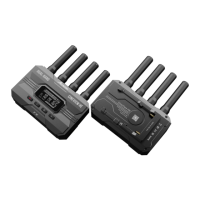
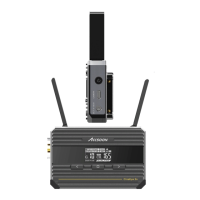
① 2.4GHz/5GHz Antennas
② Video Input Indicator
③ Connection Status Indicator
④ 6GHz Antennas
⑤ Power On/Off Button
⑥ Full-Color LCD Display
⑦ Menu/OK Knob
Return to the previous page, or cancel selection.
⑧ Return Button
Note: Please don't block the air intake to ensure optimal performance.
⑨ Air Intake
⑩ 3G SDI
When powered on, the indicator will briefly light up.
When in use, the indicator turns on to indicate that a video input
is detected, and turns off to indicate no video input detected.
When powered on, the indicator will briefly light up.
When in use, the indicator turns on to indicate that a receiver or
mobile device is connected, and turns off to indicate no connection.
Press 1 second to power on. Press and hold for 3 seconds to
power off.
Display device status and menu settings.
Rotate and press the knob to browse and modify menu settings.
Rotate: Browse menu pages and settings.
Short Press: Confirm selections.
Transmitter: Input the SDI video signal.
Receiver: Output the SDI video signal.
Transmitter: Loop out the video from the HDMI input to other devices.
Receiver: Output HDMI video signal.
Wired USB video output port. Output video to iOS devices.
For DC adapter power inputs.
Input HDMI video source.
⑪ HDMI In
⑬ VIDEO OUT
⑭ DC Power Input
⑮ Anti-rotation 1/4" Screw Hole
⑫ HDMI Out
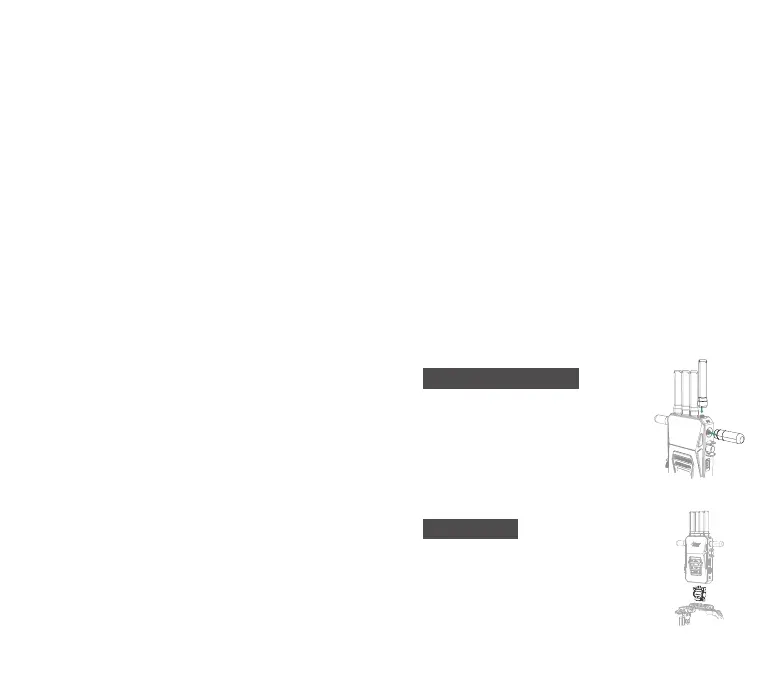
5.2 Antenna Installation
As shown, install the 2.4GHz/5GHz dual-band
antennas to the top of the CineView Master
4K, and the 6GHz antennas to the sides.
5.3 Mounting
Mount the CineView Master 4K to the camera
or other device using cold shoe mount or
other mounting accessories.



 To Next Page