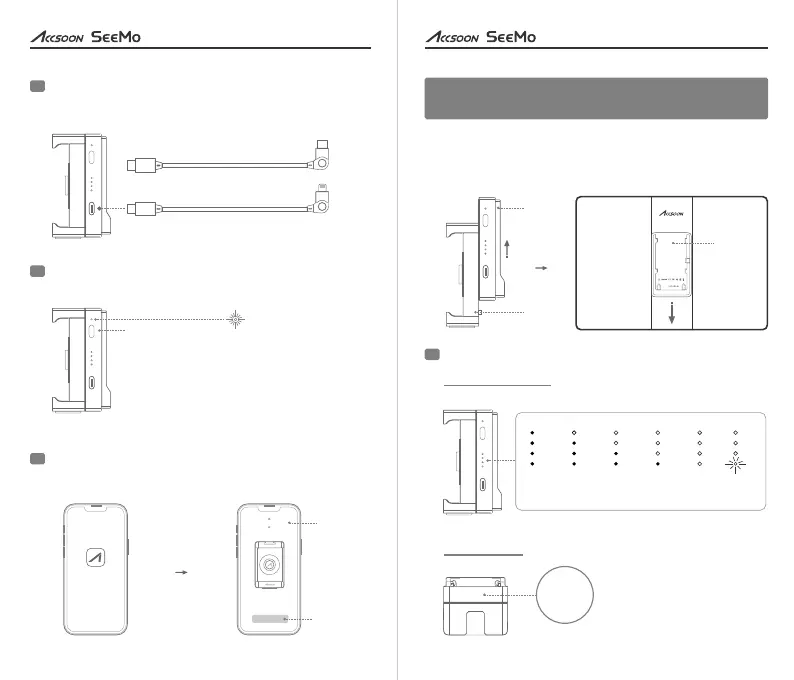
Connect your iPhone/iPad to the Accsoon SeeMo’s USB-C
video output port using the corresponding cable.
7
Power On: Press the power button and the power indicator
LED will turn on.
8
Open the Accsoon SEE App, select “Accsoon SeeMo”,
and tap “Monitor" to start monitoring.
9
ON/O FF
VIDE O OUT
iPhone/iPad (Lightning):
Use USB-C to Lightning cable
iPhone/iPad (USB-C port):
Use USB-C to USB-C cable
ON/O FF
VIDE O OUT
Power Off:
Hold the power button for 2 seconds
Ac cso on SE E
Ac csoo n See Mo
Mo nito r
Tap
Select
Attach the Accsoon SeeMo to the Accsoon iPad Cage
(optional product)
Hold the two parts with both hands and separate the part A and the
part B as shown in the picture. Then slide and lock down the part A
to the Accsoon iPad cage.
Status indicator
10
Power level indicator
ON/O FF
VIDE O OUT
>75%
50%~75%
25%~50% 0%~25% 0%
Flash:
power level low
HDMI indicator
HDM I
HDMI
6
User Manual
5
User Manual
ON/O FF
VIDE O OUT
MODEL: UIT02
HDMI To USB On-Camera Device
Accs oon See Mo
A
B
A
On - Valid video input is detected.
Off - No valid video input.


 To Next Page