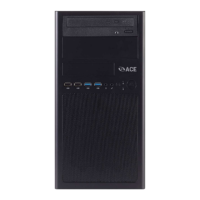
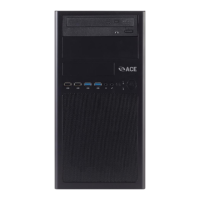
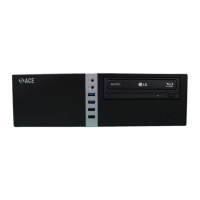
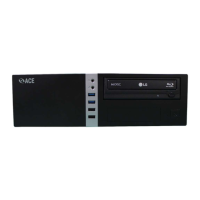
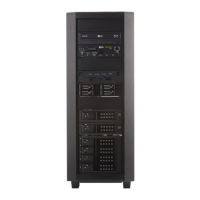
The ACE Vision Series VS-M660I is a desktop computer designed for general use, offering a balance of performance, expandability, and energy efficiency. This technical reference guide provides comprehensive instructions for its maintenance, upgrades, and troubleshooting.
Function Description
The VS-M660I serves as a personal computer for various tasks, from everyday computing to more demanding applications, depending on its configuration. It is designed to be user-friendly, with clear instructions for system disassembly and component replacement. The device supports various peripherals and can be upgraded to enhance its capabilities over time.
Important Technical Specifications
- Model: VS-M660I
- Processor: Supports a single processor (specific model not detailed, but an Intel heatsink is shown).
- Memory: Up to 4 DIMM slots, supporting a maximum of 64GB DDR4 memory.
- Storage: Includes support for HDD (Hard Disk Drive) and M.2 SSD (Solid State Drive).
- Graphics: Certain configurations may include expansion and/or graphics cards, connected via PCIe slots.
- Optical Drive: An optional optical drive can be installed in the front drive bay.
- Power Supply: Located in the rear, upper portion of the chassis.
- Chassis: Standard desktop tower form factor, with a removable side panel for access to internal components.
- Motherboard: Equipped with a lithium metal battery (CMOS battery). The specific motherboard model mentioned for reinstallation is ASUS Pro B660M-C D4.
- Fans: Includes a chassis fan and a heatsink fan for cooling.
Usage Features
- Energy Management (ENERGY STAR and Power Management): The VS-M660I is designed with energy efficiency in mind, aiming to reduce power consumption and utility bills.
- Benefits: Increased efficiency, reduced energy use, reduced utility bills, reduced power plant emissions and carbon footprint, and wide selection of rebates and convenience.
- Power Management Options (As Shipped):
- System Sleep Mode: After 30 minutes of user inactivity.
- Display Sleep Mode: After 10 minutes of user inactivity.
- Primary Hard Drive – “Hard Disk Turn Off”: 20 minutes.
- Wake Management:
- Wake on Sleep (WoL) Capabilities/Default Settings:
- Has the ability to Enable and Disable WoL for Sleep Mode.
- WoL Enables from Sleep by default.
- WoL Enabled from Off by default.
- WoL from Sleep – Default Settings:
- Shipped Enabled Under All Conditions.
- Shipped Enabled When Operating on AC power only.
- Shipped Disabled.
- Shipped Disabled with both client OS and Network Controls to Enable Feature.
- Capable of both remote (via network) and scheduled (via real-time clock) wake events from Sleep Mode.
- Provides clients with the ability to centrally manage (via vendor tools) any wake management settings that are configured through hardware settings if the manufacturer has control over such features.
- Troubleshooting: The manual provides guidance for common issues such as:
- Computer not powering on.
- No video output.
- Computer not booting into Windows.
- Computer freezes or crashes during boot.
- Instructions for checking power supply, connections, display cables, and BIOS settings.
Maintenance Features
- Illustrated System Disassembly Instructions: The manual provides detailed, step-by-step instructions with diagrams for disassembling various components, including:
- Chassis Cover Removal.
- Data Storage Devices (HDD and M.2 SSD) Removal.
- Memory (DIMM) Removal and Installation.
- Heatsink and Processor Removal.
- Expansion Cards/Graphics Cards Removal.
- Power Supply Removal.
- Motherboard Removal.
- Battery (CMOS) Removal.
- Fans Removal.
- Optical Drive Removal.
- External Power Cable Disconnection.
- Regular Maintenance Steps:
- Remove PC from all power sources, unplug the system from the wall and/or surge protector.
- Set the unit for a few minutes, pressing the on/off button a few times to dissipate any energy the capacitors may be storing.
- Compressed air is a great tool to remove dust quickly and safely.
- Remove all large dust particle by hand and use the compressed air to blow away and smaller residual particles.
- Repeat about every 3 months or so, or as needed for areas that are more dust prone.
- Software Updates:
- Windows will periodically look for and apply critical patches and security updates.
- Users can manually check for updates via "Windows Settings" -> "Update & Security" -> "Windows Update".
- It is good practice to keep an eye out for updating device drivers.
- Virus and Malware Protection:
- Regularly scan your PC for malware using Windows Defender or other security software.
- Deep system scans should be run weekly.
- Upgrades, Service, and Repair:
- The manual includes a table detailing which hardware features are upgradeable, repairable, and replaceable.
- ACE Computers technical support team is available for assistance with compatible upgrades and software questions.
- Disposal and Recycling (Product Take Back, End of Life Processing, and E-Waste Program):
- ACE Computers offers a Nation-Wide take back service for proper disposal of products at the end of their life, in compliance with certified R2 electronics recycling facilities.
- Specific instructions for selective treatment and handling are provided for various components (e.g., HDD, SSD, M.2 SSD, Memory, Heatsink, Processor, Graphics Cards, Power Supply, Motherboard, Battery, Fans, Optical Drive, External Electrical Cables) to ensure compliance with Directive 2012/19/EU and 2008/98/EC.
- Lithium Battery Disposal: Handle used batteries carefully. Do not damage the battery, and do not discard it in garbage or public landfill. Comply with local hazardous waste management agency regulations.
- Mechanical Destruction of Storage Devices: Instructions are provided for physically destroying HDDs and SSDs to prevent data recovery, emphasizing the use of proper personal protection equipment.
This comprehensive guide ensures users can effectively manage, maintain, and troubleshoot their ACE Vision Series VS-M660I desktop computer throughout its lifecycle.

 Need help?
 General

 To Next Page