
 Need help?
Do you have a question about the Acer Chromebook 311 and is the answer not in the manual?
Press the power button to boot the Chromebook and access the 'Welcome' screen.
Choose your default language and keyboard input method from the provided lists.
Select a network and enter the password to establish an internet connection.
Agree to the terms to enable system updates and access Chrome OS features.
Set up a new Google account for accessing Chromebook features and services.
Log in using your existing Google account credentials to personalize your Chromebook.
Explains the specific functions assigned to dedicated keys or key combinations.
The Acer Chromebook 311 is a portable computing device designed for everyday use, leveraging the Chrome OS ecosystem. This user manual provides comprehensive guidance on setting up, using, and maintaining the device, ensuring a smooth and efficient user experience.
The Chromebook 311 serves as a versatile personal computer, primarily focused on web-based activities and applications. It is powered by Chrome OS, a lightweight operating system developed by Google, which emphasizes speed, security, and cloud integration. The device is ideal for tasks such as browsing the internet, email communication, document creation and editing, media consumption, and accessing a wide range of applications available through the Google Play Store.
At its core, the Chromebook allows users to connect to the internet via Wi-Fi, providing access to Google's suite of services like Gmail, Google Drive, and Google Calendar. It supports a variety of web-based applications and offers the ability to download Android apps from the Google Play Store, expanding its functionality beyond traditional web browsing. This makes it suitable for students, professionals, and casual users who rely heavily on cloud-based tools and applications.
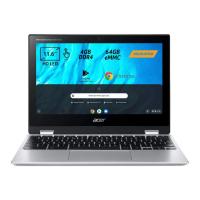
The device features a built-in screen for visual output, which may include touch or non-touch options depending on the model. An integrated webcam and microphone facilitate video communication and sound recording, making it suitable for online meetings, virtual classes, or casual video calls. Stereo speakers deliver audio output for multimedia consumption.
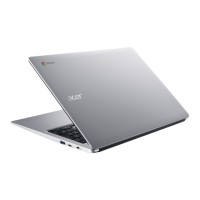
Connectivity options include USB Type-C and USB 2.0 ports, allowing users to connect various peripherals such such as external storage devices, mice, keyboards, and other USB accessories. The USB Type-C port also supports power delivery and DisplayPort™ audio/video output, enhancing its versatility. A headset/speaker jack is provided for connecting audio devices like headphones or external speakers, or a headset with a microphone.
The Chromebook is designed for portability, featuring a compact form factor that makes it easy to carry. Its battery indicator light provides visual feedback on the charging status, showing amber when charging and blue when fully charged in AC mode.
Getting started with the Acer Chromebook 311 is a straightforward process. Upon first boot-up, users are greeted with a "Welcome" screen, prompting them to select their preferred language settings and connect to a network. Network access is crucial for the initial setup and for downloading system updates, ensuring the device runs the latest Chrome OS features.
After establishing a network connection, users must accept the Terms of Service. The first-time sign-in process offers several options:
The keyboard and touchpad are the primary input methods. The keyboard is used for data entry, while the touchpad functions as a pointing device, mimicking a computer mouse. The touchpad supports various gestures:
Function keys provide quick access to hardware and software controls. These include keys for navigating pages (Previous, Next), managing windows (Full-screen, Next window), controlling media (Reload, Mute, Volume down, Volume up), adjusting screen brightness (Brightness down, Brightness up), and initiating searches (Search). Common keyboard shortcuts, such as Ctrl + for taking screenshots, Alt + for toggling caps lock, and Alt + for projecting the screen, further enhance efficiency. A comprehensive list of shortcuts can be accessed by pressing Ctrl + Alt + /.
The Chromebook is designed to work seamlessly with Google Play Store apps and web applications. Users can download apps by clicking the Launcher icon and searching for "Play Store." For productivity, the device supports Microsoft® Word, Excel®, and PowerPoint® through downloadable apps or web versions, with additional functionality available with a Microsoft 365 subscription. Files are stored in the Files app, accessible via the Launcher icon. Local files can be transferred using compatible external storage devices like USB thumb drives.
Parental controls can be set up by signing in with the child's personal Google Account during the initial setup. This ensures that the child's account is the primary one, allowing for appropriate management of settings and access.
The Acer Chromebook 311 is designed for low maintenance, largely due to the nature of Chrome OS. The operating system automatically handles updates, ensuring that users always have the latest features and security patches without manual intervention. This reduces the need for frequent software management by the user.
For optimal performance and longevity, it is recommended to use a certified Acer power adapter or a USB Power Delivery device that provides 45 W at 5~20 V for charging via the USB Type-C port. This ensures proper power delivery and prevents potential damage from incompatible chargers.
While the manual does not detail specific hardware maintenance, the robust design of Chromebooks generally means less susceptibility to common software issues that plague other operating systems. The cloud-centric nature of Chrome OS also means that user data is often backed up to Google Drive, reducing the risk of data loss in case of device malfunction.
For troubleshooting or additional information, users can access the Chromebook Help through the "Explore" app on their device. Further support and information about Chrome OS are available on Google's official support website: google.com/support/chromebook/. These resources provide guidance on common issues, tips for optimizing performance, and details on various features.
The device's internal components, such as the microphone, webcam, and speakers, are integrated for convenience and generally do not require user maintenance beyond ensuring they are clean and unobstructed. The touchpad, being a sensitive pointing device, should be kept clean to ensure accurate tracking.
Overall, the Acer Chromebook 311 is built for ease of use and minimal upkeep, making it an accessible and reliable computing solution for a wide range of users.
 General
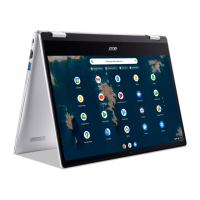
| Form factor | Clamshell |
|---|---|
| Product type | Chromebook |
| Product color | Black |
| Numeric keypad | No |
| Keyboard layout | QWERTY |
| Pointing device | Touchpad |
| Keyboard language | UK English |
| Island-style keyboard | Yes |
| Display diagonal | 11.6 \ |
| Display resolution | 1366 x 768 pixels |
| Native aspect ratio | 16:9 |
| Operating system installed | ChromeOS |
| Processor cache | 4 MB |
| Processor cores | 2 |
| Processor model | N4020 |
| Processor family | Intel® Celeron® |
| Processor frequency | 1.1 GHz |
| Processor manufacturer | Intel |
| Processor boost frequency | 2.8 GHz |
| Internal memory | 4 GB |
| Internal memory type | LPDDR4-SDRAM |
| Maximum internal memory | - GB |
| Storage media | Flash |
| Total storage capacity | 32 GB |
| Battery capacity | 3920 mAh |
| Battery life (max) | 12 h |
| Number of battery cells | 3 |
| Discrete graphics card model | Not available |
| On-board graphics card model | Intel® UHD Graphics 600 |
| AC adapter power | 45 W |
| Number of microphones | 1 |
| Wi-Fi standards | 802.11a, 802.11b, 802.11g, Wi-Fi 4 (802.11n), Wi-Fi 5 (802.11ac) |
| Bluetooth version | 5.0 |
| Top Wi-Fi standard | Wi-Fi 5 (802.11ac) |
| Charging port type | DC-in jack |
| USB 2.0 ports quantity | 0 |
 Weight and Dimensions
| Depth | 208 mm |
|---|---|
| Width | 302 mm |
| Height | 21 mm |
| Weight | 1251 g |


 To Next Page
