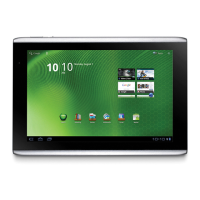
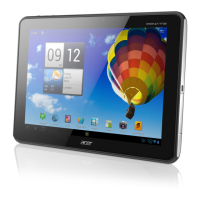
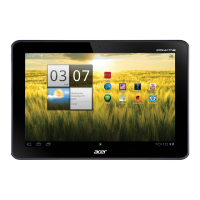
The Acer ICONIA TAB A500/A501 is a versatile tablet designed for multimedia, entertainment, and productivity on the go. It features a 10.1-inch, 1280 x 800 pixel capacitive touchscreen, offering a clear and responsive interface for all your interactions. The tablet is equipped with both front-facing and rear-facing cameras, allowing for video chatting, self-portraits, and high-resolution photography. A 2-megapixel front-facing camera is ideal for video calls and quick selfies, while a 5-megapixel rear camera with an LED flash ensures you can capture important moments with good lighting.
Function Description
The ICONIA TAB A500/A501 serves as a portable hub for various digital activities. It runs on the Android operating system, providing access to a wide range of applications through the Android Market. Key functions include:
- Internet Connectivity: The tablet connects to the internet via Wi-Fi and, for models with 3G features, through a cellular data network using a SIM card. This allows for browsing, email, and online applications from almost anywhere.
- Multimedia Playback: Enjoy music and video with rich, full-impact audio delivered by Dolby Mobile 2. The tablet supports various multimedia formats and can access media servers.
- Communication: Stay connected with friends and family through email, social networking applications like SocialJogger, and instant messaging services such as Google Talk. The front-facing camera facilitates video chatting.
- Navigation: Utilize Google Maps, Google Navigation (with turn-by-turn directions, live traffic, and text-to-speech), Latitude, and Places to find locations, businesses, and friends.
- Productivity: Manage documents with applications like Documents To Go, which supports PDFs and Word documents. The tablet also offers email applications for various providers.
- E-reading: The LumiRead application allows users to download books from featured bookstores and set up links to their favorite ebook sites.
- Gaming: Access a variety of games through the Android Market.
- Data Synchronization: Acer Sync enables data synchronization between your tablet, computer, and Google servers.
Usage Features
The tablet's design and software are optimized for ease of use:
- Touchscreen Interface: The capacitive touchscreen responds to taps, drags, tap-and-holds, and scrolls, making navigation intuitive.
- Home Screen Customization: Personalize your Home screen by adding or removing application shortcuts and widgets. Widgets display constantly-updated information or provide quick access to functions. Wallpapers can be changed from pre-formatted options, gallery images, or Live wallpapers. Items can be moved or removed by tapping and holding them.
- Onscreen Keyboard: An onscreen keyboard appears when text input is required. It offers predictive text, auto-correction, and the ability to switch between different input methods, including the standard Android keyboard and XT9 Text Input. The keyboard supports multiple languages and special characters.
- Voice Search and Actions: Use voice commands to search the internet, send text messages, place calls, find directions, and more.
- Connections:
- USB Host Port: Connect USB devices such as keyboards to the tablet.
- Micro USB Connector (Slave): Connect the tablet to a PC for data transfer using a USB cable.
- Micro HDMI (Type D) Port: Connect the tablet to a television or monitor with an HDMI port to display content on a larger screen.
- 3.5 mm Headphone Jack: Connect stereo headphones for private listening.
- Docking Port (Optional): An optional dock accessory provides a convenient way to charge the tablet and offers additional connectors.
- Power Management: A power button allows you to turn the tablet on/off, turn the screen on/off, and enter/exit sleep mode. The tablet can be locked to save power and prevent unintentional use.
- Screen Rotation Lock: A physical switch allows you to lock the screen rotation or enable it to match the tablet's orientation.
- Light Sensor: Automatically adjusts screen brightness based on ambient light conditions.
- Notification Area: Located in the bottom-right corner of the screen, it displays time, wireless reception status, battery charge status, and event icons. Tapping the area reveals more information and controls.
- Multiple Google Accounts: Easily create and access multiple Google accounts for synchronizing contacts, email, calendar, and other information.
- SIM Card Support (Optional): For models with 3G, a SIM card slot allows for cellular data network access. The SIM card may require activation and PIN entry.
Maintenance Features
- Charging: For first-time use, the tablet needs to be charged for eight hours. Subsequent charging can be done as needed by connecting the AC adapter. It is normal for the tablet surface to become warm during charging or extended use.
- Micro SD Card Slot: Expand the device's storage space by inserting a micro SD card. Ensure the card is fully inserted and remove it safely when not in use to prevent data loss.
- Reset Button: A small reset button (accessible with a thin object like a paperclip) can be used to reset the tablet's power if needed.
- System Updates: The tablet supports system updates, which can be managed through the settings.
- Troubleshooting: The user guide includes an FAQ and troubleshooting section to help resolve common issues.
- Application Management: Users can manage installed applications, including uninstalling or adjusting settings.
- Resetting the Tablet: The option to reset the tablet to factory settings is available in the advanced settings.

 Need help?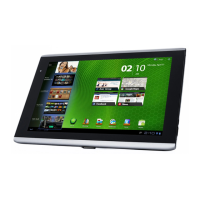


 To Next Page

 General