
 Need help?
Do you have a question about the Acer R753TN and is the answer not in the manual?
Steps to register your Acer Chromebook product online.
Guides for powering on, language, network, and first-time account sign-in.
Covers enterprise enrollment and signing into your primary Google Account.
Identifies webcam, microphone, and touchscreen on the front of the device.
Details keyboard, function keys, shortcuts, and touchpad gestures.
Explains dedicated function keys and common keyboard shortcuts for efficient operation.
Describes touchpad actions like clicking, two-finger tap, swipe, and drag-and-drop.
Details volume control, USB, USB Type-C, and Kensington lock slot on the right.
Identifies USB Type-C, USB ports, microSD slot, headset jack, power button, and battery status.
Provides technical specifications and compatibility for USB 3.2 Gen 1 ports.
Details USB Type-C transfer speeds, DisplayPort, and charging specifications.
Describes drain holes for spill management and speaker placement for audio output.
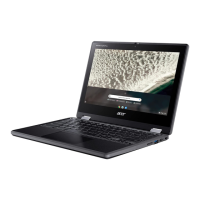
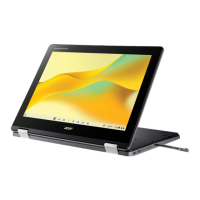
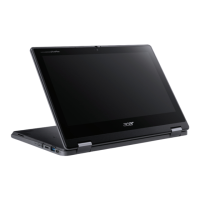
Illustrates and names the different usage modes: Laptop, Display, Tent, and Tablet.
Explains browser window management like back, forward, reload, and tab control.
Introduction to the shelf, including Launcher, pinned apps, and status area.
Details maximizing, aligning, and closing desktop windows for efficient workflow.
Guide to accessing and utilizing the Launcher for searching apps and files.
Instructions for pinning and unpinning applications to the Chromebook shelf.
Explains icons for notifications, lock screen, volume, connectivity, and battery status.
Step-by-step guide for finding and installing apps from the Chrome Web Store.
Instructions for downloading and installing applications via the Google Play Store.
Procedure for uninstalling applications from the Chromebook's operating system.
Introduction to Google Drive for online file storage and access across devices.
Clarifies the distinction between Google Drive and the local Chromebook Files app.
Guides on creating new documents and syncing local files to Google Drive.
Steps to set up offline access for Google Drive files for use without internet.
Instructions for composing emails in Gmail and accessing content on YouTube.
Information on supported audio and video file formats for playback on the device.
Lists various file types supported by the Chromebook, including common office formats.
Guide on creating documents, spreadsheets, and presentations using Google apps.
Instructions for locating documents in Google Drive and sharing them with others.
How to initiate video calls using Google Hangouts for communication.
Guides for listening to music and watching videos via streaming apps.
Guides on opening, editing, converting, and exporting Microsoft Office files.
Tips for using the Chromebook effectively without an active internet connection.
Steps to configure Gmail for offline access and viewing emails without internet.
Details how offline changes to Google Drive documents are synchronized upon reconnection.
How to adjust language preferences and keyboard input methods on the Chromebook.
Instructions for changing the time format and setting the correct time zone.
Guides on personalizing the Chromebook's appearance with wallpapers and themes.
Steps for printer configuration and managing automatic/manual Chrome OS updates.
Procedure for performing a factory reset (Powerwash) to restore default settings.
Guidance on using the built-in Chromebook Help for troubleshooting and information.
Answers questions on software compatibility, app acquisition, and file management.
Information on parental controls and finding additional support resources.




 To Next Page
 General