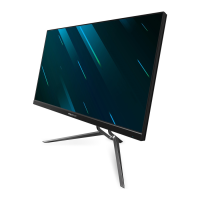
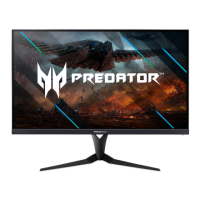
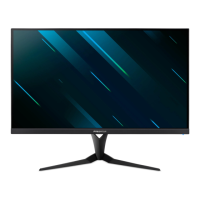
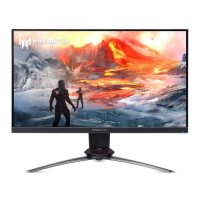
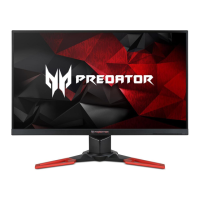
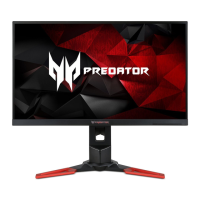
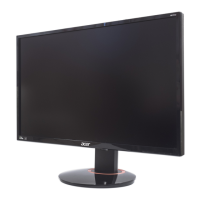
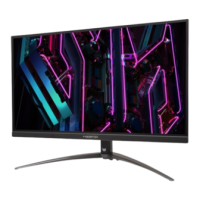
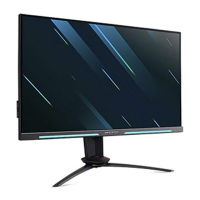
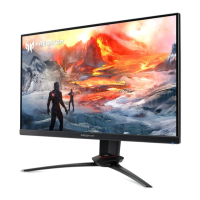
This document is a user guide for an Acer LCD Monitor, specifically the XB323QU model. It provides essential information for safe and comfortable use, installation, and troubleshooting of the monitor.
Function Description
The Acer LCD Monitor is designed for video and visual display of information from electronic devices. It supports various display modes and resolutions, including high refresh rates for an enhanced visual experience. The monitor incorporates features to improve user comfort and safety, such as low blue light technology and adaptive sync capabilities.
Important Technical Specifications
The monitor supports a range of VESA modes with different resolutions and refresh rates:
- VGA: 640x480 at 60Hz
- MAC: 640x480 at 66.66Hz
- VESA: 720x400 at 70Hz
- SVGA: 800x600 at 56Hz and 60Hz
- XGA: 1024x768 at 60Hz and 70Hz
- SXGA: 1280x1024 at 60Hz
- VESA: 1280x720 at 60Hz
- WXGA: 1280x800 at 60Hz
- UXGA: 1920x1080 at 60Hz
- QHD: 2560x1440 at 60Hz, 144Hz, and 170Hz (DP only)
The XB323QU model can be overclocked to achieve higher refresh rates than advertised by the panel specification, though this may lead to system instability. Users can adjust the refresh rate through the system control panel.
Connectivity:
The monitor features multiple input options:
- HDMI1 (2.0)
- HDMI2 (2.0)
- DisplayPort (DP)
- USB 3.0/USB-B port for fast charging and data.
Power:
The monitor has a universal power supply, operating on either 100/120 V AC or 220/240 V AC. It supports power-saving modes, indicated by an amber power LED. The recovery time from an Active OFF state to ON state is approximately 3 seconds.
Usage Features
Installation and Setup:
- Attaching the Base: The base is attached by placing the monitor face-down on a stable, cloth-covered surface to prevent scratching the screen, then securing the base.
- Height Adjustment: The monitor's height can be adjusted by pressing the top of the monitor, with a range of 130mm.
- Tilt: The monitor can be tilted from -5° to 25°.
- Swivel: The built-in pedestal allows for swiveling the monitor for optimal viewing angles, with a range of ±30°.
- Connecting Cables: Users need to connect the power cord, signal cables (HDMI or DP), and optional USB 3.0/USB-B cable.
User Controls (OSD - On Screen Display):
The monitor features external controls (buttons 1-7) for various functions:
- Power Button (1&2): Turns the monitor on/off. Blue indicates power on, amber indicates standby/power saving mode.
- Function Key (3): Accesses the Main page and navigates through the Function Menu.
- Function Key (4): Accesses the Main page and selects input.
- Function Key (5): Accesses the Main page and adjusts volume.
- Function Key (6): Accesses the Main page and adjusts brightness, or returns to the previous menu/exits the current menu.
- Function Key (7): Triggers Game mode control from the Main page, or exits the current menu.
OSD Menu Options:
- Shortcut Menu: Provides quick access to Hot Key1 (Modes, Brightness, Volume, Gamma, Contrast, Low Blue Light, Over Drive, VRB), Hot Key2 (same as Hot Key1), Hot Key3 (Input Switch), and Main Menu.
- Main Menu: Offers comprehensive settings for Picture, Audio, Gaming, OSD, System, and Information.
- Picture Settings:
- Brightness: Adjusts screen brightness (0-100).
- Contrast: Adjusts contrast (0-100).
- Black Boost: Enhances shadows (0-10).
- Low Blue Light: Reduces blue light emission, compliant with TÜV Rheinland certification (default: Standard, Brightness: 80%, Contrast: 50%, CCT: 6500K).
- ACM (Adaptive Contrast Management): Turns dynamic contrast adjustment on or off.
- HDR (High Dynamic Range): Controls HDR settings (Off, HDR-400, Auto). Auto detects and processes HDR signals. Note: When HDR is Auto, Modes are set to "HDR," and some parameters are grayed out.
- Light Sensor: Adjusts brightness automatically based on ambient light (Off, Level 1, 2, 3).
- Super Sharpness: Enhances image sharpness.
- Max Brightness: Adjusts maximum brightness.
- Color Settings:
- Gamma: Adjusts luminance tone (default: 2.2).
- Color Temperature: Selects color temperature (Cool, Normal, Warm, Bluelight, User).
- Color Space: Selects color space (sRGB, Rec.709, HDR, EBU, DCI, SMPTE-C).
- ColorSense: Automatically adjusts color temperature smoothly.
- Grayscale Mode: Enables grayscale display.
- 6-axis Hue: Adjusts red, green, blue, yellow, magenta, and cyan hues.
- 6-axis Saturate: Adjusts red, green, blue, yellow, magenta, and cyan saturation.
- Audio Settings:
- Volume: Adjusts speaker volume.
- Mute: Mutes audio output.
- Gaming Settings:
- Over Drive: Controls pixel response time (Off, Normal, Extreme).
- AdaptiveSync: Enables dynamic refresh rate adjustment for stutter-free display (On/Off). Note: If AdaptiveSync is "On," VRB is automatically "Off."
- VRB (Visual Response Boost): Supports dynamic picture clarity (Off, Normal, Extreme). Note: VRB is not supported with HDR "Auto" setting, and is automatically "Off" if AdaptiveSync is "On" or if input timing is <75Hz. VRB darkens overall brightness.
- Aim point: Displays an aim point on the screen for shooting games.
- OSD Settings:
- Language: Sets OSD menu language.
- OSD Timeout: Adjusts the delay before the OSD menu turns off.
- Transparency: Sets OSD transparency (0%, 20%, 40%, 60%, 80%).
- OSD Lock: Locks/unlocks OSD controls.
- System Settings:
- Input: Selects input source (HDMI1, HDMI2, DP).
- Auto Source: Automatically searches for signal sources (On/Off).
- Wide Mode: Selects screen aspect ratio (Aspect, Full, 1:1, 21:9).
- Lighting: Controls ambient lighting features (Switch, Style, Color, Brightness, Health).
- Hot Key Assignment: Assigns functions to shortcut keys.
- DDC/CI: Enables monitor settings control via PC software.
- ProxiSense: Detects user presence using infrared signals for power saving and reminder functions.
- Rest Reminder: Sets reminders for breaks when ProxiSense is active.
- HDMI Black Level: Adjusts HDMI black level.
- Quick Start Mode: Speeds up boot time (On/Off).
- Power-off USB charge: Enables/disables USB port charging when the monitor is off/in saving mode.
- Save Setting to...: Allows users to save custom settings to three user-defined profiles for Game mode.
AdaptiveSync:
Allows a supported graphics source to dynamically adjust the display refresh rate based on content frame rates, promoting power efficiency, stutter-free visuals, and low-latency updates.
ProxiSense:
This feature uses infrared signals to detect user presence. It can control PWM (Pulse Width Modulation) to 50% or put the monitor into a power-saving state when no user is detected. It also supports a "Rest Reminder" function.
Maintenance Features
Cleaning the Monitor:
- Always unplug the monitor before cleaning.
- Use a soft cloth to wipe the screen and cabinet front and sides.
Troubleshooting:
The guide provides a troubleshooting table for common issues:
- No picture visible:
- Blue LED status: Adjust brightness/contrast via OSD or reset to default settings.
- Off LED status: Check power switch and AC power cord connection.
- Amber LED status: Check video signal cable connection, ensure computer system is on and not in power saving/standby mode. If OSD Lock is on, the LED status will be amber.
Safety Instructions:
- Accessibility: Ensure the power outlet is easily accessible.
- Safe Listening: Gradually increase volume, limit high-volume listening, avoid turning up volume to block noise, and turn down volume if unable to hear others speak.
- Warnings: Do not use near water, on unstable surfaces, block ventilation slots, push objects into slots, spill liquid, place on vibrating surfaces, or use in vibrating environments. The adapter is for this monitor only.
- Electrical Power: Operate from the specified power type, do not rest objects on the power cord, and avoid placing the product where the cord may be walked on.
- Product Servicing: Do not attempt to service the product yourself. Refer all servicing to qualified service personnel. Unplug the product from the wall outlet and refer servicing if the power cord is damaged, liquid is spilled, the product is exposed to rain/water, dropped, damaged, or does not operate normally.

 Need help?

 To Next Page
 General