5
App design and functionality might
be dierent after updates.
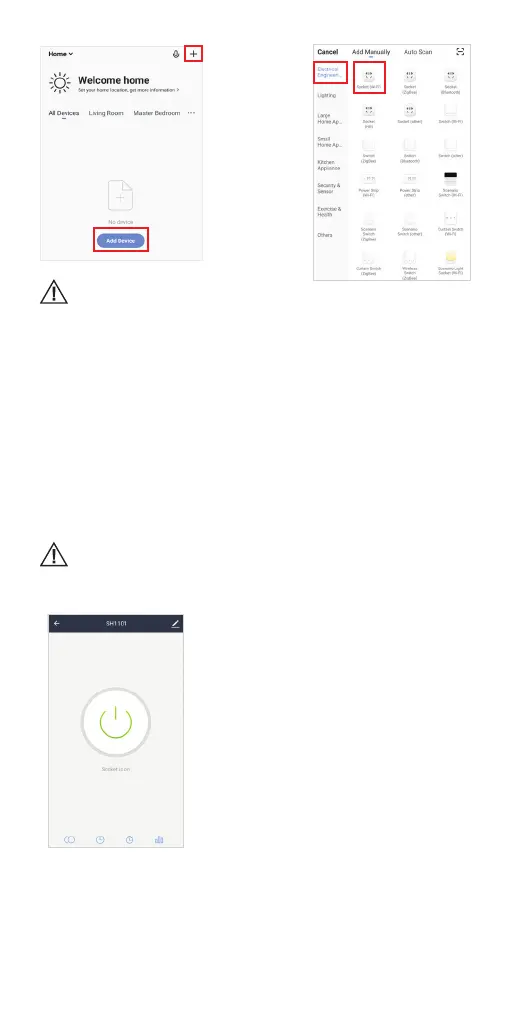
5) Short press the button to manually control the device. The blue LED indicator will
light on or o depending on the plug power state.
Connection modes
EZ (easy mode) mode: the smart plug connects to your home router directly.
AP (access point) mode: the smart plug creates an access point which connects to the
smartphone and to your home router.
Unpairing:
Press and hold the button on the device for 5 s to unpair it from your smartphone or use
the application Remove Device button in the device Settings menu.
Reset:
Open the application device menu and go to Settings, then click Restore Manufacturer
Defaults.
Dierent modes are necessary for particular router types. Try one or
another if it does not work with the rst try.
Features
Schedule – schedule the time to turn on/o the
smart plug at dierent hours or time intervals.
Energy monitoring (statistics) –
use the application to track your
devices energy consumption.
Timer – use a timer to turn o/on the
smart plug after the set time.
Remote access – control the smart plug
from dierent locations using your mobile
data or another Wi-Fi connection.
Real-Time data – track the smart
plug’s data at the real-time.
Easy scenes – easy to program the smart
plug to use dierent functions, e.g. to
turn on the light while doors are opening
(using with door/window sensor).


 To Next Page