EasyManua.ls Logo

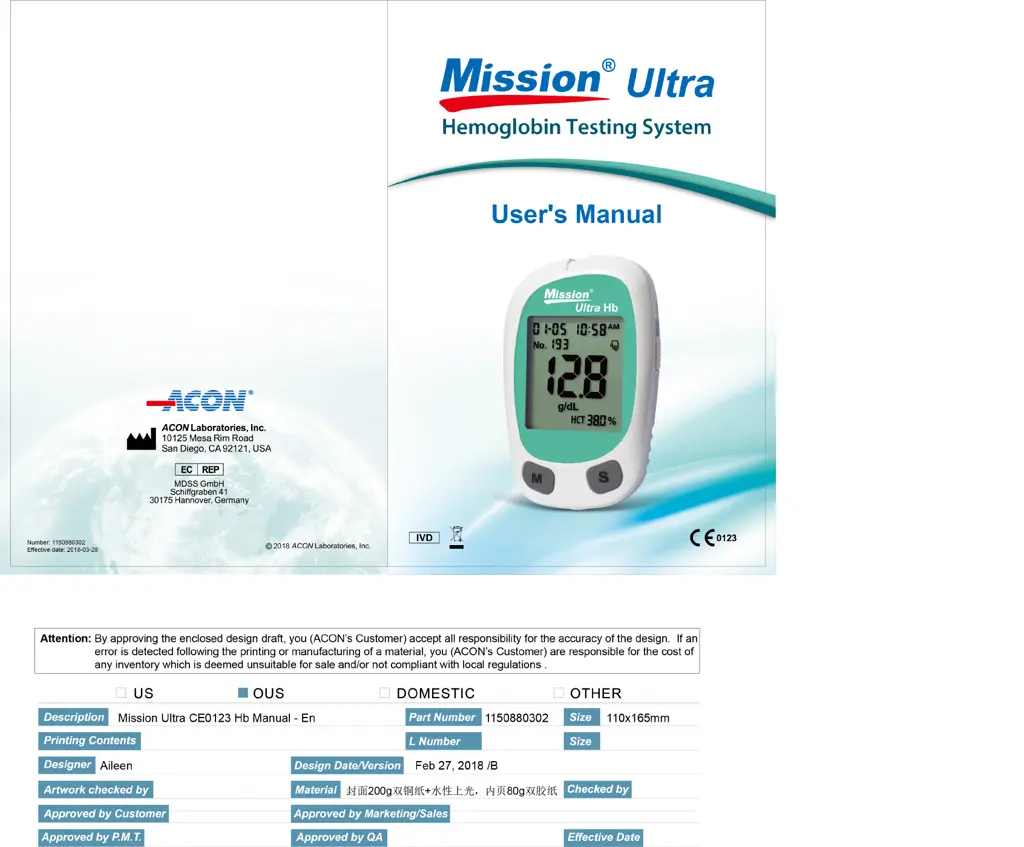
Acon Mission Ultra - User Manual

Acon Mission Ultra
49 pages
Print Icon
To Next Page IconTo Next Page
Loading...

Other manuals for Acon Mission Ultra

Questions and Answers

  • D
    Dawn LewisAug 7, 2025
    What to do if I get a Code Chip Error on my Acon Measuring Instruments?
    • R
      ramirezclaudiaAug 7, 2025
      If you're getting a Code Chip Error on your Acon Measuring Instruments, first ensure that you are using the correct Mission® Ultra Hemoglobin Code Chip and repeat the test. If the code chip is damaged, replace it with a new one that has the correct code number and try again. If the code chip was removed during the test, make sure the code chip matches the test strip code before repeating the test.
  • B
    Brandon JohnsonAug 11, 2025
    What to do if the Acon Measuring Instruments test strip is contaminated?
    • A
      Allen ConwayAug 11, 2025
      If you suspect the test strip for your Acon Measuring Instruments is contaminated or has been used previously, repeat the test using a new test strip.
  • A
    ariveraAug 15, 2025
    What to do if Acon Measuring Instruments shows insufficient specimen volume?
    • R
      Robert DaviesAug 15, 2025
      If you are getting an error related to insufficient specimen volume or a specimen application error on your Acon Measuring Instruments, repeat the test, ensuring that you apply enough specimen to completely fill the test strip check window.
  • D
    Derrick PalmerAug 19, 2025
    What to do if Acon Mission Ultra measure result is too high?
    • R
      rachel96Aug 19, 2025
      If the measurement result from your Acon Measuring Instruments is too high (greater than 26.0 g/dL, 16.1 mmol/L, or 260 g/L), repeat the test. If the problem persists, it is recommended to consult with your doctor.
  • B
    brewerjefferyAug 23, 2025
    How to fix Acon Mission Ultra data transfer error?
    • J
      Jonathan CaldwellAug 23, 2025
      If you're experiencing a data transfer error with your Acon Measuring Instruments, first try using a new data transfer line and attempt the transfer again. If the issue persists, please contact your local dealer.
  • J
    jason77Aug 28, 2025
    How to resolve a memory error on Acon Mission Ultra?
    • T
      Timothy BakerAug 28, 2025
      If your Acon Measuring Instruments is showing a memory error, remove the battery for 90 seconds, then reinsert it and turn the meter back on. If the problem continues, contact your local dealer.
  • L
    Lauren RogersNov 1, 2025
    Why won't my Acon Measuring Instruments meter turn on?
    • M
      mark44Nov 1, 2025
      There are several reasons why your Acon Measuring Instruments meter might not be turning on. The battery may be damaged, discharged, or low on voltage (especially after about 20 tests). The temperature may be too high (over 40°C) or too low (under 10°C). Also, the code chip might be missing, the test strip might have been removed during testing, or the specimen might have been applied too soon. In case of damaged or discharged battery replace it. If the temperature is too high or too low, move to a more suitable environment and wait 30 minutes before trying again. Insert the correct code chip. Repeat the test, ensuring the test strip stays in place and that you apply the specimen after the blood drop/test strip icon appears. If a cell phone, radio frequency source, or high On/Off electrica...

Summary

Intended Use

To Ensure Accurate Results

Important Safety Instructions

Getting Started

Component Descriptions

Mission Ultra Hemoglobin Meter

Meter Display

Explains the icons and information shown on the meter's LCD screen during operation.

Meter Use and Precautions

EMC Warnings

Provides important information regarding electromagnetic compatibility and potential interference.

Mission Ultra Hemoglobin Test Strips

Test Strips Storage and Handling

Instructs on proper methods for storing and handling test strips to maintain their integrity.

Test Strips Precautions

Lists important precautions to follow when using the hemoglobin test strips.

Mission Ultra Hemoglobin Control Solution

Storage and Handling

Provides instructions for storing and handling the hemoglobin control solution correctly.

Precautions

Lists important safety and usage guidelines for the control solution.

Installing the Batteries

Setting up the Meter before Testing

Step 1 - Adjusting Meter Settings

Explains how to configure clock, date, and unit settings on the meter.

Step 2 - Coding the Meter

Describes the procedure for inserting the correct code chip for test strips.

Performing a Quality Control Test

Control Result Troubleshooting

Offers guidance on troubleshooting when control test results are outside the expected range.

Performing a Hemoglobin Test

Collecting Blood Specimen

Details how to properly collect blood samples for hemoglobin testing.

Using the Lancing Device and Lancets

Explains how to assemble and use the lancing device for obtaining blood samples.

Lancet Handling and Disposal

Covers safe disposal and precautions for using lancets.

Testing for Hemoglobin

Guides the user through inserting the test strip and preparing for the actual measurement.

Adding and Applying Specimens

Describes how to correctly apply the blood sample to the test strip.

Reading and Interpreting Results

Explains how to interpret the hemoglobin and hematocrit values displayed by the meter.

HI Messages

Explains the meaning and action required for "HI" messages displayed by the meter.

Precautions and Limitations

Using the Memory

Viewing Stored Records

Guides the user on how to access previously recorded test results.

Clearing the Memory

Transferring Records

Maintenance

Replacing Batteries

Details the process of replacing the meter's batteries when they are low.

Cleaning and Care

Provides instructions on cleaning the meter and lancing device.

Suggested Target Goals

Comparing Meter and Laboratory Results

Troubleshooting Guide

Specification

Warranty

Index of Symbols

Acon Mission Ultra Specifications

General IconGeneral
Measurement Range0-26.0 g/dL (0-16.1 mmol/L or 0-260 g/L).
Result CalibrationPlasma-equivalent
Minimum Specimen Size4 μL
Test Time<12 seconds
Hemoglobin Units of MeasureMillimoles per liter (mmol/L) or grams per deciliter (g/dL) or grams per liter (g/L)
On/Off SourceTwo CR2032 coin cell batteries (3V)
Automatic shutoff4 minutes after the last action
Battery LifeMinimum of 1, 000 measurements
Memory500 results with date/time
Display Size36 mm × 41 mm
Meter Storage Conditions0-50°C (32-122〬F); 10%~90% RH
Operating Temperature10°C - 40°C
Operating Relative Humidity10%~90%
Data PortAudio Port
Weight and Dimensions IconWeight and Dimensions
Meter Size58 mm × 90 mm × 20 mm
Weight64 g

Related product manuals