9-2
USER MANUAL 750000992/16
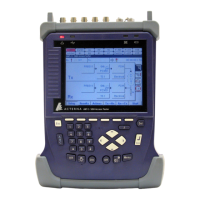
Remote control MTS
e
Connection via the Ethernet interface
Equipment delivered with the option
• RS232/Ethernet Adaptor plugged into RS232 port.
• Ethernet crossed cable for direct link between PC and MTS
e
• WS-FTP Pro software (ref. 5996/MTS)
• Diskette containing set-up file for WS-FTP Pro.
Link with PC
The link with the PC may be direct or via a network:
1. To establish a direct link, connect the Ethernet ports of the MTS
e
and PC by
means of the cross cable supplied.
2. To establish a link via the network, ask the network administrator for an IP
address and connect the MTS
e
on a hub by using a direct cable supplied by
the administrator (and not the crossed cable provided for the MTS
e
Ethernet
option).
What to do with the PC
• Install the software WS-FTP Pro.
• Copy the file «.ini» from the diskette into the directory containing the
software WS-FTP Pro by writing over the existing «.ini» file.
• Make sure that the PC has an Ethernet card whose parameters are defined
(TCP/IP protocol, IP address and bridge). To access these parameters, in
Windows Explorer click on the icons «Work station», then «Configuration
panel», then «Network».
• Open the software WS-FTP pro.
• If necessary, change the address of the MTS
e
in «Host Name».
Configuration of MTS
e
• Start the MTS
e
and press the key <Config. System>.
• Select the interface E/S: FTP/Ethernet. To do this, if the interface selected is
RS232, press the left arrow <- to avoid passing via the FTP/PPP position, for
which you would have to wait for the protocol change.
• Configure the Ethernet interface: IP address, IP mask, IP bridge.
Note
The IP address is in the following form: xxx.xxx.xxx.xxx
If one of the numbers in this address has only one or two
figures, enter only this (or these) figure(s). Do not add a zero,
otherwise the link will not be established.
Note
To check that the connection has been made correctly, without using
the software WS-FTP Pro, click on Start, then on Execute..., and
choose: «ping» followed by the IP address of the MTS
e
.
Connection via a modem
1. Connect the modem to the MTS
e
:
Artisan Technology Group - Quality Instrumentation ... Guaranteed | (888) 88-SOURCE | www.artisantg.com



 To Next Page
 Loading...