3-10
USER MANUAL 750000992/16
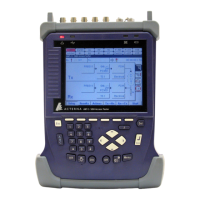
Getting Started MTS
e
The user will receive the set of floppy disks he need to upgrade his MTS
e
.
Installation of the boot (if necessary)
1. The MTS
e
being switched off (AC/DC adapter unplugged), insert the disk 1
of the boot into the floppy disk drive.
2. Plug in the AC/DC adapter. The floppy disk drive will then work and the
MTS
e
will automatically begin to transfer the software from disk 1 to the
RAM. The screen is switched on :
"Starting file transfert to RAM"
. . . . . . . . . . . . . . . . . . . . . . . . . . .
The dots from the left to the right are showing the load in progress.
3. When the following message appears insert disk 2 and hit the OK key.
"Insert next boot disk and hit OK when ready.".
4. If the main power is not on, the following message appears :
"PLUG-IN EXTERNAL POWER TO CONTINUE".
You have to connect this external power supply. It is automatically detected.
"Do not remove power before flashing is complete"
This message is very important: if you stop the process, the MTS
e
may be
damaged.
5. After the message "Boot flashing has begun" wait for the following
message "Boot flashing successful". The boot software is then installed.
6. You can press ON when the MTS
e
is ready (LED ON flashing) to check it is
operating correctly.
7. Switch off the MTS
e
and unplug the external power before starting to load
the application software.
Installation of the application software
Proceed as follows to install the new software:
1. With the MTS
e
switched off (AC/DC adapter unplugged), insert the disk 1
into the floppy disk drive.
2. Plug in the AC/DC adapter. The green LED of the floppy disk drive lights up
and the MTS
e
will automatically begin to transfer the software from disk 1 to
the RAM.
"Starting file transfer to RAM"
. . . . . . . . . . . . . . . . . . . . . . . . . . .
The screen is switched on and some dots appear from the left to the right to
show the transfer in progress.
3. Insert disk 2 and hit the OK key when the following message appears
"Insert next boot disk and hit OK when ready.".
4. Repeat the preceding step, inserting the next disks.
5. Once all the disks have been transferred, the MTS
e
prompts you to confirm
that you wish to update the internal memory with this new software release,
by the message:
"Current Flash contents will be erased, continue? (Y/N)"
1. this version is displayed when the MTS
e
is switched on, during the autotest.
Artisan Technology Group - Quality Instrumentation ... Guaranteed | (888) 88-SOURCE | www.artisantg.com


 To Next Page
 Loading...