Step 5: Log-in
www.ac.com
Quick Installation Guide
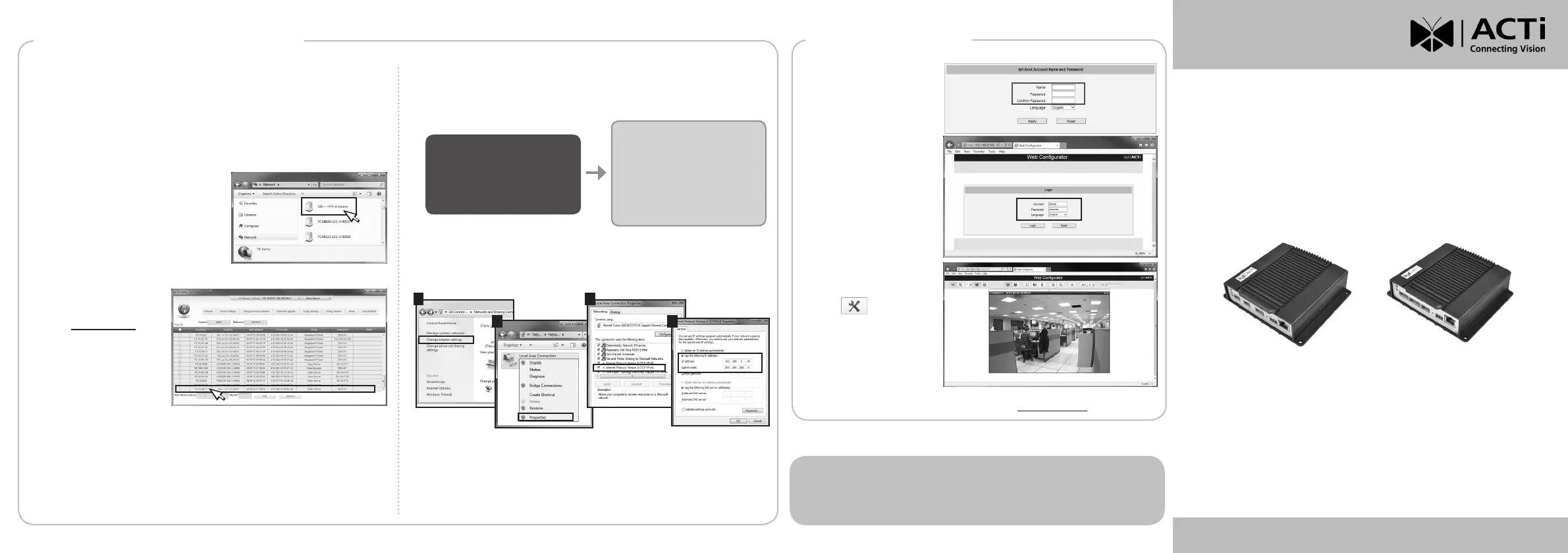
1. Forrsttimelogin,set
up the root account
Name and Password.
2. Click Apply.
3. On the Login page, type
the newly setup Account
Name and Password.
4. Select Language, if
necessary.
5. Click Login.
The Live View screen
appears.
6. Click to access the
Setup menu to modify
the Encoder settings.
For more detailed instructions, please refer to the “Firmware
Manual” downloadable from the website (www.acti.com).
V2x Series Encoder
V.20221130
By IP Utility
a. Download IP Utility
from our website
(www.acti.com).
b. Run IP Utility to
start searching for
network devices.
c. Click the IP address
of the Encoder.
On Network with DHCP Server / Router (Automatic IP)
1. Connect the device and the PC within the same network segment. Once
connected, an IP address will be assigned to the Encoder.
2. Find the Encoder via Windows Explorer or IP Utility.
3. The Web Congurator appears with the IP address of the Encoder on
the URL bar. Login to access the Encoder.
Note: For full functionality, it is recommended to use Microsoft Internet Explorer
®
.
When using non-IE browsers, free 3
rd
party software plug-ins may be required.
Refer to the device Firmware Manual for more information.
By Windows Explorer
a. Go to Start > My
Computer > Network.
b. Double-click on the device name.
On Network without DHCP Server (Default IP)
1. Ifnecessary,conguretheIPsettingsofyourPCtomatchwiththe
network segment of the Encoder.
Step 4: Access the Device
2. Open a web browser and type 192.168.0.100 on the URL address bar.
The Web Congurator appears. Login to access the Encoder.
Encoder Defaults
IP Address:
192.168.0.100
Subnet:
255.255.255.0
PC can be assigned with
IP Address:
192.168.0.99 or
192.168.0.101 or
192.168.0.102 and so on
Subnet:
255.255.255.0
How to congure the PC IP address?
Click Start > Control Panel > Network and Sharing Center >
Change adapter settings. Then follow the steps below:
1
2
3
4
Note: For full functionality, it is recommended to use Microsoft Internet Explorer
®
.
When using non-IE browsers, free 3
rd
party software plug-ins may be required.
Refer to the device Firmware Manual for more information.
ACTi Connecting Vision and its logo are registered trademarks of ACTi Corporation.
All products or company names mentioned in this document are trademarks or registered
trademarks of their respective owners.
Copyright © 2022, ACTi Corporation All Rights Reserved
V21 / V22 (1-Channel)
V23 / V24 (4-Channel)
This product is warranted against manufacturing defects and/or workmanship.
Please check our website for detailed information on Warranty.


 To Previous Page
 Loading...
