135
ADOBE FRAMEMAKER 7.0
Classroom in a Book
Next, you’ll flip and move the graphic to position it correctly.
4 With the grouped objects still selected, choose Graphics > Flip Left/Right.
5 Choose Graphics > Object Properties.
6 In the Offset From area, change the Left offset to 0 and click Set.
The page design is finished.
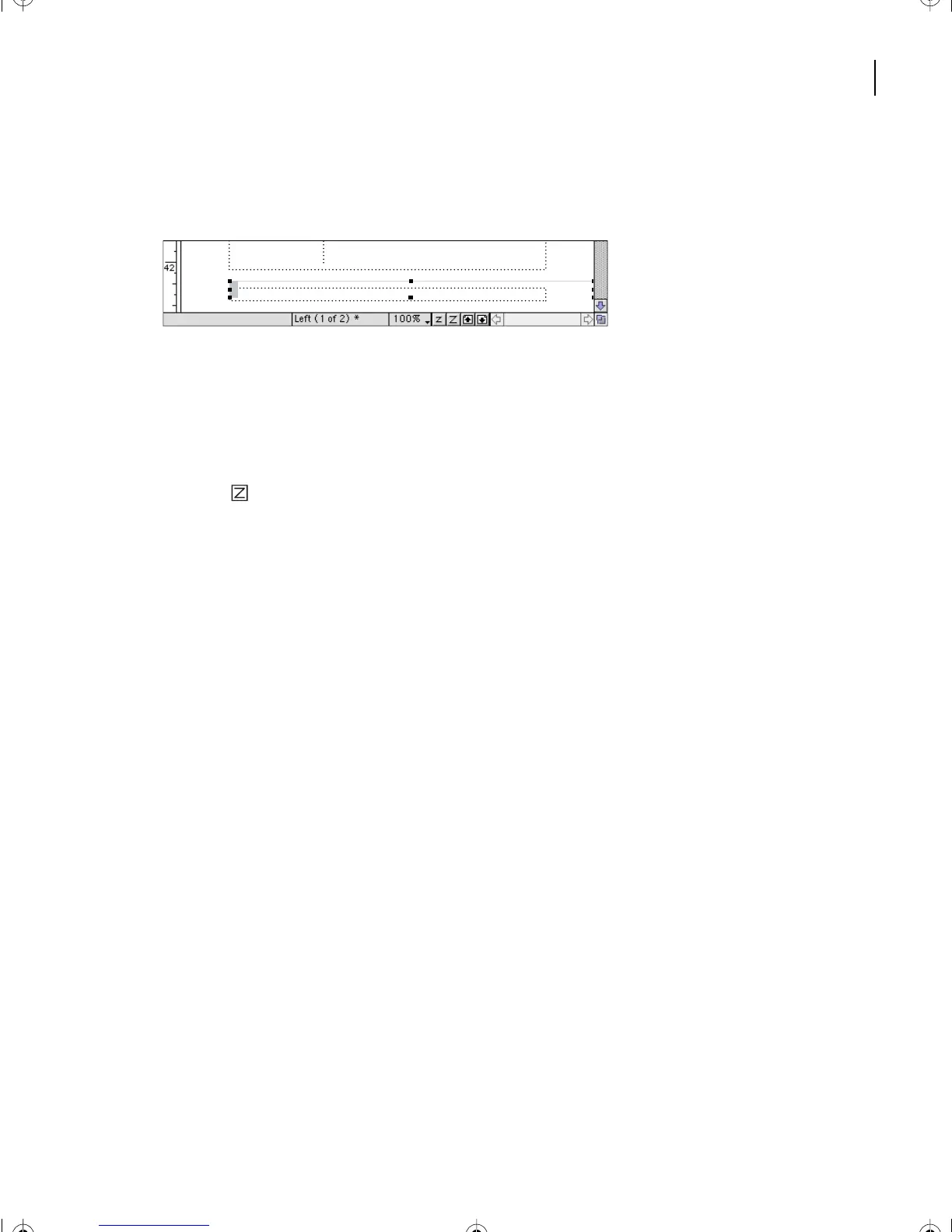
7 If the header and footer appear as gray bars rather than as text, click the Zoom In
button ( ) in the status bar until the header and footer appear as text.
8 Choose View > Body Pages to display the first page of the document, and then scroll
through the document to see the modified page design.
9 Save and close Graphics1.fm.
Moving on
Yo u’ve completed this lesson. For in-depth information about graphics, see Chapter 9,
“Graphics,” chapter 10, “Anchored Frames,” and Chapter 18, “Importing, Linking, and
Exporting,” in the Adobe FrameMaker 7.0 User Guide.
Review questions
1 How large is a point? A pica?
2 What does the Snap command do?
3 What is the difference between importing a graphic by copying it into the document
and importing a graphic by reference?
4 Name an advantage of each method.
5 What is the function of the Tools palette?
6 What does the Group command do?
Running H/F 1: Running H/F 2
L05.fm Page 135 Saturday, July 6, 2002 11:45 AM



 To Next Page