17
ADOBE FRAMEMAKER 7.0
Classroom in a Book
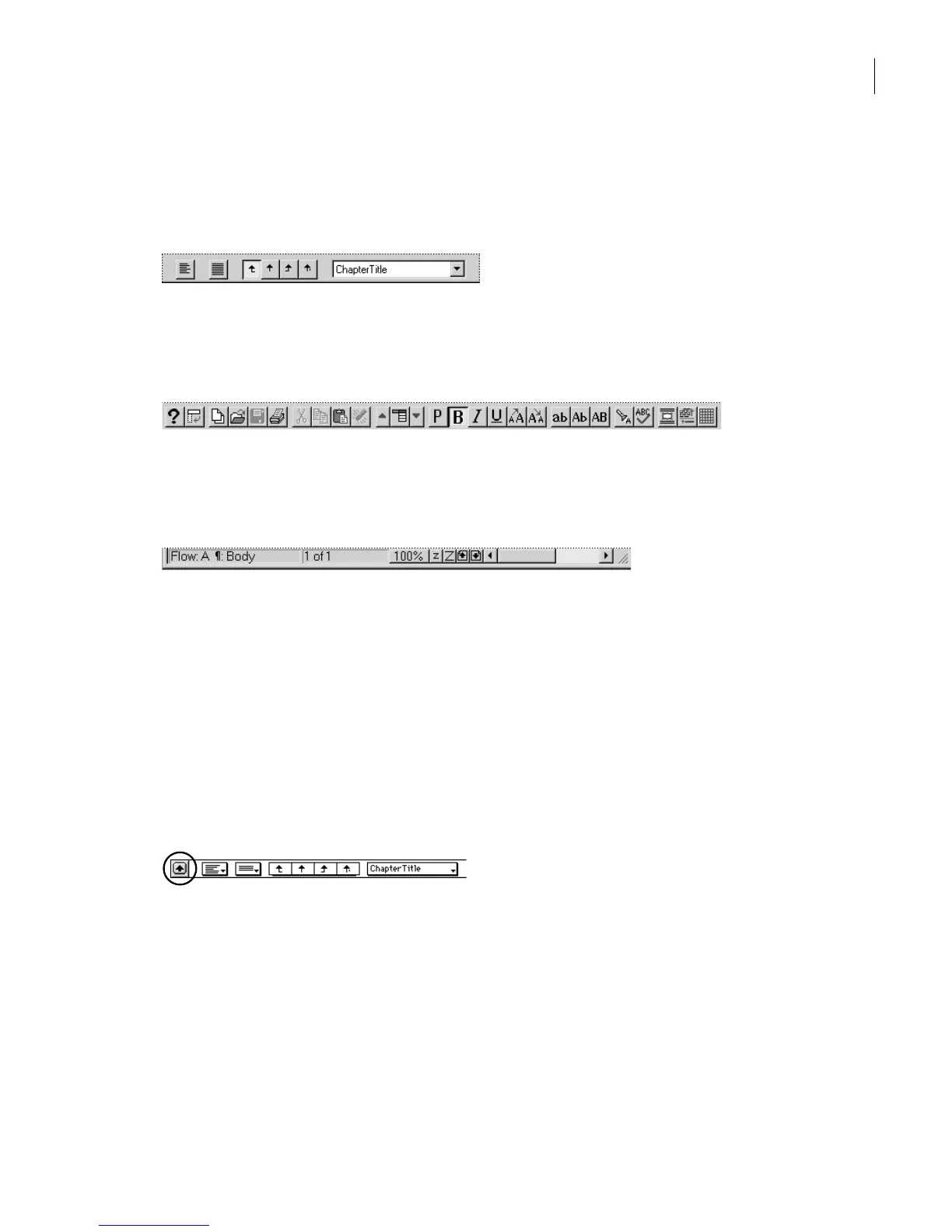
You can use the formatting bar to format text. When the formatting bar is visible, it
appears below the menu bar (Windows) or below the document window’s title bar
(Mac OS and UNIX).
Formatting bar in Windows
You can also display the QuickAccess bar by choosing View > QuickAccess Bar. This
contains shortcuts to commonly used commands.
QuickAccess bar
The status bar at the bottom of the window contains information about the document
and controls for zooming and for moving through the document.
Status bar
Right now, you’re just looking at the document, so you’ll hide the formatting bar, the
rulers, and the QuickAccess bar (if it’s visible). You’ll also adjust the window size and use
a command in a context-sensitive pop-up menu to turn off the text symbols.
1
If the formatting bar is visible, do one of the following to hide it:
•
(Windows) Choose View > Formatting Bar.
•
(Mac OS and UNIX) Click the formatting bar toggle on the left side of the format-ting
bar.
Formatting bar toggle
2
Choose View > Rulers to hide the rulers.
3
If the QuickAccess bar is visible, do one of the following to hide it:
•
(Windows) Choose View > QuickAccess Bar.
•
(Mac OS) Click the close box.
•
(UNIX) Put the pointer on the bar and press Control+c.



 To Next Page