203
ADOBE FRAMEMAKER 7.0
Classroom in a Book
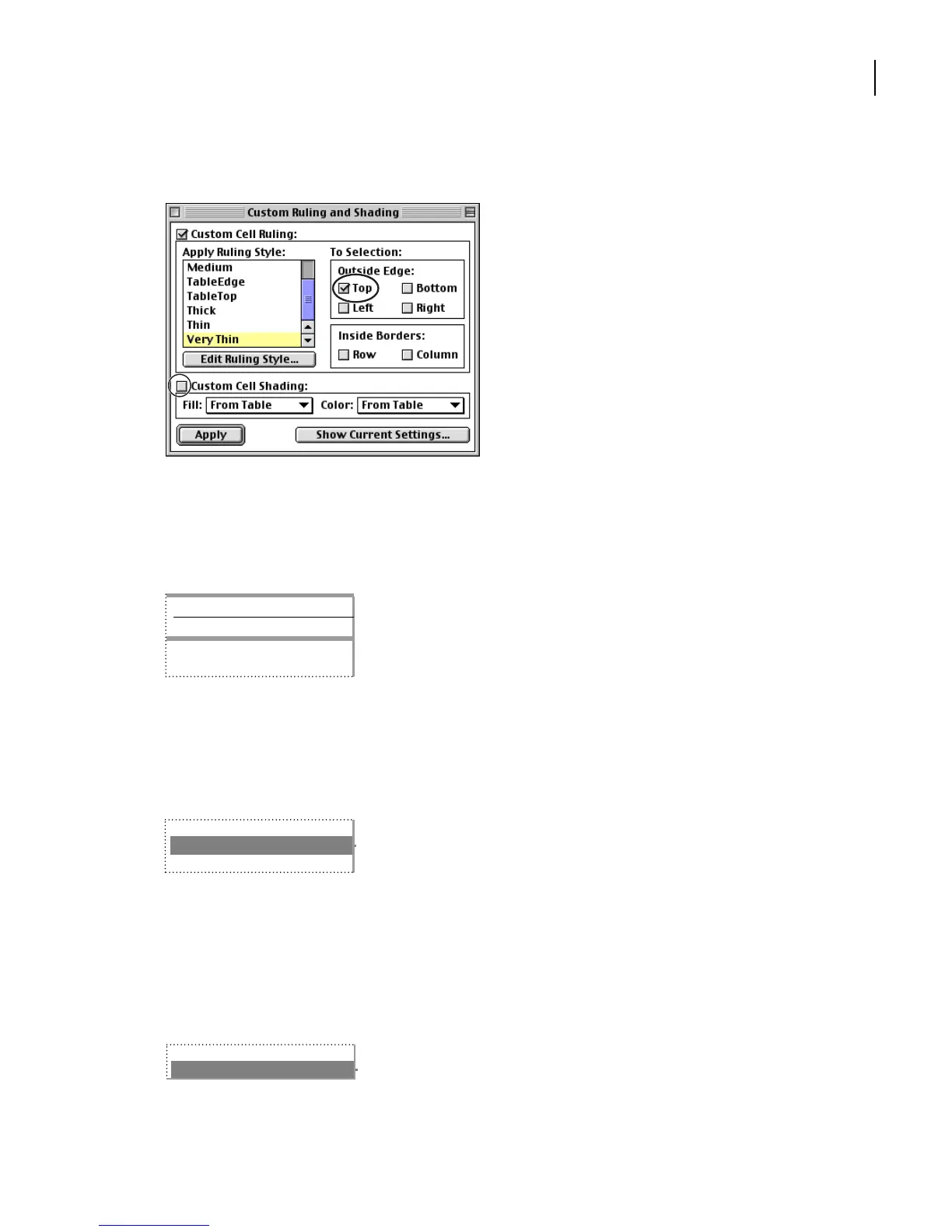
4 In the To Selection area, select Top, but turn off the other options.
5 At the bottom of the dialog box, make sure the Custom Cell Shading option is off, and
click Apply.
6 Click in the body of the table to deselect the cells so you can see the rule above the cells.
Now you’ll add the same rule in two other places. Because the Custom Ruling and
Shading dialog box is already set up correctly, you won’t need to change the settings.
7 Select the four cells to the right of Total current assets.
8 In the Custom Ruling and Shading dialog box, click Apply.
Note: (Mac OS only) If the dialog box is hidden behind the document window, choose Table
> Custom Ruling & Shading.
9 At the bottom of the table, select the four cells to the right of Total assets.
FISCAL YEAR
2002 2001 2000 1999
203,4611 46,992 89,557 72,429
12,542 9,600 5,398 3,213
556,602 363,403 213,090 169,075
35,601 51,525 42,508 12,954
3,655 2,153 1,078 446
616,286 427,408 263,648 185,921



 To Next Page