LESSON 9
220
Anchored Frames and Graphics
5
In the Import Graphic Scaling dialog box, verify or enter 144 in the custom dpi value
box. Then click Set. The graphic appears in an anchored frame below the text.
Yo u’ll use the same shortcut you used before to shrinkwrap the anchored frame.
6
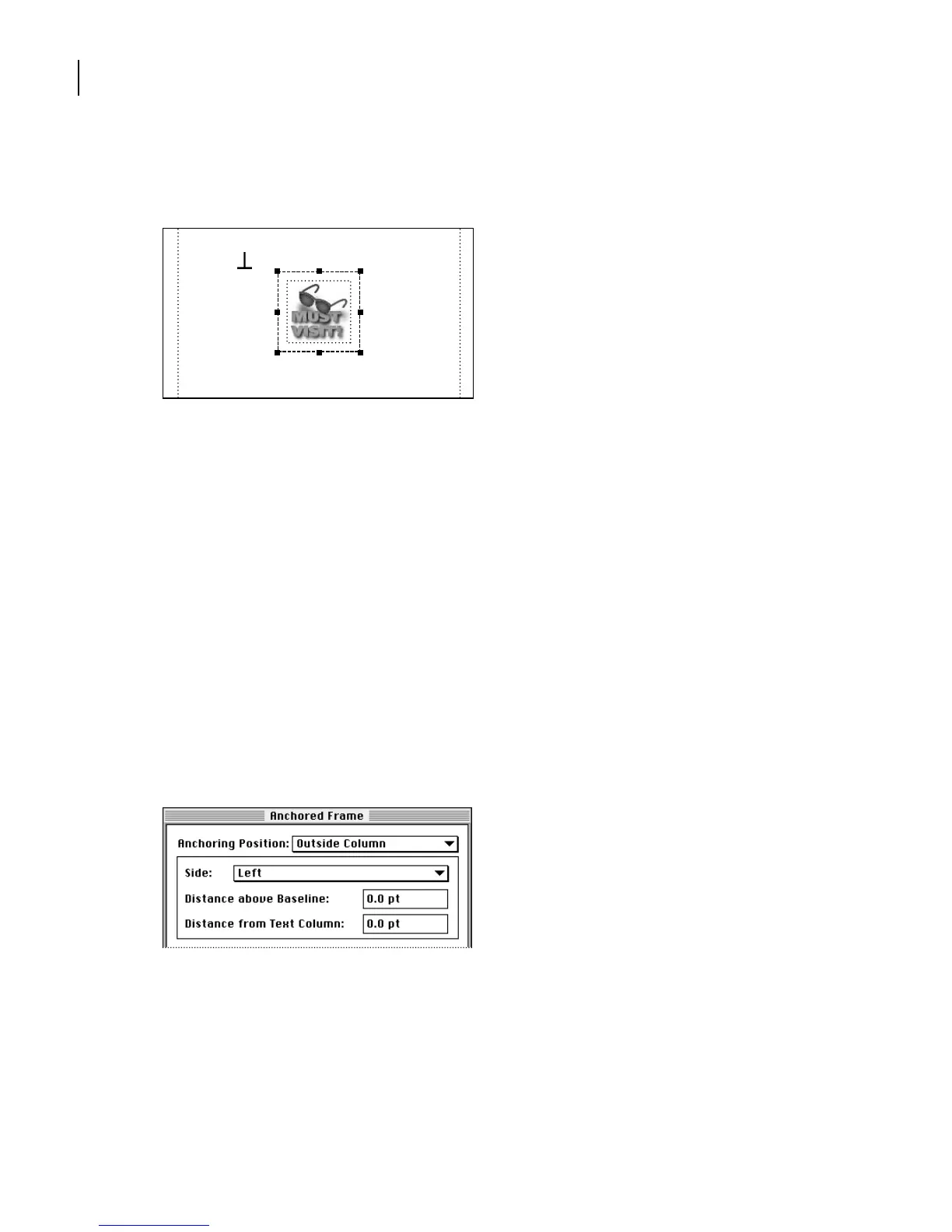
With the anchored frame still selected, press Esc m p. The anchored frame appears in
the line of text, and the insertion point appears to the right of the anchored frame.
The Line Spacing property for the paragraph format is set to Fixed. As a result, the line
height of the text doesn’t increase to accommodate the height of the frame, and the frame
obscures the text. Because you don’t want the anchored frame to appear at the insertion
point, you’ll use the Anchored Frame command to change the anchoring position.
7
Click the border of the anchored frame to select the frame, not the graphic. Handles
appear on the frame. (If no handles appear, you probably selected the graphic, not the
frame.)
8
Choose Special > Anchored Frame.
9
Choose Outside Column from the Anchoring Position pop-up menu.
You want to be able to add text above the frame, and if the frame moves to the right
column, you want the graphic to appear on the right side of the column. To do this, you’ll
change the Side setting.
The scenic turnout at the 82-mile marker
overlooks Kiholo Bay. Down there you
will find a saltwater bay with freshwater



 To Next Page