LESSON 12
308
Indexes
1 In the book window, double-click Chapter1.fm to open the first chapter.
2 Choose View > Text Symbols to display text symbols.
3 In the chapter’s status bar, click the Next Page button ( ) to display the second page
of the chapter.
4 Click just to the left of the word Hue in the middle of the second line of text (at the
beginning of the second sentence).
5 Choose Special > Marker.
6 Move the Marker dialog box so it doesn’t obscure your view of the insertion point in
the chapter.
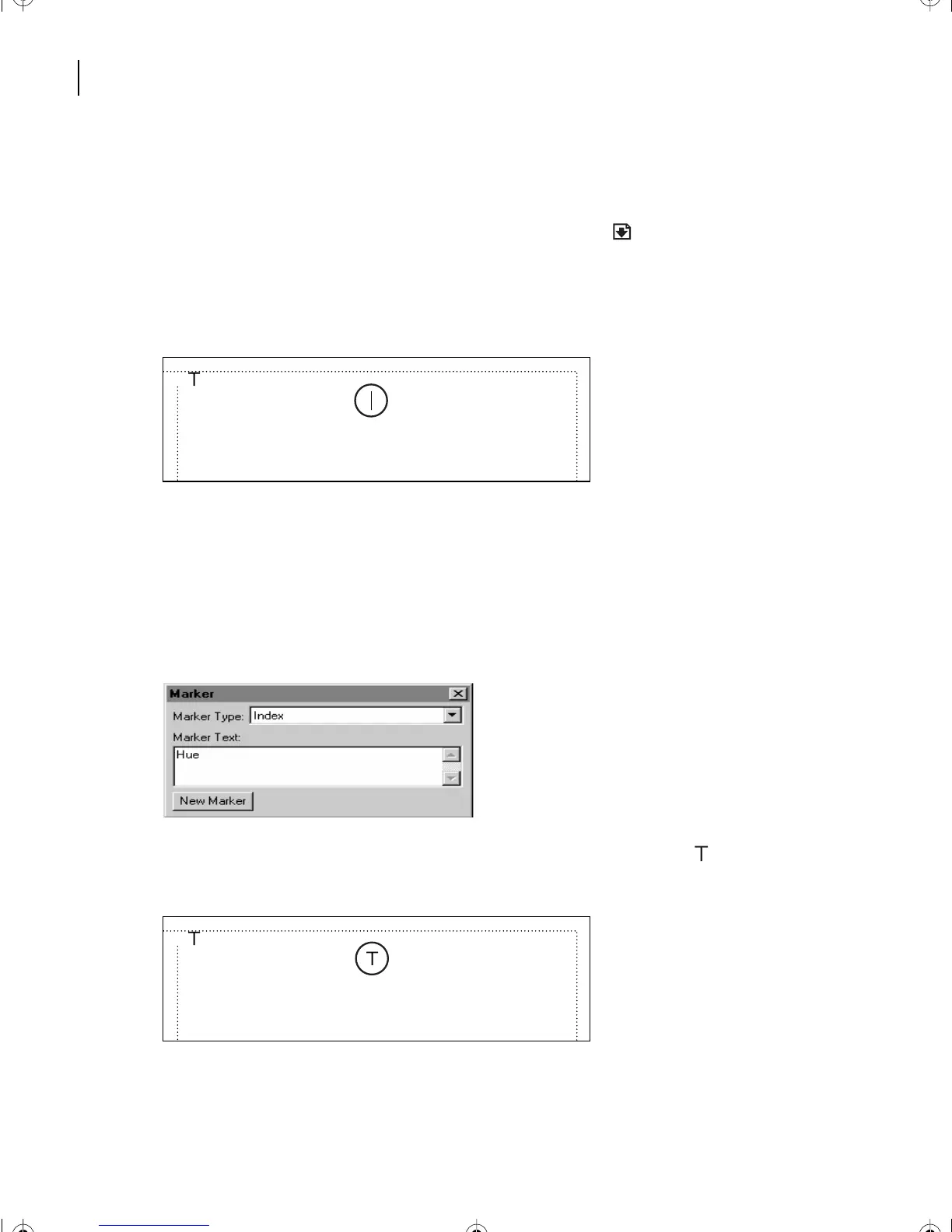
7 In the Marker dialog box, make sure Index is chosen in the Marker Type pop-up menu.
8 Click in the Marker Text box and enter Hue.
9 Click New Marker to insert the index marker. A marker symbol ( ) appears at the
insertion point. The next time you generate the index, an entry will appear for Hue.
We describe color in terms of three characteristics—
hue, value, and saturation.
Hue
is the wavelength of
light reflected from or transmitted through an object.
More commonly, hue is identifed by the name of the
color, such as orange, pink, or green.
We describe color in terms of three characteristics—
hue, value, and saturation.
Hue
is the wavelength of
light reflected from or transmitted through an object.
More commonly, hue is identifed by the name of the
color, such as orange, pink, or green.
L12.fm Page 308 Monday, July 8, 2002 1:28 PM



 To Next Page