393
ADOBE FRAMEMAKER 7.0
Classroom in a Book
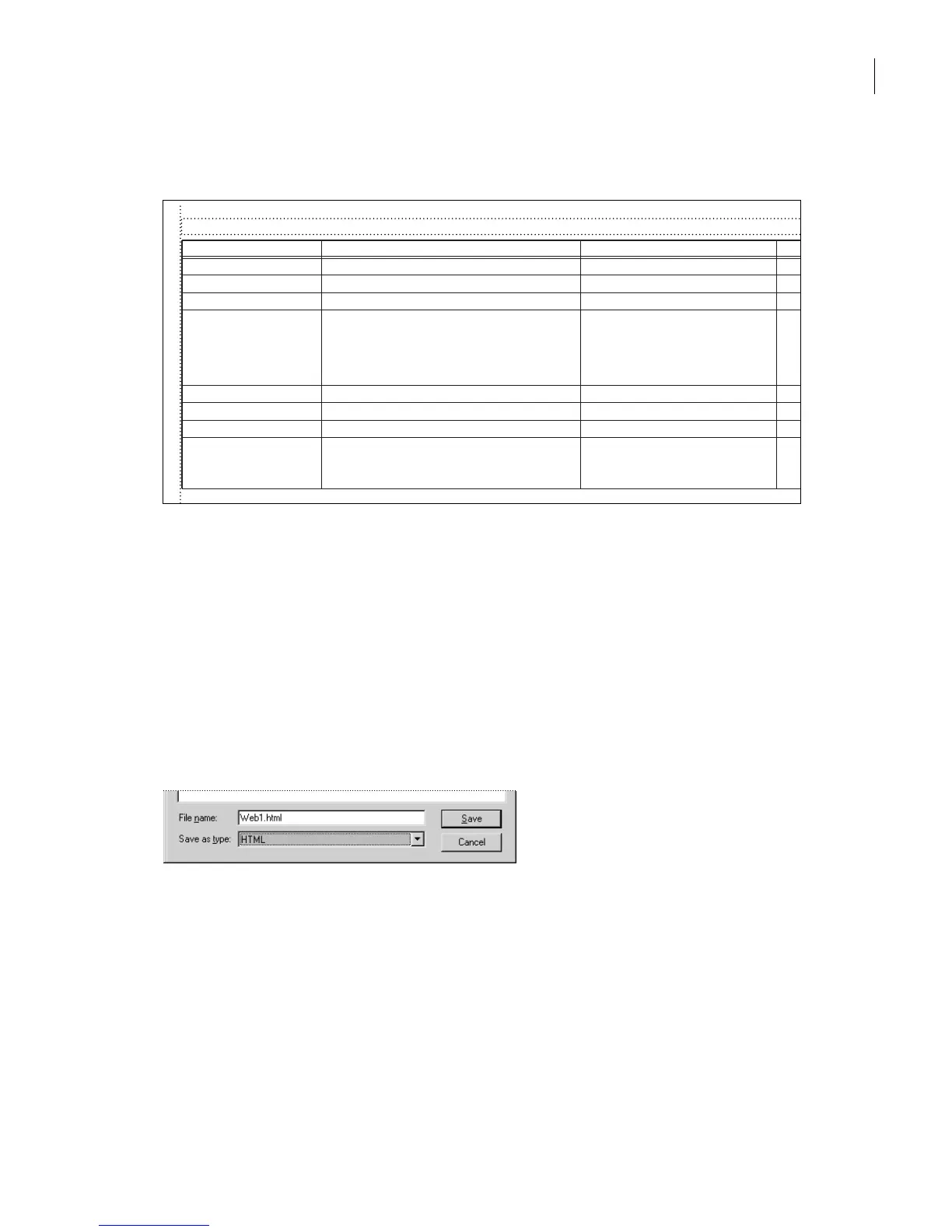
The completed table looks like this:
4 Choose View > Body Pages, and choose File >Save.
Viewing the navigation links in a Web browser
Yo u’ve made all your adjustments, and now you’re ready to save your document as HTML
one last time.
1 Choose File > Save As and navigate to the Lesson15 folder.
2 Enter the filename Web1.html—make sure to include the file extension .html—and
choose HTML from the Save as type pop-up menu.
3 Click Save, then click OK (Replace on Mac OS) to overwrite the existing Web1.html file.
4 Open Web1.html in your Web browser to test the new navigation links.
§
§
§
§
§
§
§
§
§
§
§
§
§
§
§
§
§
§
System Macros§
Macro Name§ Replace With§ Head§ Co
StartOfDoc§ <TITLE> <$defaulttitle></TITLE>§
EndOfDoc§
StartOfSubDoc§ <TITLE> <$defaulttitle></TITLE>§
EndOfSubDoc§
StartOfFirstSubDoc§ <TITLE> <$defaulttitle></TITLE>§
EndOfFirstSubDoc§
StartOfLastSubDoc§ <TITLE> <$defaulttitle></TITLE>§
EndOfLastSubDoc§
<P><A HREF="<$parentdoc>">Return to main
page </A><A HREF="<$prevsubdoc>"><IMG
SRC="Art/back.gif" Border=0></A> <A
HREF="<$nextsubdoc>"><IMG SRC="art/for-
ward.gif" Border=0></A></P>
<P><A HREF="<$parentdoc>">Return to main
page </A><A HREF="<$prevsubdoc>"><IMG
SRC="Art/back.gif" Border=0></A></P>



 To Next Page