LESSON 3
80
Defining Colors and Character Formats
8
Select Apply to Selection (leave Store in Catalog selected) and click Create. The selected
text is reformatted, and the new character format is stored in the Character Catalog.
9
Click away from the selected text to deselect it, so you can better see the effect of the
character format.
10
Close the Character Designer.
Now you can use the new character format whenever you need it.
11
Go to the Scanning and color correction section at the bottom of page 9 or the top of
page 10 and select the words
continuous-tone art
.
12
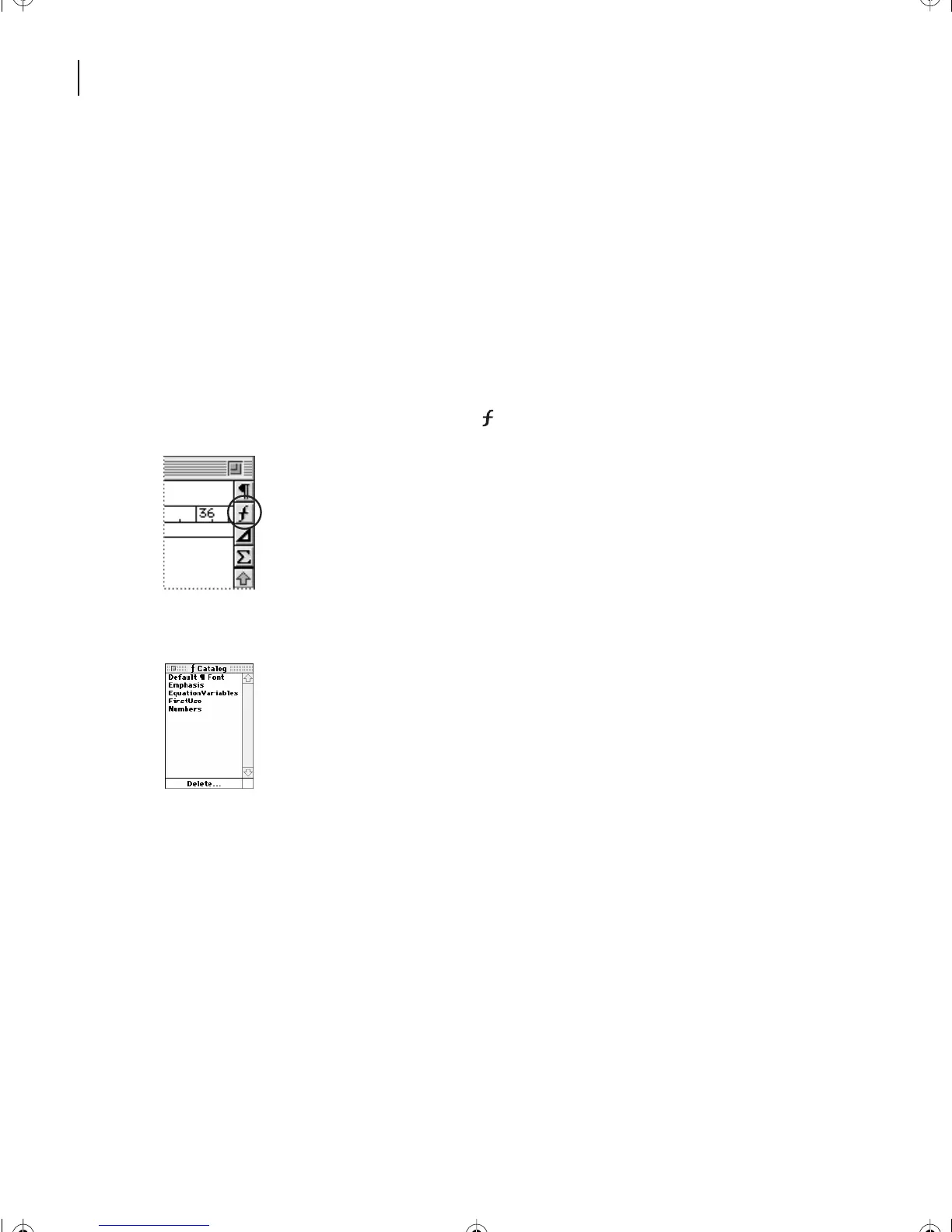
Click the Character Catalog button ( ) at the right side of the document window.
The Character Catalog appears.
13
In the Character Catalog, click FirstUse to apply the format to the selected text.
14
Save the document.
15
If you want, experiment with applying a character format to other text. When you’re
finished, close the Character Catalog.
L03.fm Page 80 Saturday, July 6, 2002 11:39 AM



 To Next Page