99
ADOBE FRAMEMAKER 7.0
Classroom in a Book
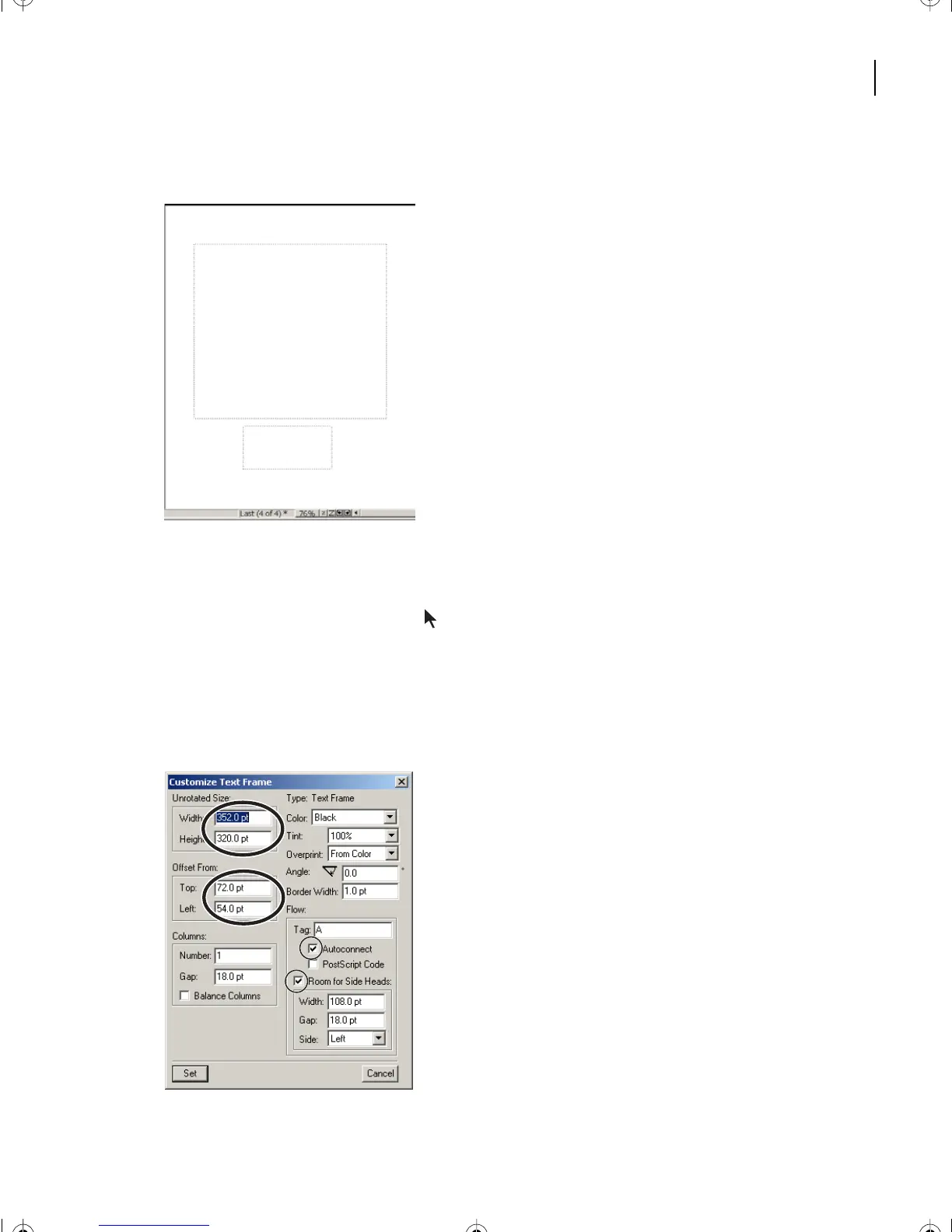
11 Draw a smaller text box near the bottom of the Last master page, as shown below.
12 When the Add New Text Frame dialog box appears, type B for the Flow Tag and then
click Add.
13 Select the Select Object tool ( )from the upper right corner of the Tools palette and
click on the larger text frame. Choose Graphics > Object Properties.
14 Change the Width to 352 and change the Height to 320. In the Offset From area,
change the Top offset to 72 and the Left offset to 54. Make sure the Tag is A. Make sure
Autoconnect and Room for Side Heads are selected and click Set.
L04.fm Page 99 Saturday, July 6, 2002 11:34 AM



 To Next Page