2
To use all features, your Adonit Pixel must be
connected to a compatible app. Here’s how:
1. Activate Bluetooth
Open your iPad > Settings > and turn
Bluetooth ON.
Your Adonit Pixel will not appear in the
My Devices list.
Open your iPad > Settings > General and turn
Multitasking Gestures OFF.
2. Launch compatible app
For a list of Adonit Pixel compatible apps visit
adonit.net/apps
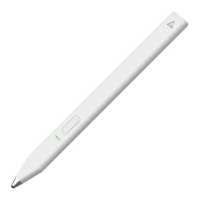
3. Turn your Adonit Pixel Stylus ON
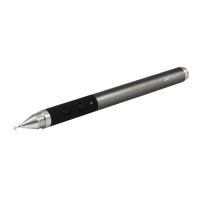
Hold down the button on the barrel of your
Adonit Pixel until the light flashes.
4. Connect the Adonit Pixel with your App
Open the settings in your app.
Locate the stylus pairing option and follow
instructions to connect the stylus to your app.
For more info on connecting to specific apps
go to adonit.net/apps
EN
Quick Start Guide


 To Next Page