EasyManua.ls Logo

ADS Technologies ADS INSTANT MUSIC - User Manual

ADS Technologies ADS INSTANT MUSIC
5 pages
Print Icon
To Next Page IconTo Next Page
Loading...
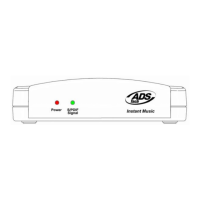
ADS Instant Music
Quick Start
Revision 070717
Guide for hardware and software installation and
basic use in Microsoft Windows.
Some procedural details will vary depending on your Windows version.
Section 1 – Hardware installation and configuration
1) Connect it up.
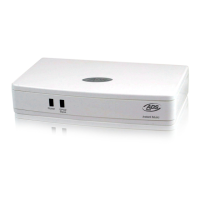
a) Connect the output on your source (LP preamp, power amp, stereo receiver etc.) to the L/R
inputs on the back of the Instant Music. If your source has an optical digital output you can use
that to connect to the Instant Music.
If your source does not have a set of RCA outputs (boom boxes, some shelf systems with only speaker-wire out) then
you can use an adapter to connect from the headphone jack to the L/R in on the back of the Instant Music.
b) Run a USB cable from the USB port on the back of the Instant Music to an available USB port on
your PC.
c) Windows will detect that new hardware has been connected to the PC. If you receive a “Found
New Hardware Wizard” have Windows search
automatically for the appropriate drivers.
Drivers for USB Audio are built into every
current Windows version.
Depending on your own Windows Installation, you may
be asked to provide the Windows CD. You must do this;
the only drivers available are part of the Windows
operating system and as such are legal property of
Microsoft Corporation and cannot be distributed outside
of the Windows CD.
2) Confirm proper driver installation.
a) Right-click “Computer” and select “Properties.”
b) Click Device Manager on the side pane.
In
Windows 2K/XP, click the Hardware tab first, then click
the “Device Manager” button.
c) Locate “USB Audio Device” under the “Sound,
video and game controllers” category.
Assuming you have no other USB Sound
devices connected to your system, that is the
Instant Music.
Question and Answer IconNeed help?

Do you have a question about the ADS Technologies ADS INSTANT MUSIC and is the answer not in the manual?

Summary

Hardware Installation and Configuration

Connect Hardware

Connect audio sources and USB cable to the Instant Music device.

Confirm Driver Installation

Verify that the USB audio drivers are correctly installed in Windows Device Manager.

Software Installation

Install Software

Insert the software CD into the drive and launch the installation routine.

Configure Audio Devices

Configure Windows Sound settings for correct input and playback devices.

Recording Your First CD

Initial Program Setup

Set recording folder, check track detection sensitivity, and adjust audio levels.

Start Recording Process

Begin recording audio, using the record button and optional wizards.

Track Detection and Adjustment

Detect and adjust CD track splits using drag handles in the editing interface.

Name Your Recording

Add CD Text information for artist, album, and track names for playback display.

Finishing Your Project

Burn Audio CD

Select the option to burn an audio CD from the project's tracks.

Set CD Burn Options

Set CD burner, speed, and CD Text options before proceeding with the burn.

ADS Technologies ADS INSTANT MUSIC Specifications

General IconGeneral
BrandADS Technologies
ModelADS INSTANT MUSIC
CategorySoftware
LanguageEnglish

Related product manuals