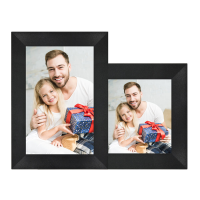
This document describes the JW10 10.1-inch WiFi Cloud Photo Frame, a device designed for displaying photos and videos, with features for sharing and managing content.
Function Description
The JW10 is a digital photo frame that connects to Wi-Fi, allowing users to display photos and videos from various sources. It is primarily controlled via the "Uhale Photo" app, which facilitates sharing content with the frame and managing its settings. The frame can be used to display personal memories, connect with friends and family by sharing photos, and even serve as a wall-mounted display. It supports both photo and video playback, with options for slideshows and various display settings.
Important Technical Specifications
- Display: 10.1-inch IPS touch screen.
- Connectivity: Wi-Fi (supports 2.4GHz and 5GHz networks).
- Storage: Supports external storage via Mini USB and TF Card.
- Power: DC input.
- Controls: Power on/off button.
- Mounting: Wall-mounted hole.
Usage Features
Installation and Setup:
- Stand Installation: The frame comes with a stand that needs to be screwed in for tabletop use.
- Power Connection: Connect the power cable to the frame.
- Initial Setup: Upon first use, the frame guides the user through a "Quick start guide" to set up the frame, including selecting a language, connecting to Wi-Fi, setting time zone and date, and updating the latest version if available.
- Location Entry: Users can enter their home, bedroom, or workspace location.
Uhale Photo App:
- Download: The "Uhale Photo" app is available on the App Store (iOS) and Google Play (Android). Users can download it by scanning a QR code provided in the manual.
- Account Creation: Users need to create an account to use the app.
- Connecting to the Frame: The app connects to the frame by scanning a QR code or entering an SN code displayed on the frame. This allows multiple users to connect to the same frame.
- Sharing Content:
- Photos/Videos: Users can upload photos and videos from their smartphone to the frame through the app.
- Sharing Options: Content can be shared individually or in batches.
- Editing Options: Before sharing, users can select pictures (up to 50 pictures at a time), edit picture focus areas and names, select video (only one video can be selected, 30 seconds length video), edit video length and naming.
- History: The app keeps a history of sent content.
- Deleting Content: Users can delete local history data and frame photos from the app.
- Resending Content: Option to resend photos to other frames.
Frame Settings (Accessible via the frame's touch screen):
- My Frame:
- Frame Name: Set/change the name of the frame. The frame name is also displayed in connected mobile devices and the list of connected photo frames in the app.
- Frame Location: Set/change the location of the photo frame. This location is displayed in the list of connected photo frames of your friends and family, helping to identify multiple frames.
- Language: Sets the language throughout your frame.
- Time Zone: Sets the time zone that should be used on your frame.
- Automatic Date and Time: Use network-provided time.
- Set Date/Time: Manually adjust date and time if automatic time is turned off.
- Enable and Disable the 24-hour Clock.
- Manage Photos:
- Memory Usage: Shows the number of photos stored in the frame and the storage space occupied/remaining.
- Show/Hide Photos: Select photos to hide by tapping them. Hidden photos will not be deleted from the frame and can be re-displayed at any time. Users can view only the hidden photos or the displayed photos.
- Favorite Photos: Click to enter the favorite photos album.
- Delete Photos: Select photos to permanently delete from the frame by tapping them.
- Import Photos: Allows importing photos from an external storage device (e.g., a microSD card) to the frame. Users can select photos to be imported into the frame.
- Export Photos: Allows exporting photos from the photo frame to an external storage device (e.g., a microSD card). Users can select photos to be exported from the photo frame.
- Manage Account: Add a new authorized account, tap the device share button, and then share the displayed SN code and QR code in a way you prefer.
- Remove an Account: Once an account is removed from the list, it will not be able to share photos to the photo frame. Users can delete all photos associated with an account, only delete the account (not the shared photos), or delete the account and its shared photos.
- Display Settings:
- Brightness Level: Adjust the screen brightness level.
- Ambient Clock: When enabled, a clock will be displayed when the photo frame is on sleeping mode.
- Sleep Mode: When sleep mode is on, the screen is turned off during a specific time to reduce energy consumption. The default setting is to turn off the screen at 20:00 and turn it back on at 08:00AM. This can be changed by setting your preferred sleep mode start/end time. Photos can still be received when the sleep mode is on.
- Show Weather & Time: Enable and disable the weather and time. When enabled, the weather and time are displayed on the home page, and when disabled, they are not displayed.
- Set Weather: View weather specific information and search to switch to other cities.
- Temperature Unit: Enable and disable the temperature unit. When enabled, the weather and time are displayed on the home page, and when disabled, they are not displayed.
- Photo Settings:
- Timer: Set the photo display time interval.
- Show Caption: Set whether to display the photo description sent by the friend with the photo. Select to display the photo description. When unchecked, the photo description is hidden.
- Fill Frame: Set the default photo frame settings. When checked, the photo will fill the device screen. When unchecked, the photo will fit to the device screen (blur bands will fill the edges).
- Slideshow: Provide above 4 slideshow effects. Users can set their preferred photo display mode.
- Photo Display Order: Set the order of photo display. Options include: by date (chronological order), by user (display by preference), or random.
- Video Autoplay:
- Video related settings: When turned on, video will be automatically played; when turned off, video will be paused.
- Playback Audio: When turned on, the video will be muted; when turned off, the video will be played with preset volume.
- Video Volume Setting: Adjust the video volume of the photo frame.
- Playback Mode: Users can choose repeat all mode or single repeat mode.
- Notifications: Adjust the notification volume of the photo frame.
- Backup and Restore:
- Backup Frame to Micro SD Card: Tap to make a backup of your photos, friends, and settings. The time of latest successful backup will be displayed. (Any existing backup on the SD card will be overwritten.)
- Restore from Backup: Before attempting to restore your frame, start by confirming that your backup is up-to-date. If you wish to restore a backup on a frame that has already been setup, then you must first reset the frame. This is done by pressing the "Reset frame" button. This will delete all data on the frame and reset the frame to its setup screen. On the setup screen, users can select the "Restore from backup" button which will restore your frame from the backup. If the "Restore from backup" button isn't visible, then confirm that the SD card is correctly mounted.
- Reset Frame: Removes all data from your frame. This will permanently remove all your photos, friends/connections, and settings.
- Wi-Fi Settings:
- Set the Wi-Fi connection: Display Wi-Fi details, such as Wi-Fi name, Wi-Fi strength, Wi-Fi status, etc.
- Add a hidden Wi-Fi manually.
- Help: Quick setup that pops up when you start the photo frame for the first time.
- FAQ: Provides answers to common questions to solve problems quickly.
- Privacy Agreement: Displays the content of the privacy agreement.
- About:
- Software Version Update: Check the photo frame software version update.
- System Version Update: Display Android system version information.
- Mac Address: Display the Mac address of the photo frame.
Maintenance Features
- Software Updates: The device supports software version updates, which can be checked and applied through the "About" section in settings.
- Backup and Restore: Users can back up their frame's data (photos, friends, settings) to a Micro SD card and restore it later. This is useful for data protection and for resetting the frame while preserving content.
- Troubleshooting (FAQ): The manual includes a FAQ section to help users resolve common issues, such as problems with photo display, Wi-Fi connection, account management, and device settings.
- Cleaning: While not explicitly detailed, the IPS touch screen would typically require gentle cleaning with a soft, lint-free cloth.
- Account Management: The ability to add, remove, and manage authorized accounts helps maintain control over who can share content with the frame.
- Memory Management: Features like showing memory usage, deleting photos, and importing/exporting photos help users manage the frame's storage effectively.

 Need help?
 General

 To Next Page