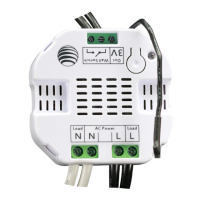
The electrical installation of your Home Energy Meter (HEM) is now complete. You must now wirelessly link it to your
Z-Wave network.
1. Put your primary Z-Wave controller, usually a gateway or hub, into inclusion mode. If you are not sure how to do
this, please refer to your controller’s user manual.
2. Press the Action Button on your HEM. If it has been successfully linked to your network, its LED will remain
illuminated. If the linking was unsuccessful, your HEM’s LED will continue to blink.
The installation of your Home Energy Meter is now complete. The next step is to set up your Home Energy Meter
within the interface of your primary Z-Wave controller. This will allow you to visualize and utilize the energy
consumption data that your meter collects.
Your Home Energy Meter can report wattage energy usage or KWH energy usage to your primary controller. As
each controller is different, please refer to your controller’s user manual for further information on monitoring and
visualizing this data. The Z-Wave commands supporting energy monitoring are the Meter Command Classes.
Advanced functions.
Removing your meter from a Z-Wave network.
Your Home Energy Meter (HEM) can be removed from your Z-Wave network at any time. You’ll need to use your Z-
Wave network’s primary to do this.
1. Put your main controller into its device removal mode. If you are unsure how to do this, please refer to your
controller’s user manual.
2. Press the Action Button on your HEM. If it has been successfully removed from your network, its LED will blink. If
the removal was unsuccessful, its LED will be solid and it will be then repeated again.
Resetting your Home Energy Meter.
Your Home Energy Meter can be reset to default factory settings with ease.
1. Press and hold the Action Button for 10 seconds.
2. If successful, the LED on the HEM should begin to blink slowly.
Associating your Home Energy Meter to Report Automatically.
Your Home Energy Meter can send Wattage and KWH usage reports to associated devices. To enable this, please
refer to your controller’s manual on how to configure settings on Z-Wave devices linked to your controller. Initially, the
meter is set up to report Watt and KWH reports.
Some gateways/controllers will automatically configure devices enabling you to take full advantage of the Home
Energy Meter’s features. Others may not perform any automatic configuration. In such a case you can choose to
manually configure your meter to output the data that you wish to view.
Setting automatic report flags.
Parameter 101-103 [4 byte dec] can be configured through your gateway in case that the default settings of your
meter are not what you desire.
You may also download the configuration sheet that can be used to easily choose and automatically calculate the
value that you are looking for:
Download Excel HEM Calculator Here
-Requirements: Excel Program


 To Next Page
 Loading...