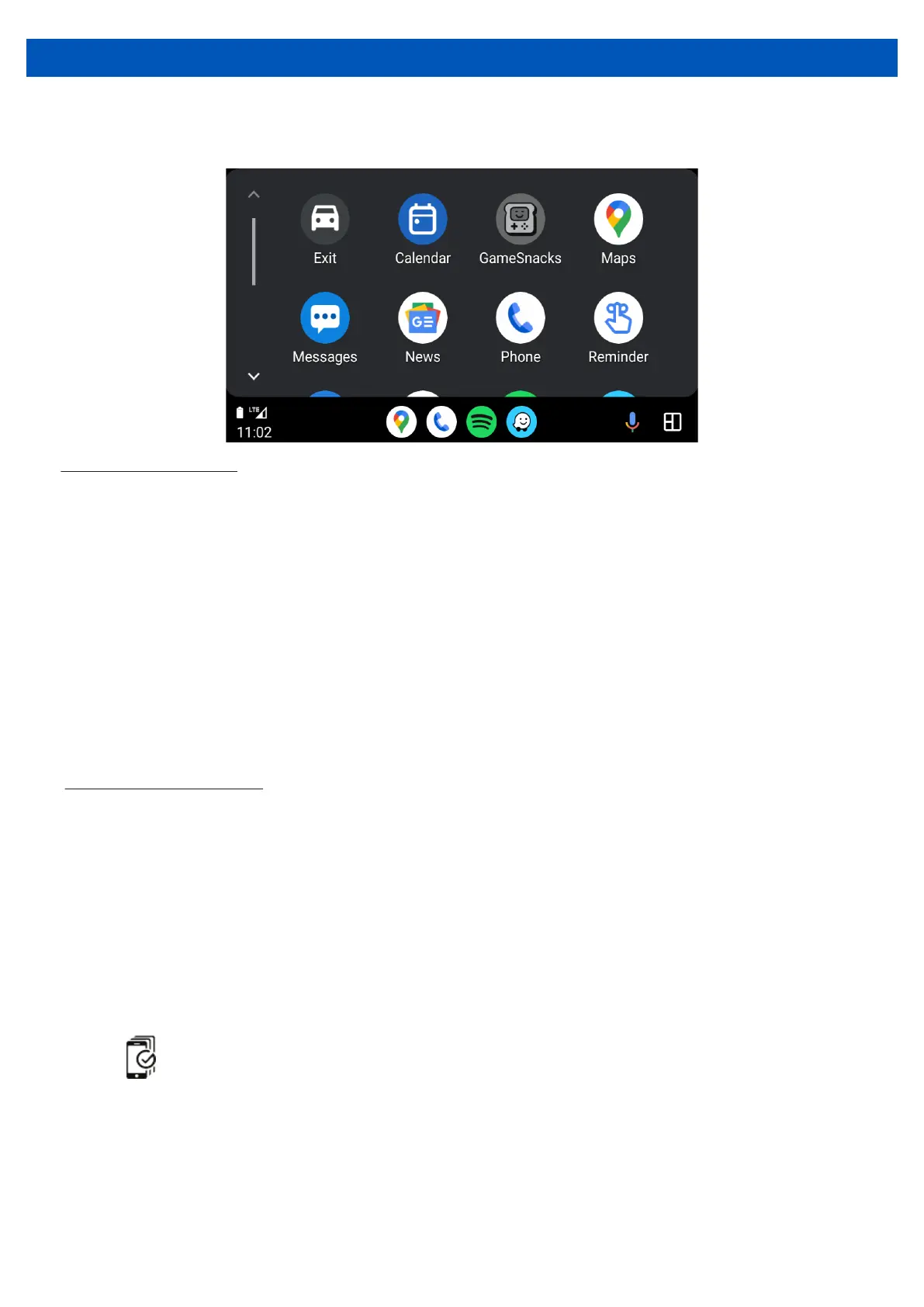
Wired & Wireless Android Auto™ Operation
Wired connection
1. Connect an Android Auto™ compatible device to this unit via USB1 (CP/AA/USB Media)
2. Follow on-screen instructions that may appear on your device and head unit
3. Press the Android Auto icon to initiate a connection. The Android Auto home screen
appears
4. Once an initial wired connection has been made, connection via the USB connection is
no longer required and wireless connection will be automatic.
Wireless connection
1. Before using Android Auto wirelessly, turn on the Bluetooth and WiFi function on the
compatible device.
2. Navigate to the Bluetooth settings on your compatible device and select AM7X for
pairing
3. A pair message and a pairing request code may appear on your compatible device and
head unit. Click allow to accept
4. Android Auto automatically displays on screen, if not press the home button,
press icon and press the Android Auto icon
5. Follow on-screen instructions that may appear on your device and head unit
16
NOTE: We recommended that the wired connection method be used for new devices.
The park brake needs to be connected for Android Auto to function.


 To Next Page