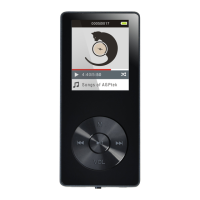
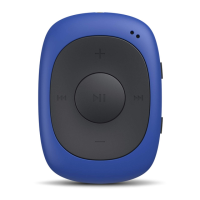
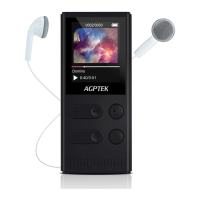
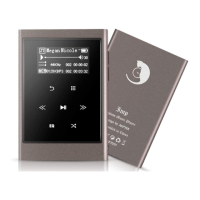
Choose “Start Voice Recording" and tap button to start voice recording, press
again to pause. Tap the button and choose “yes" to save the recording file. Find
the saved recordings in Recordings >Recordings library.
“Storage". Choose to store your recordings in internal or external memory.
Confirm your selection with button .
Record Format. Choose the record format between MP3/WAV.
Record settings.
- Set rec bitrate. Select the quality of recording. The higher the number, the better
the recording quality and the larger the recording file.
- Track AVR mode: When you start recording under AVR mode, the recorder will
start recording automatically, if sound is detected and stop recording when no sound
detected.
Tools
Find "Tools"on main interface, tap button to access to its function, including
Video/Pictures/Alarm/Calendar/Stopwatch/Settings.
Video
⎻ Tap button to watch videos, tap to go to previous/next video or hold
down to fast backward/forward.
⎻ When it’s on video playing interface,tap button to access to its submenu,
including: Repeat, Delete Video. Set according to your preference.
Note:
If the format of your video is not supported, you can visit
https://www.agptek.com/support/download.html#drivers-and-tool to download
video conversion tool(Video_Format_Converter). Then convert the format of your
video and enjoy video.
Pictures.
⎻ Tap to view pictures, tap to go to previous/next picture.
⎻ When it’s on picture viewing interface, tap to access to its submenu, including:
Slideshow settings, Delete picture and Update playlist.
Note:
The device only supports pictures in JPG, BMP and GIF format.


 To Next Page