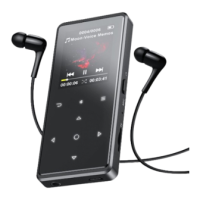
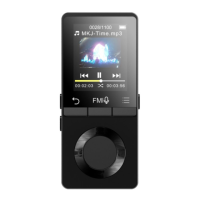
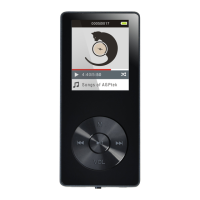
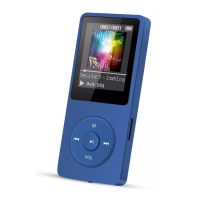
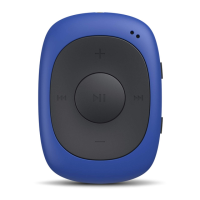
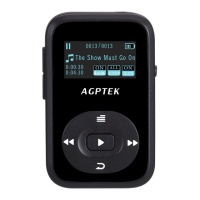
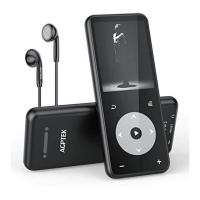
When there is a Recordings icon in the main interface, click button
to access to its function. The related list will show, including:
Start voice recording, Storage, Recordings library, Record format,
- Click button to start recording, click it again to
- Click the button and choose yes to save the recording.
- Find the saved recordings in Recordings >Recordings library.
Click the button M/ to select from all the recordings you have
saved. Then click the button to play the recordings.
Record format: MP3/WAV/ACT Rec
Record settings > set rec bitrate/VOR(Voice Operated
Recording)/set recording scene
When there is a EBook icon in the main interface, click button


 To Next Page