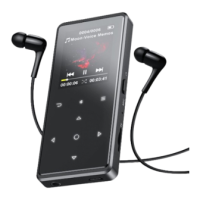
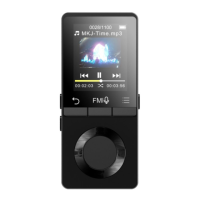
Auto tune/save to preset/Clear preset
- “Auto tune”. Search stations automatically. You can see the searched stations in “Presets”.
While is on radio playing interface, click / to switch among preset stations, click /
button to adjust the frequency slightly. Press to pause/resume the radio.
- “Save to preset”. Save the station you are listening to “Presets” list.
- “Clear preset”. Click “Clear preset” to enter the Presets, choose the station you want to clear,
then click and choose “Yes” to clear the preset station.
Tuner Region. If you are in Japan, please select Japan Band. For other regions, please select
Common Band, otherwise some FM broadcasts will not be received.
Start FM Recording. Click button to pause/continue FM recording, click and select
“Yes” to save the recording file.
FM Library. Find the radio recordings in FM radio > FM Library. The radio recordings will also
be found in Recordings > Recordings library or Folder>RECORD
1. When using the radio function for the first time or when there is no station, the station can
be added by [Station list], [Manual Tune], [Auto Tune].
2. If you can't search for an FM radio station, or if the FM sound quality is not good, please try
adjusting the position of the wired headset or antenna. In some remote places, the FM
signal may be poor. Please contact the local staff working in FM broadcasting to confirm
whether the FM signal is covered or not.
3. While it’s on radio playing interface, click and choose “Yes” to turn off the FM radio.
4. FM radio supports listening with the wired earphones connection/Bluetooth connecti
1) Wired earphones listening: Before turning on the FM radio, you should
connect to the wired earphones for listening;
2) Bluetooth connection listening: You can use the wired earphones
or antenna to receive the signal, and then connect Bluetooth devices
Choose “Start voice recording” and press button to start voice recording, press again to
pause. Press the button and choose “Yes” to save the recording file.
Recordings library. Find the saved recordings in Recordings >Recordings library.
Save location. Choose to store your recordings in internal or external memory. Confirm your
Note: Save location function is only available when SD card inserted.
Record Format. Choose the record format between MP3 Rec/WAV Rec.
Set REC bitrate. Choose to set REC bitrate,the higher bitrate, the better of the sound quality,
and recording files larger as well
Track AVR mode. When you start recording under AVR mode, the recorder will start recording
automatically if sound is detected and stop recording when no sound detected.
Language. Choose system language


 To Next Page