Home Screen
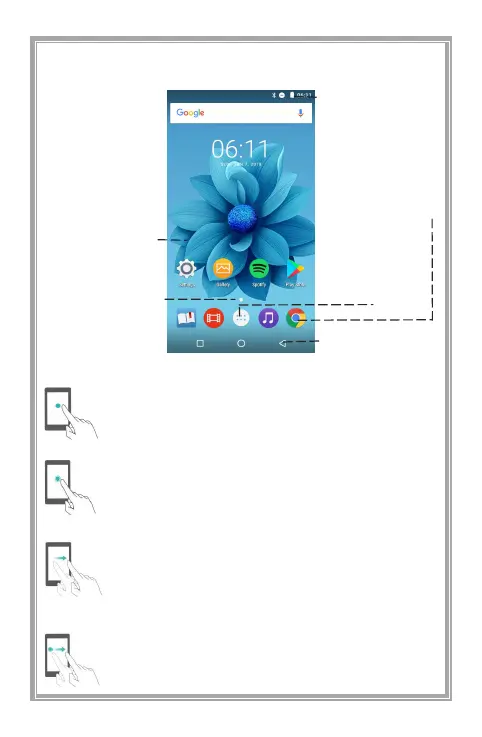
Recognize the home screen
Basic Operation Of Screen
Status Bar:
Display
notifications and
status icons
Display Area:
Place APP
icons, desktop
files and
window
widgets
Screen Switch
Indicator Bar:
Display the
current screen
position
Shortcut Bar:
Place frequently
used Apps
Tap: touch the target once. Eg: tap to confirm
selection or open the APP.
Long Press: touch the target for more than 2
seconds. Eg: long press the blank area on
home screen to enter the editing state of
home screen.
Swipe: swipe your finger on screen. Eg:
swiping up and down or left and right on the
screen, allows you to scroll through files,
navigate to other home pages, or perform
other actions.
Drag: Long press the target and move it to
another location on the screen. Eg: on the
home screen, drag a window widget or icon to
any location.


 To Next Page