System Operation
4.6.2 Clearing Alarm History
At significant points such as during preventative maintenance, it may be desired to clear the alarm history.
Warning. Alarm history is collected because it can be very helpful in identifying
a problem with the system. The alarm history should never be arbitrarily cleared
by an operator. Only AAST should clear the alarm history after all the alarms
stored in history have been recorded.
To clear the alarm history, perform the following steps:
1. Hold the Esc button until the main screen is displayed.
2. Press Prg and enter the password (0004). Press Enter.
3. Press Down until the cursor is over “System” and press Enter.
4. Press Down until the cursor is over “Initialization” and press Enter.
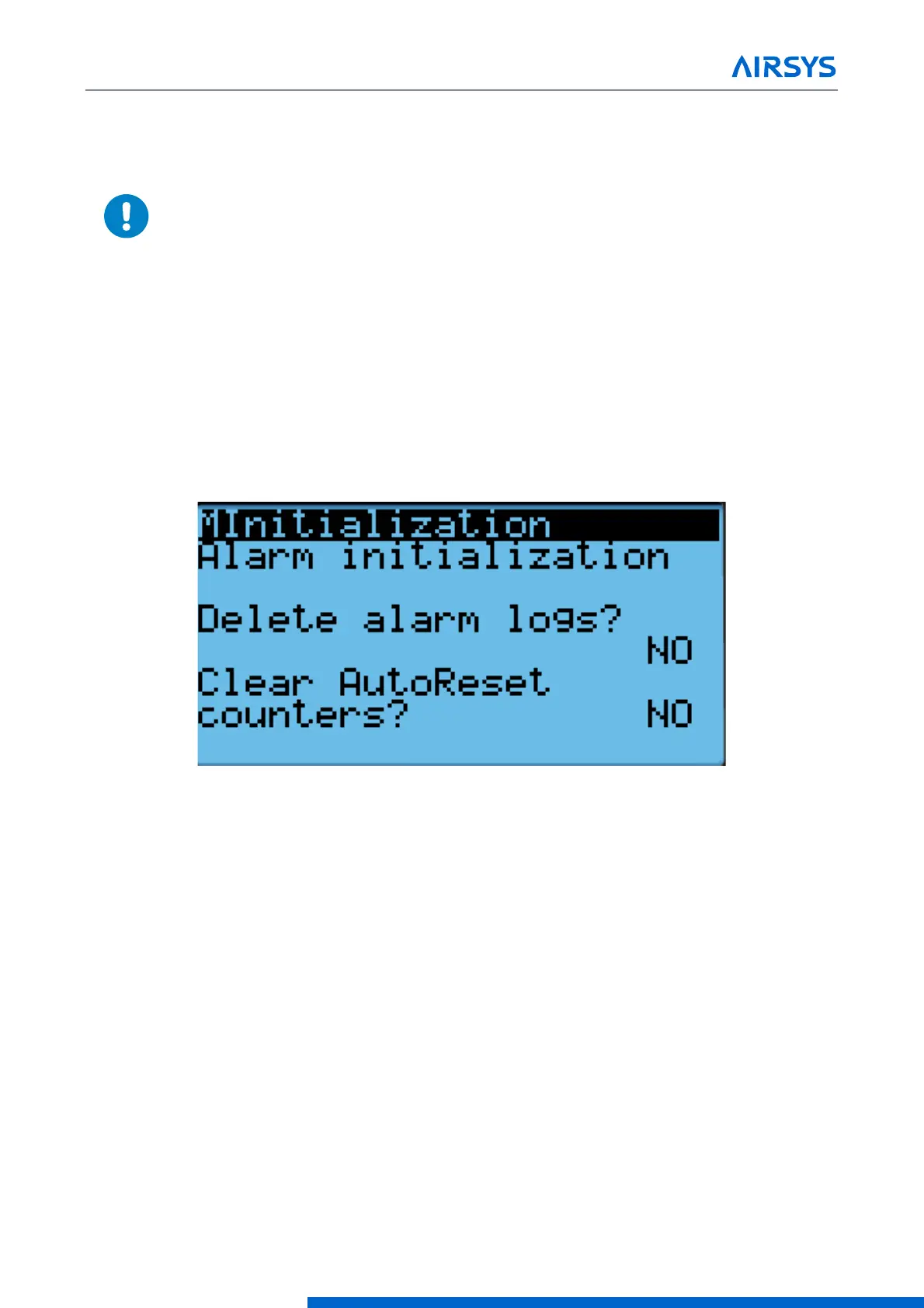
5. Press Enter until the cursor is over “Delete Alarm Logs”.
6. Press Up or Down until the “no” becomes “yes” and press Enter.
Figure 4-11 Clear Alarm History
4.7 Exporting System History and Alarm Logs
The system logs and alarm history can be downloaded to a personal computer through a USB connection from
the controller to the computer. A micro USB to USB cable is required.
4.7.1 Exporting System Logs
1. Hold the Alarm and Enter buttons until the hardware configuration menu is displayed.
2. Press Down until the arrow is next to “Diagnostics” and press Enter.
3. The screen should display “System Log”. Press Enter.
4. Press Enter and wait until “Saving successful” is displayed. Press Esc until the hardware configuration
menu is displayed.
5. Press Up or Down until the arrow is next to “Logger” and press Enter.
6. The arrow should be next to “Export Logs”. Press Enter.
7. Press Down until the arrow is next to “NewLog” and press Enter.



 To Next Page