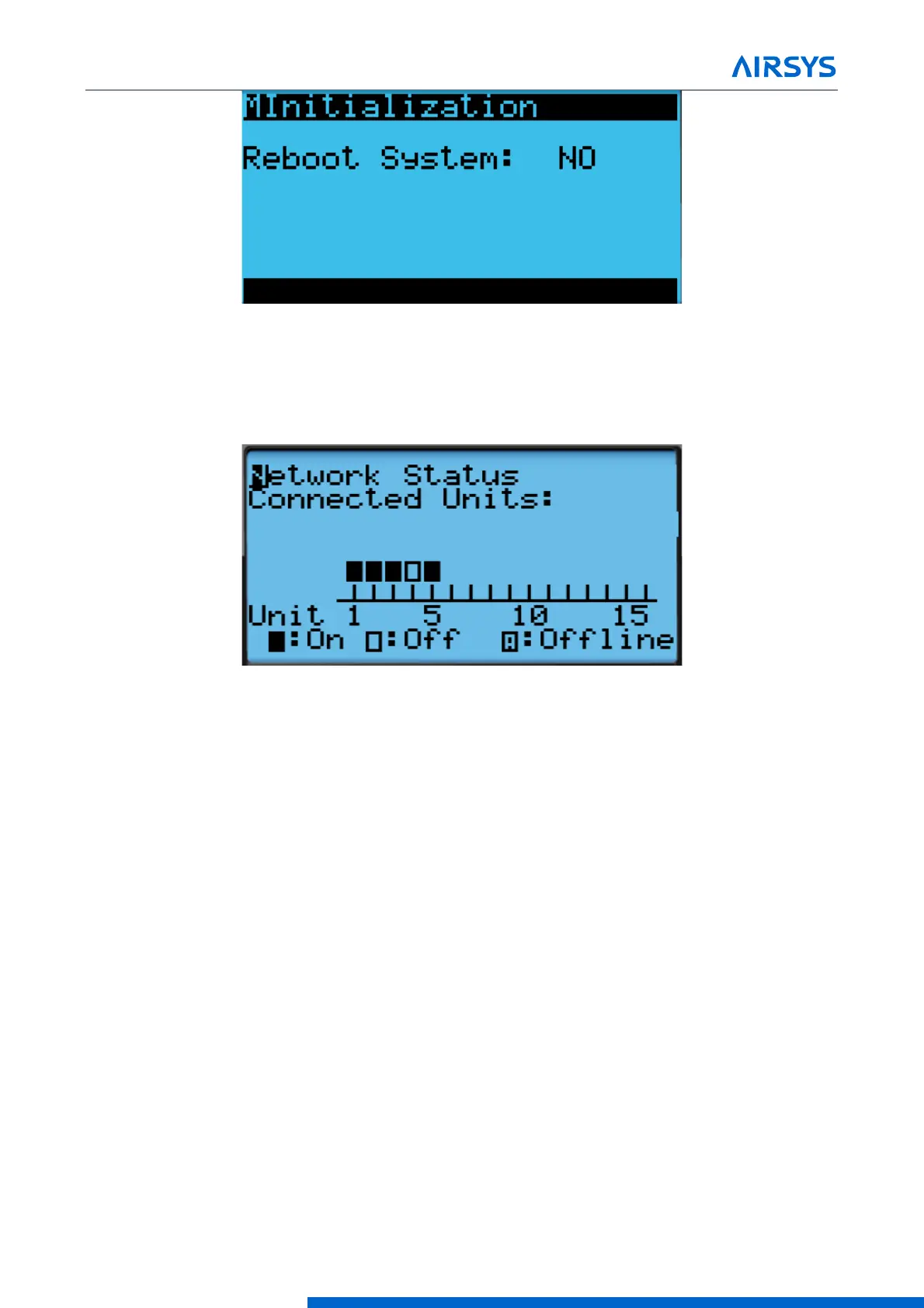
System Update
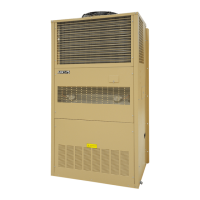
6. Press Down until an info. icon (i) is displayed in the bottom right corner and press Enter.
7. If the controller has re-established communication with the units, ON or OFF status should be displayed
for every unit.
Figure 7-9 Network Status
Step 6: (Optional) Update HTTP files
Note: Updated webpages may change the look of the HTML page and may include more information not
previously available. Updating will not affect system operation.
8. Use a built-in FTP client or an FTP application such as FileZilla (recommended open source client) to
establish connection to the IP of the controller.
•
Depending on network conditions and how many connection the controller has, the Time Out setting
may need to be adjusted to 40 seconds or more. To change timeout in Filezilla, go to Edit->Setting-
>Connection.
•
Leave Username and password blank. Use port 21 if prompted.
9. Replace/overwrite HTTP folder under root directory with new HTTP folder included in the update file. The
transfer may take up to 10 minutes.
10. Disconnect FTP server. The browser cache may need to be cleared for the webpage to display the correct
version.



 To Next Page