System Update
Step 3: Upgrade Controller (ASMUC)
1. Select “Upgrade” tab on the left.
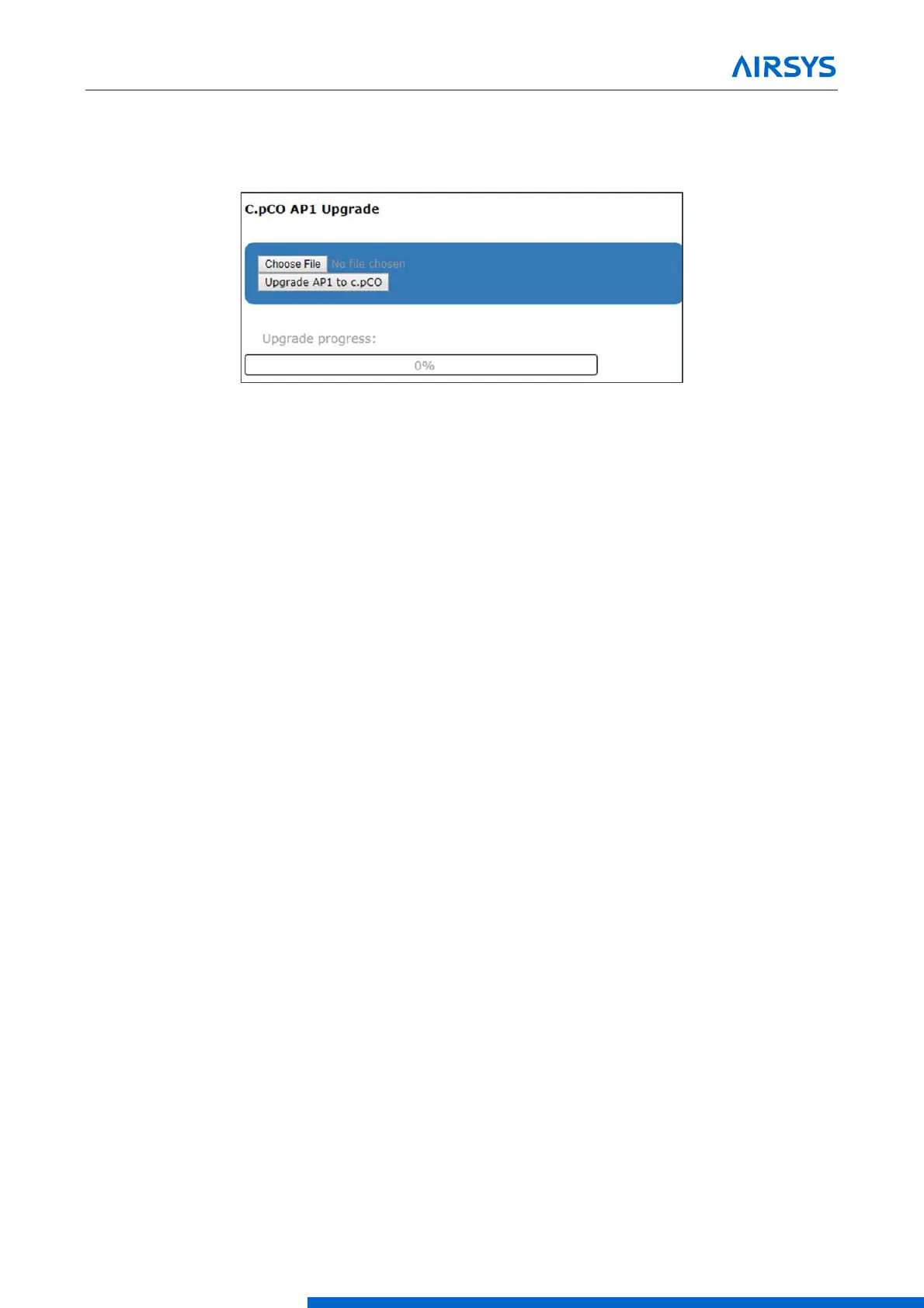
2. Click “Choose File” under “C.pCO AP1 Upgrade” and select the previously downloaded AP1 file.
Figure 7-8 File Selection Screen
3. Click “Upgrade AP1 to c.pCO”, the upgrade process will start.
4. Once the upgrade is complete, the status will display “Upload successful”. This may take up to 5 minutes.
Step 4: Reload Saved Parameters on Controller
1. Navigate to the “Controller Interface” tab.
2. Press Up and Down together.
3. In the “Master/HVAC select” screen, select “Master Controller” and press Enter.
4. Press Prg and enter the default password (0004). Press Enter.
5. Press Up or Down to reach “Control Config” and press Enter.
6. Press Enter at “Network”.
7. Re-enter the saved information:
•
Total HVAC and Total Zones.
•
IP address of all connected HVAC units.
•
Zone assignment, which units are assigned to which zones.
•
Model number of connected units.
8. Re-enter any other settings that have been manually saved.
Step 5: Restore and Verify Controller Operation
1. Hold Esc until the main screen is displayed.
2. Press Prg and enter the password (0004). Press Enter
3. Select System and press Enter.
4. Press Down until the cursor is over “Initialization” and press Enter.
5. Press Down until screen shows “Reboot System”.



 To Next Page